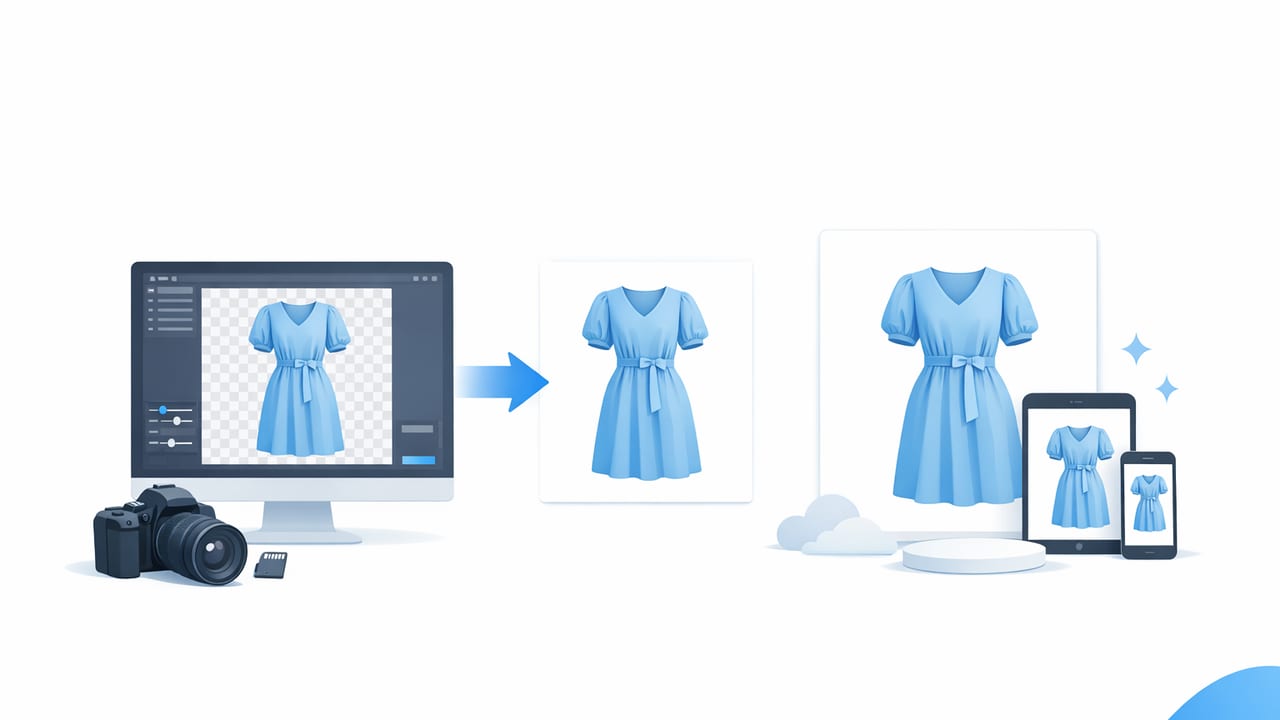
A clean white background is one of the fastest ways to make clothing photos look consistent, trustworthy, and “marketplace-ready.” Whether you’re a fashion reseller photographing one item at a time or a small brand building a catalog, using a white background generator for clothing pictures helps you standardize your images without needing a full studio.
This guide explains when white backgrounds work best, how to generate them, what settings to aim for, and the common mistakes that make whites look gray, blue, or harsh. The goal is simple: clothing that looks accurate, cleanly separated, and easy for buyers to evaluate at a glance.
Why white backgrounds work so well for clothing
White backgrounds reduce visual noise. That matters because shoppers scan fast—especially on mobile. A consistent white background can:
- Increase perceived professionalism (your listing looks more like a store listing).
- Improve comparison shopping (buyers can compare color, cut, and silhouette without distractions).
- Highlight garment details like texture, stitching, and shape.
- Support platform consistency when marketplaces or your own storefront show items in grids.
When the background is consistent, the buyer’s attention goes where you want it: fit, fabric, and condition.
What a “white background generator” actually does
A white background generator for clothing pictures typically combines two steps:
- Subject selection: separating the garment from its surroundings (often called background removal).
- Background replacement: placing the garment onto a pure white (or near-white) canvas.
Some tools also refine edges (important for lace, fringe, fuzzy knits), reduce shadows, and correct color so your whites don’t shift toward gray or yellow.
Best use cases (and when you might skip pure white)
White backgrounds are excellent for:
- Front/back shots of tops, dresses, outerwear, pants
- Flat lays (especially folded items)
- On-hanger photos (when cleaned up properly)
- Catalog-style consistency across many listings
You might consider an alternative (light gray, lifestyle, or textured) for:
- Editorial brand storytelling images (not your main listing photo)
- Very light/white garments that can “disappear” against a pure white background
- Items where texture needs contrast (e.g., sheer fabrics) — you can still use white, but you’ll need careful edge control and subtle shadowing
Quick workflow: generate a clean white background in 10 minutes
This is a simple, repeatable process that works whether you use a phone app, desktop software, or an online editor.
Step 1: Start with the best original photo you can
- Light evenly: face a window or use two lamps on both sides.
- Keep the camera level: reduce distortion (especially for pants and dresses).
- Leave space around the garment: tools separate edges more cleanly when the background isn’t crowded.
- Avoid mixed lighting: daylight + warm indoor bulbs can create color casts.
Step 2: Remove the background
Use your chosen tool to isolate the garment. Before you accept the cutout, zoom in and inspect:
- Collars, straps, and sleeve edges
- Lace, crochet, fringe, faux fur
- Dark garments on dark backgrounds (these need extra care)
Step 3: Replace with true white (and keep natural-looking edges)
Set the new background to white. If the garment looks “sticker-like,” add a subtle, realistic shadow (very light, soft edge). This can help white garments stand out too.
Step 4: Color-check the item
White backgrounds can exaggerate color shifts. Compare the photo to the item in real life:
- If the garment looks too warm (yellow), cool the temperature slightly.
- If it looks too blue, warm it slightly.
- Don’t over-saturate; aim for accuracy.
Step 5: Export using marketplace-friendly settings
Save a high-quality image without making file sizes huge. A clear, crisp export reduces blur on textural fabrics.
Recommended photo specs (simple and practical)
Different platforms vary, but these guidelines are safe for most clothing listings.
| Setting | Recommendation | Why it matters |
|---|---|---|
| Image size | At least 1500 px on the longest side | Looks sharp on zoom and modern displays |
| Background color | #FFFFFF (true white) or near-white | Consistent grid presentation |
| File type | JPG for photos, PNG if you need transparency | JPG is smaller; PNG preserves edges better in some cases |
| Compression | Medium-high quality (avoid “tiny” files) | Prevents crunchy fabric texture and halos |
| Lighting | Even, soft light | Improves edge detection and color accuracy |
The most common problems (and easy fixes)
1) The “halo” or outline around the garment
Cause: background removal leaves a faint edge from the old background.
Fix: refine the edge, slightly feather (very lightly), and avoid over-sharpening after the background change.
2) Whites look gray, beige, or blue
Cause: mixed lighting, incorrect white balance, or the editor didn’t apply true white.
Fix: set background to true white and adjust temperature/tint until the garment looks accurate.
3) Black clothes lose their edges
Cause: the original background was dark, so the tool can’t “see” the boundary.
Fix: re-shoot against a contrasting background (mid-tone wall or light sheet), or add more side lighting to create separation.
4) White clothes blend into the background
Cause: no contrast plus over-brightening.
Fix: keep a subtle shadow, reduce highlights slightly, and ensure edges are crisp (especially around hems and sleeves).
5) Fabric texture looks smeared
Cause: too much noise reduction, too much compression, or aggressive “beautify” settings.
Fix: export at higher quality and avoid heavy smoothing filters.
White background checklist for clothing listings
- Consistency: same crop style across your closet/catalog (similar zoom level)
- Accuracy: color matches real life; avoid extreme contrast
- Clean edges: no missing straps, clipped sleeves, or jagged hems
- Natural look: subtle shadow instead of a floating cutout (optional but helpful)
- Detail shots: include tags, flaws, texture, and close-ups separately
Batch workflow tip: make your process repeatable
If you photograph multiple items in one session, you’ll save time by keeping everything consistent:
- Photograph all items in the same spot and lighting.
- Do basic adjustments (straighten, crop) first.
- Then run background generation in batches.
- Finish with quick quality checks (edges + color).
This “assembly line” approach is often faster than fully editing one item at a time.
Optional: a simple naming system that keeps you organized
Not required, but it prevents lost photos and speeds up listing. Here’s a lightweight format:
brand_itemtype_color_size_view_number.jpg
example:
madewell_jeans_black_27_front_01.jpg
madewell_jeans_black_27_back_02.jpg
madewell_jeans_black_27_tag_03.jpg
FAQ: white background generator for clothing pictures
Should the background be pure white or slightly off-white?
Pure white is great for consistency. Slightly off-white can look softer, but make sure it still reads as “white” in marketplace grids. If you sell across platforms, true white is usually safest.
Is it better to shoot on white paper/sheet or generate white afterward?
Shooting on white can work, but it often produces wrinkles, gradients, and shadows that still need cleanup. Generating white afterward is usually more consistent—especially if your shooting space changes day to day.
Will buyers think a white background hides flaws?
A clean background doesn’t hide flaws by itself—missing detail shots does. Include close-ups of wear, tags, and any defects, and you’ll keep trust high.
What clothing styles are hardest for background generators?
Sheer fabrics, lace, fringe, faux fur, and very thin straps tend to need extra edge refinement. Good lighting and a clean original photo makes a big difference.
Closing thoughts
Using a white background generator for clothing pictures is less about “perfect editing” and more about repeatable clarity: crisp edges, accurate color, consistent crops, and a distraction-free presentation that helps shoppers focus on the garment.
If you’re looking for a simple iOS workflow that includes white backgrounds alongside apparel-specific tools (like quick cleanup and common listing styles), Clothing Studio is one option to explore after you’ve nailed the basics above.
