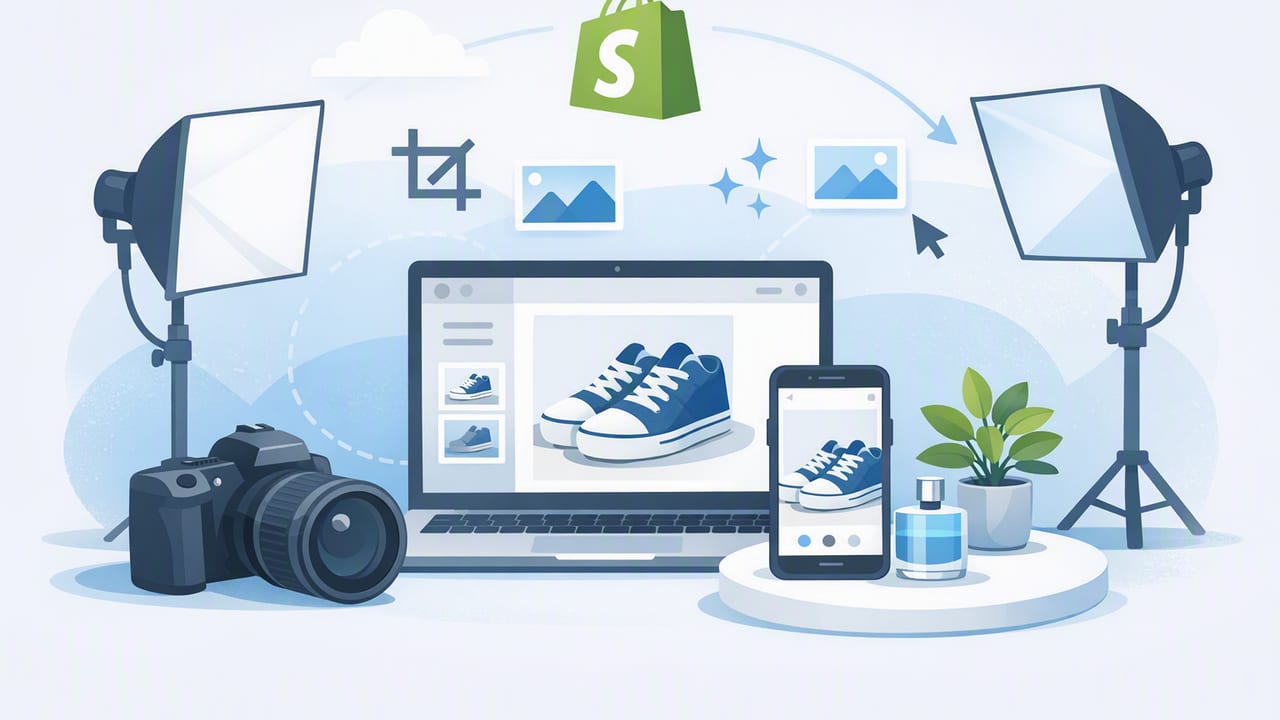
Great product photos do more than “look nice.” For clothing, they reduce uncertainty: fabric texture, fit, color accuracy, and small details like seams or stretch. When shoppers can clearly see what they’re buying, they hesitate less, return less, and trust your store more.
This guide focuses on shopify product photos specifically for apparel—what to shoot, how to keep everything consistent, and how to edit quickly without making it complicated.
What makes clothing photos different (and why Shopify shoppers are picky)
Clothing is hard to photograph because it’s dimensional, reflective in places, and easily wrinkled. Unlike many products, apparel needs to communicate:
- Fit and shape (how it sits on a body)
- Texture and weight (knit vs. woven, thick vs. airy)
- True color (especially for blacks, whites, and saturated tones)
- Condition (lint, pilling, loose threads, minor flaws)
Consistency is a conversion tactic: when every product image follows the same visual rules, shoppers spend less effort “decoding” each listing.
A simple shot list that works for most clothing catalogs
You don’t need 12 angles for every item. You need the right angles, repeated consistently across the catalog. Here’s a practical set that works for tops, bottoms, dresses, and outerwear:
Core images (recommended minimum)
- Main image: front view (on-model, ghost mannequin, hanger, or flat lay)
- Back view: full garment visible
- Detail close-up: fabric texture, print, knit, or embroidery
- Feature detail: zipper, buttons, collar, cuffs, pockets, waistband, tags
Optional images that often increase confidence
- Measurement proof: tape measure on waist/inseam or pit-to-pit
- Any flaw close-up: transparent and sharp (builds trust)
- Fit reference: on-model or standardized mannequin
Tip: If you sell a mix of styles (vintage, luxury, basics), use the same shot list but allow one “brand moment” image (like a styled on-model shot) while keeping the first image consistent and clean.
Choose your presentation style: flat lay, hanger, mannequin, or model
Pick a default style and stick to it. Mixing styles within a collection can look messy unless it’s done intentionally.
Quick comparison
| Style | Best for | Watch-outs |
|---|---|---|
| Flat lay (folded or arranged) | Casualwear, knits, tees, budget-friendly setup | Can hide shape/fit; keep edges crisp |
| On-hanger | Fast throughput, light items, resale workflows | Shoulders can look sloped; keep hanger consistent |
| Mannequin / ghost mannequin | Premium look, clear shape, “invisible model” feel | Needs clean lighting and careful alignment |
| On-model | Fit clarity, lifestyle branding, higher AOV | Harder to standardize; more time and cost |
If your goal is a polished catalog feel without full production, a ghost mannequin look often hits the sweet spot: it shows shape and neckline cleanly while keeping the focus on the garment.
Lighting and background: the “boring” part that sells
You can have a great camera and still get mediocre results if lighting is inconsistent. For Shopify apparel, the goal is simple: soft light, minimal shadows, accurate color.
A reliable setup (even in small spaces)
- Use bright, indirect light: near a window with a sheer curtain, or use a softbox.
- Pick one background plan: clean white, light gray, or a subtle warm tone.
- Control reflections: satin, leather, and sequins show hotspots—move the light source, don’t just “fix it in editing.”
- Keep the item off the wall: leaving some distance reduces harsh shadows.
Color tip: If you photograph at night under mixed bulbs, you may fight yellow/green color casts. Choose one light type and stick with it for your entire shoot.
Editing workflow: fast, consistent, and not overdone
The best editing makes shoppers focus on the garment, not the editing. Aim for consistency across the catalog—same crop, similar brightness, and true-to-life color.
Recommended edit order
- Choose the hero image (front view) and set your crop and framing standard.
- Correct exposure and white balance so whites look clean and blacks keep detail.
- Remove distractions: lint, dust, stray threads, hanger glare.
- Straighten and align: collars level, pants legs even, hems not tilted.
- Background cleanup: keep it consistent (white or uniform tone).
- Wrinkle reduction (light touch): reduce harsh creases without making fabric look plastic.
- Sharpen gently to bring back texture, especially after resizing.
Two common editing mistakes to avoid
- Over-smoothing: heavy wrinkle removal can erase fabric texture and make cotton look like spandex.
- Inconsistent whites: one product looks cool white, another looks cream—shoppers notice, even if they can’t explain it.
Shopify-friendly image specs (quality without slowing your store)
High-resolution images help shoppers zoom in, but oversized files slow down your site. A practical approach is: upload large enough for clarity, then optimize file size.
| Item | Practical recommendation | Why it matters |
|---|---|---|
| Image dimensions | 2048 px on the longest side (or higher if your theme benefits) | Sharp zoom without excessive upload size |
| Aspect ratio | Pick one (commonly 1:1 or 4:5) and standardize | Cleaner collection grids and consistent framing |
| File format | JPEG for photos; PNG only when you truly need transparency | JPEG usually keeps files smaller |
| File size | Often ~200–600 KB per image (varies by detail) | Faster load, better mobile experience |
Consistency tip: Crop every product so the garment occupies roughly the same percentage of the frame. Your store will instantly look more “brand-like,” even with a simple setup.
Image SEO basics: filenames and alt text that help shoppers (and search)
“SEO” for images doesn’t need to be complicated. It’s mostly about being clear and descriptive. Two places matter most: the filename and the alt text.
1) Naming files: a simple pattern
- Use lowercase
- Use hyphens
- Include brand/type/color (and a key detail if helpful)
Example filename:
madewell-denim-jacket-medium-wash-front.jpg2) Writing alt text: describe what’s actually visible
Alt text helps accessibility and can support search visibility. Keep it natural—avoid keyword stuffing. Here’s a simple format:
- What it is (type of garment)
- Color
- Angle (front/back/detail)
- Notable feature (if important)
Example HTML (for reference):
<img src="madewell-denim-jacket-medium-wash-front.jpg"
     alt="Medium wash denim jacket front view with button closure">
Where to include “Shopify product photos”: Use it in your internal documentation or blog posts like this one, but keep alt text focused on the product. Alt text should sound like a helpful description, not a marketing phrase.
A 15-minute quality check before you publish
Before uploading a batch, run through this quick checklist. It prevents the small issues that quietly reduce conversions.
- Color check: Compare the hero image to the actual item in similar lighting.
- Edge check: Sleeves, straps, and hems aren’t accidentally cropped.
- Background check: No gray patches, shadows, or inconsistent tones across products.
- Detail check: Texture is visible; images aren’t overly smoothed.
- Grid check: On the collection page, items align and look cohesive.
- Mobile check: Zoom works and important details are readable on a phone.
Common problems (and quick fixes)
Problem: Whites look dingy or yellow
Fix: Correct white balance first, then slightly raise highlights. Avoid pushing exposure so far that labels and seams lose detail.
Problem: Black clothing looks flat
Fix: Add gentle contrast and lift shadows carefully to reveal fabric texture. Use side lighting rather than blasting the front.
Problem: Wrinkles steal attention
Fix: Steam quickly before shooting. Then do light wrinkle reduction in editing—enough to clean up, not enough to erase realism.
Problem: Inconsistent crops across products
Fix: Create a cropping rule like “collar 10% from the top” or “waistband centered.” Apply it to every hero image.
Putting it all together: a repeatable workflow for Shopify clothing photos
If you want a simple routine you can repeat every week, follow this:
- Prep: lint roll, quick steam, check tags/strings.
- Shoot: use the same spot, same light, same distance.
- Select: pick the sharpest, most accurate frames.
- Edit: exposure/color → cleanup → background → light wrinkle reduction.
- Standardize: same aspect ratio, similar framing, consistent background.
- Optimize: reasonable file sizes, descriptive filenames, clear alt text.
- Publish and review: check your collection grid on mobile and desktop.
Done well, this approach produces Shopify product photos that feel cohesive, professional, and easy to shop—without turning your process into a full-time job.
Note: Some sellers use AI photo editors to speed up steps like background removal, subtle unwrinkling, or creating a clean mannequin-style look; apps like Clothing Studio are one option if you prefer editing on iOS.
