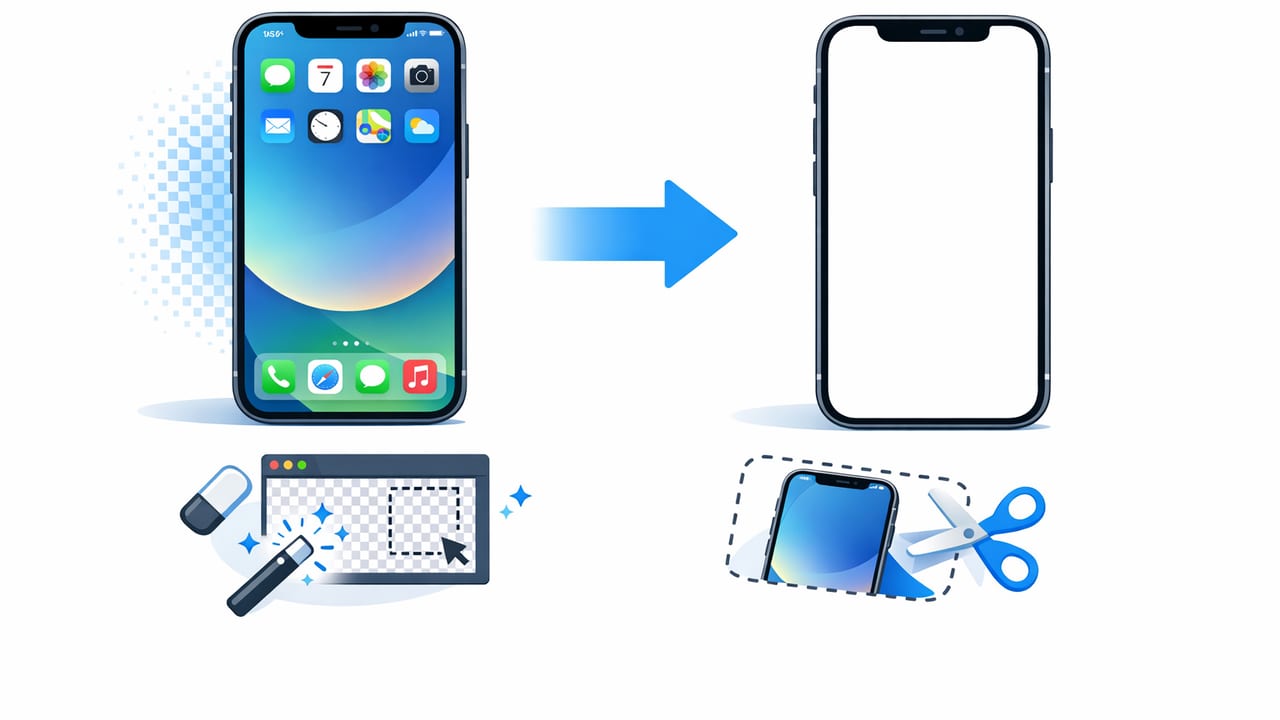
If you sell clothing online, your photos do more than “look nice”—they help buyers trust the condition, color, and shape of the item. A clean, distraction-free background makes your listings feel more consistent and professional, especially on marketplaces where shoppers scroll quickly. The good news: you can remove background on iPhone without a studio setup or complicated editing.
This guide walks through practical, reseller-friendly ways to remove background on iPhone, plus shooting tips that make the cutout cleaner, common mistakes (like halos and jagged edges), and a simple workflow you can repeat for every listing.
Why background removal matters for clothing listings
Background removal is not just a “design choice.” It solves real problems that hurt conversions:
- Less clutter, more focus: Buyers see the garment first, not your room, carpet, or hanger chaos.
- More consistent shop look: Consistency builds trust across your closet/storefront.
- Better color perception: A neutral background reduces color cast from walls or mixed lighting.
- Marketplace-friendly images: Many platforms prefer clean, well-lit product photos; a white or light background often performs well.
Quick rule: If the background competes with the clothing (busy patterns, strong shadows, bright objects), remove it.
Before you remove the background: shoot for an easier cutout
The fastest editing starts before you open any app. A few small tweaks can make iPhone background removal dramatically cleaner.
1) Use simple contrast
Choose a background that contrasts with the garment. For example, dark jeans against a light wall, or a white tee against a medium-gray backdrop. When the clothing blends into the background, background removal tools struggle and you’ll get fuzzy edges.
2) Light it evenly (avoid harsh shadows)
Shadows are the #1 cause of ugly cutouts. If you can, face a window for soft light or use two lamps placed on both sides to reduce shadow falloff. Even lighting helps your iPhone and editing tools find the true edge of the garment.
3) Keep the camera steady and square
Hold your iPhone steady, step back slightly, and zoom in a little (around 1.3x–2x) rather than shooting extremely close. This reduces distortion and keeps hems, sleeves, and collars more accurate.
4) Prep the garment
- Lint roll dark fabrics (lint becomes “texture” that can confuse edges).
- Smooth the garment (wrinkles create extra edge noise around folds).
- Use clips/pins behind the garment if needed to show shape (especially for dresses, blazers).
3 easy ways to remove background on iPhone
There isn’t one “best” method—your choice depends on speed, accuracy, and how many photos you’re processing.
Method A: Use iPhone’s built-in subject cutout (fast for single images)
iOS can often detect the main subject in a photo. For simple shots (one garment, clean contrast), this can be the quickest way to remove background on iPhone.
- Open the Photos app.
- Tap your clothing photo.
- Press and hold on the garment (the “subject”).
- When it highlights, choose Copy or Share.
- Paste into a blank background in an editor (or share as a sticker/cutout, depending on your iOS options).
Best for: Quick single edits when edges are simple (t-shirts, sweaters, simple silhouettes).
Watch out for: Hangers, lace, fringe, sheer fabrics, and strong shadows. These often create rough edges.
Method B: Use an AI background removal app (best for consistent listings)
If you’re listing multiple items per week, an AI editor can save time and produce more consistent results. Most AI tools let you remove backgrounds, refine edges, and export marketplace-ready images without moving to a desktop.
Best for: Resellers who want speed + clean edges across many photos.
Watch out for: Over-smoothing around hems and sleeves; always zoom in and check cuffs, collars, and straps.
Method C: Manual selection tools (best for tricky garments)
For items like crochet, fringe, netting, or semi-sheer fabrics, manual tools (brush/erase/refine) are sometimes necessary. They take longer, but they can rescue photos that automated tools struggle with.
Best for: Lace, mesh, fuzzy knits, thin straps, and jewelry details on clothing.
Watch out for: Spending too long perfecting low-value items—use manual refinement where it matters most (cover image and hero angles).
Comparison table: choose the right approach
| Approach | Speed | Edge Quality | Best Use Case |
|---|---|---|---|
| iPhone Photos subject cutout | Very fast | Good (simple items) | One-off edits, clean contrast shots |
| AI background removal app | Fast | Very good (most fabrics) | Consistent marketplace workflow, batches |
| Manual refine/brush tools | Slower | Best (when done carefully) | Tricky edges: lace, fringe, sheer |
A repeatable workflow to remove background on iPhone (and keep quality)
To move fast without sacrificing quality, use a consistent order of operations. This reduces rework and helps your listings look cohesive.
Step 1: Pick your “listing background standard”
Choose one background style and stick to it:
- Pure white (#FFFFFF): Clean, classic, and easy to compare items.
- Light gray: Softer than white and can hide tiny edge imperfections.
- Subtle off-white: Helps white garments stand out slightly more.
If you frequently sell white clothing, light gray can reduce the “floating shirt” effect where white-on-white loses edges.
Step 2: Remove the background first (before heavy editing)
Do the cutout early. If you adjust brightness/contrast too aggressively before removing the background, you can create stronger halos and edge artifacts.
Step 3: Refine edges (the 15-second quality check)
After you remove background on iPhone, zoom in and scan these areas:
- Collars and lapels: Sharp angles often get rounded.
- Cuffs and hems: Look for “bitten” edges or jagged steps.
- Thin straps: Check for missing sections.
- Hanger hooks (if used): Decide whether to keep or remove for consistency.
If your tool offers an “edge refine” slider, use small adjustments. Over-refining can make fabric look blurry and artificial.
Step 4: Correct exposure and color (keep it honest)
Clean photos should still be truthful. Aim for accurate color and visible texture:
- Increase brightness slightly if needed (avoid blown highlights on whites).
- Use warmth/coolth sparingly to match the item in real life.
- Sharpen lightly—too much sharpening can make knitwear look crunchy.
Step 5: Export in a marketplace-friendly size
Many platforms compress images. Exporting a reasonably high resolution helps preserve fabric texture after upload. If you have the option, keep the long edge around 2000–3000 px for a strong balance of detail and upload speed.
Common issues when you remove background on iPhone (and how to fix them)
Problem: A white “halo” around the garment
Cause: The original background was bright, and the cutout kept some edge pixels.
Fix: Use an edge decontaminate/refine option if available. If not, switch your final background from pure white to a very light gray—halos become less visible while still looking clean.
Problem: Sleeves or straps look chopped
Cause: Low contrast or motion blur.
Fix: Re-shoot if possible with better lighting and steadier hands. If not, use a refine brush to restore missing edges.
Problem: Fuzzy items (mohair, sherpa) look unnatural
Cause: Background removal tries to “clean” the fuzz away.
Fix: Choose a slightly darker light-gray background and avoid aggressive edge cleanup. A tiny bit of natural fuzz is more believable than a hard cutout.
Problem: Black clothing loses detail
Cause: Underexposure during shooting or too much contrast after editing.
Fix: Brighten shadows slightly and add just enough exposure to show seams and texture. A clean background helps, but the garment still needs visible detail.
Mini checklist: the fastest way to stay consistent
- Shoot with even light and clear contrast
- Remove background on iPhone before heavy edits
- Zoom in to check collar, cuffs, straps, hem
- Use light gray if white halos appear
- Export high enough resolution to survive compression
Optional: a simple file-naming system that speeds up listing
If you’re editing multiple items, a consistent naming pattern helps you stay organized across photos, drafts, and cross-posting.
brand_itemtype_color_size_angle.jpg
zara_blazer_black_m_front.jpg
zara_blazer_black_m_back.jpg
zara_blazer_black_m_tag.jpg
This makes it easier to find the right images later—especially if you re-list or cross-post the same inventory.
When background removal isn’t the best choice
Background removal is powerful, but it’s not mandatory for every photo. Consider keeping a natural background when:
- You sell lifestyle-heavy categories (streetwear bundles, festival looks) where context helps
- The item’s texture is the selling point and cutouts keep looking unnatural
- You already have a clean, neutral wall and the photo looks consistent without extra editing
A balanced approach works well: use clean backgrounds for your cover photo and key angles, then include a few natural shots for realism and detail.
Final thoughts
Learning how to remove background on iPhone is one of the highest-impact upgrades you can make to clothing listings—because it improves consistency, reduces distractions, and makes your photos feel store-ready. Start with better lighting and contrast, pick the method that matches your volume, and build a quick quality-check habit around edges.
If you’re looking for an iOS workflow that combines background removal with other clothing-focused edits (like smoothing wrinkles or creating clean product-style presentations), an app like Clothing Studio can be a convenient all-in-one option.
