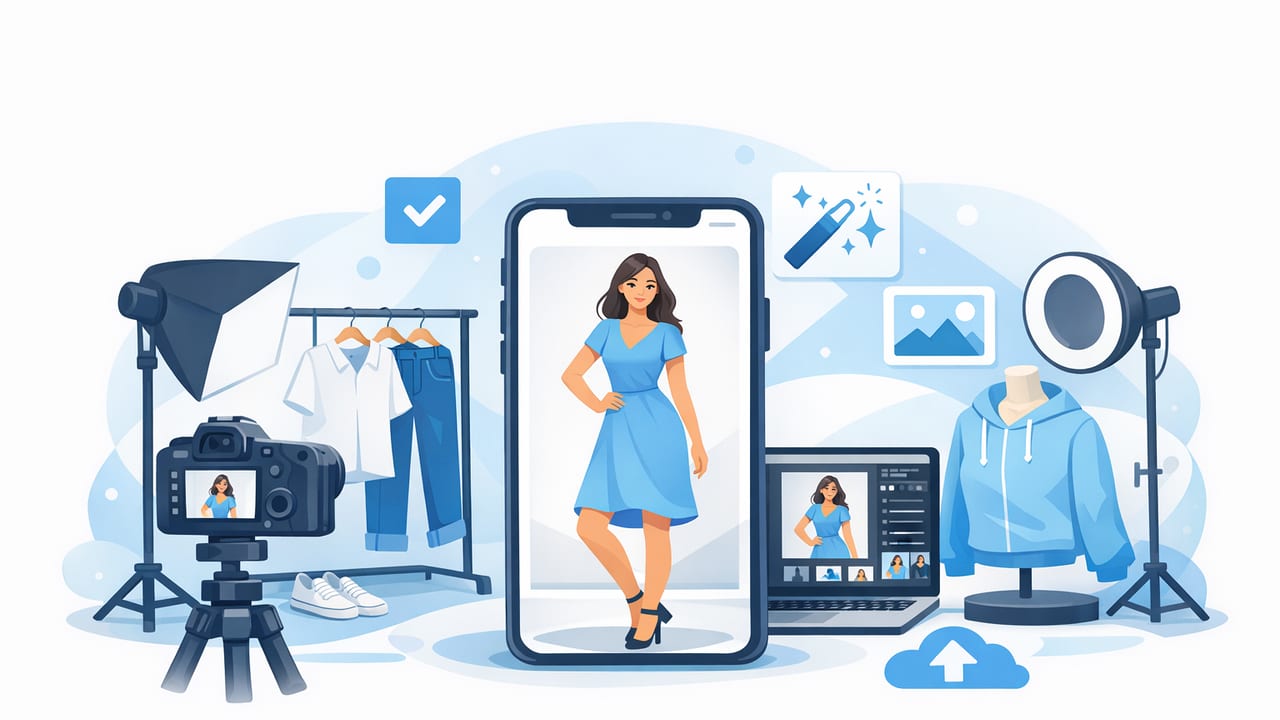
If you sell clothing online—whether you’re a casual reseller, a full-time Poshmark closet, or a small brand—your photos do more than “show the item.” They communicate quality, fit, and trust in a split second. The good news: you don’t need a studio, expensive lenses, or advanced editing skills. With the right professional product photos for clothing app workflow, you can create clean, consistent, marketplace-ready images quickly.
This guide walks you through a practical process: prepping garments, capturing better originals, then using app-based editing (including AI features like background removal, unwrinkling, ghost mannequin, and model shots) to create a polished look that still feels true-to-life.
Why an app workflow beats “random photos + quick filters”
Buyers compare listings side-by-side. When your photos have consistent lighting, a clean background, and accurate color, your items feel more “legit” and easier to evaluate. A repeatable app workflow helps you:
- Save time by batch-editing and applying consistent settings.
- Reduce returns by keeping colors and details accurate.
- Stand out with polished presentation (without looking over-edited).
- Scale your listings as your inventory grows.
Step 1: Start with better originals (your app can’t fix everything)
Even the best editing app works best with a clean starting photo. Here’s a quick setup that produces better results with less editing.
Choose one “photo station” and stick to it
Consistency is the secret weapon. Pick a spot you can reuse, even if it’s small:
- Near a window with indirect light (avoid harsh sun streaks).
- In a corner where you can hang a backdrop or use a blank wall.
- With enough space to step back and keep the camera level.
Use simple lighting rules
- Face the light: Point the garment toward the window/light source, not away from it.
- Avoid mixed lighting: Don’t combine warm indoor bulbs with daylight—colors will shift.
- Stabilize: A cheap tripod or a stable shelf reduces blur and improves detail.
Prep the garment for “camera truth”
Apps can help, but prepping still matters:
- Lint roll (especially on knits and dark items).
- Clip and tuck excess fabric for cleaner lines.
- Use pins/clips on the back for shape (when appropriate and disclosed if it affects fit).
- Steam if possible; if not, aim for a smooth layout (then use an unwrinkle tool lightly).
Step 2: Capture the “core shots” buyers expect
A professional look isn’t only editing—it’s coverage. For most clothing categories, aim for:
- Front (full item, straight-on)
- Back
- Close-up of fabric/texture
- Tag/size/material
- Flaws (honest close-ups build trust)
- Detail shot (buttons, embroidery, hardware, hem, pockets)
Pro tip: Take photos slightly wider than you need. Apps that remove backgrounds or create ghost mannequin effects often work best when the garment has a bit of “breathing room” around it.
Step 3: Edit in a repeatable order (the fastest way to look consistent)
When you edit randomly, you spend more time redoing work. A reliable professional product photos for clothing app workflow typically follows this order:
- Crop/straighten
- Color & exposure (keep it natural)
- Background cleanup/removal
- Garment smoothing (unwrinkle)
- Presentation style (flat lay, hanger, ghost mannequin, or model)
- Sharpen lightly (optional)
- Export with platform-friendly size
1) Crop and straighten first
Before you touch color, frame the item consistently:
- Keep hems and shoulders level.
- Use similar spacing around items across listings.
- Crop to emphasize the garment, not the room.
2) Fix exposure and white balance (don’t chase “bright at any cost”)
Over-brightening can wash out colors and hide texture—two things buyers care about. Aim for:
- Accurate color: Whites should look white, blacks should keep detail.
- Visible texture: Knit patterns and denim grain should remain.
- Balanced shadows: Lift dark areas slightly without flattening everything.
3) Use background removal (then refine the edges)
Clean backgrounds make listings look modern and reduce distractions. AI background removal is a common feature in clothing photo apps, but quality depends on edge accuracy—especially around:
- Fur, fringe, lace
- Thin straps
- Sheer fabrics
- Hood strings and ties
After removal, check the outline at 100% zoom. If you see jagged edges or missing fabric, use a refine/brush tool to restore realism.
4) Unwrinkle carefully (smooth, don’t “melt” the fabric)
Unwrinkle tools can save hours, but too much smoothing can make fabric look plastic. A good rule:
- Remove distracting creases caused by storage or folding.
- Keep natural drape lines, seams, and structure.
- Zoom in to ensure logos, stitching, and prints stay crisp.
Step 4: Pick the right presentation style for each item
“Professional” doesn’t mean one single look. The best presentation depends on your category, buyer expectations, and how the garment fits.
Flat lay: best for speed and consistency
Great for: tees, sweaters, denim, kidswear, accessories.
- Use a consistent folding or laying style.
- Align shoulders and side seams.
- Consider adding one close-up with the fabric slightly lifted to show thickness.
On-hanger: best for structure and longer items
Great for: dresses, coats, blazers, long skirts.
- Use the same hanger type and color across listings if possible.
- Clip the back for shape (but don’t distort the true fit).
- Keep the hanger centered and level for a premium look.
Ghost mannequin: best for “wearable shape” without a model
Great for: tops, jackets, dresses where neckline/shoulders matter.
The ghost mannequin effect makes items look filled out and dimensional while keeping the focus on the garment. The best results come from:
- A straight-on, well-lit base photo
- Clear edges around collars, sleeves, and side seams
- An inner label/neck area shot if your app uses it to create a realistic interior
Model shots (generated or real): best for fit and styling context
Great for: trendy items, premium brands, items where fit is a major question.
If your workflow includes AI-generated model shots, keep them believable:
- Match the garment’s real proportions (avoid unrealistic waist/hip distortion).
- Keep lighting consistent with your product images.
- Use model images as supplemental visuals, not the only proof of condition and details.
Quality checklist: what “professional” looks like (quick scoring guide)
Use this table to audit your images before posting.
| Category | What to look for | Easy fix in an app |
|---|---|---|
| Color accuracy | Whites look neutral; blacks keep detail; prints match reality | White balance + exposure tweaks |
| Edge quality | No jagged cutouts; straps and lace look natural | Refine mask/brush; soften edge slightly |
| Wrinkles | Distracting creases reduced; fabric still has texture | Unwrinkle/smooth at low intensity |
| Consistency | Similar crop, background, and brightness across listings | Save presets or reuse settings |
| Trust signals | Care tag, size tag, flaw photos included | Organize/edit in a repeatable shot list |
Common mistakes that make listings look “edited” (in a bad way)
- Over-smoothing: Fabric looks waxy; knit texture disappears.
- Over-sharpening: Creates crunchy edges and noisy backgrounds.
- Pure white everywhere: Blown highlights remove texture and detail.
- Inconsistent shadows: Cutout item floats unnaturally; add subtle shadow if your app supports it.
- Color shift across photos: Front looks warm, back looks cool—buyers notice.
FAQ: choosing and using a professional product photos for clothing app
Do I need a white background for every marketplace?
Not always, but a clean, distraction-free background tends to perform well across platforms. If you use background removal, choose a neutral backdrop (white or light gray) and keep it consistent.
How do I keep colors accurate when editing on my phone?
Edit in consistent lighting (avoid editing in a dark room one day and bright sun the next). Make small adjustments and compare to the garment in real life before exporting.
Is ghost mannequin worth it for resellers?
It can be, especially for structured tops, jackets, and dresses. It helps buyers understand shape without needing a live model photo session.
What’s the fastest way to scale to 20–50 listings a week?
Standardize: one photo station, one shot list, one editing order, and one export size. Speed comes from repetition more than any single tool.
A simple “batch day” workflow you can copy
- Prep batch (30–45 min): lint roll, clip, set aside items needing close-ups.
- Shoot batch (60–90 min): front/back/details for each item using the same setup.
- Edit batch (60–120 min): crop → color → background → unwrinkle → presentation style.
- QA (15 min): check edge quality, color, and required detail shots.
Once you have this system, choosing the right professional product photos for clothing app becomes straightforward: look for fast background removal, realistic garment refinement (like unwrinkling), flexible presentation options (flat lay/hanger/ghost mannequin/model), and consistent export quality.
Gentle note: If you’re exploring iOS tools that bundle these features into one place, an app like Clothing Studio is one example resellers use to streamline clothing photo edits without turning the process into a full-time job.
