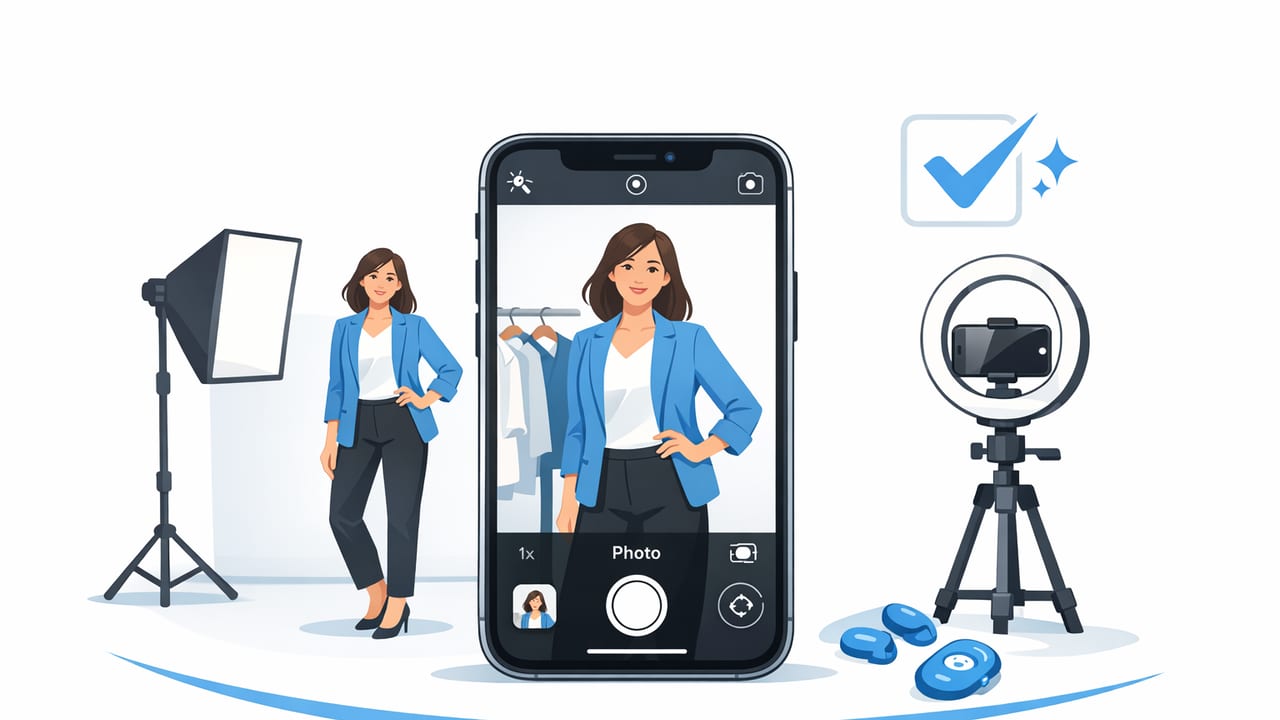
If you’re trying to win clicks on Poshmark, eBay, Depop, Shopify, or your own site, your photos do most of the selling. The good news: you don’t need a DSLR or a studio to get clean, consistent listing images. With the right setup and a repeatable workflow, you can create professional clothing photos on iPhone that look bright, accurate, and marketplace-ready.
This guide walks through a practical system: how to prep garments, create a simple shooting station, choose the best presentation style (flat lay, on-hanger, mannequin/ghost), and finish with quick edits like background removal and wrinkle smoothing—without getting overly technical.
Why iPhone photos can look studio-grade
Modern iPhones are excellent at exposure and detail, especially in good light. What usually makes clothing photos look “amateur” isn’t the camera—it’s inconsistent lighting, distracting backgrounds, and avoidable prep issues (wrinkles, lint, crooked hems). Fix those, and your iPhone becomes a reliable product-photo tool.
Consistency beats complexity. A simple setup you can repeat every time will outperform a complicated setup you only use when you have hours to spare.
Step 1: Prep the garment (this is where “pro” starts)
Before you open the camera, spend 1–3 minutes making the item look like a buyer just unboxed it.
- De-wrinkle: Steam, iron, or use a handheld steamer. Focus on collars, plackets, sleeves, and hems.
- De-lint: Use a lint roller—especially on knits, dark fabrics, and velvet.
- Shape it: Use clips (binder clips work) behind the garment to define the waist or remove excess fabric.
- Check tags & details: Make sure brand labels lie flat. Remove stray strings.
- Style for clarity: Button buttons, zip zippers, align lapels, and straighten straps.
Pro tip: Photograph the garment the way a buyer would want to see it worn—symmetrical, smooth, and true-to-life.
Step 2: Build a simple iPhone photo station at home
You can create a reliable mini “studio” in a corner of a room. The goal is clean light + a clean background.
Lighting options (from easiest to most controllable)
- Window light: Stand near a large window with indirect light. Avoid harsh sun patches that create sharp shadows.
- Two LED lights: Place one light at 45° to the left and one at 45° to the right of the garment. This reduces shadows and improves consistency.
- One LED + reflector: If you only have one light, bounce light back using a white foam board opposite the light.
Avoid: mixed lighting (window + yellow ceiling bulbs). It’s the fastest way to get odd color casts that make whites look cream or blues look gray.
Backgrounds that make listings look clean
- Seamless white paper: Great for flat lays and small items.
- White wall: Best for on-hanger shots (as long as it’s uncluttered).
- Foam boards: Cheap, portable, and easy to store.
Even if you plan to do background removal later, starting with a simple background makes edges cleaner and speeds up editing.
Stability: tripod > handheld
A basic phone tripod (or a stack of books) helps keep framing consistent across all listings. Consistent framing makes your store look more professional and can increase buyer trust.
Step 3: Pick the best clothing presentation style
Different categories and fabrics photograph better in different formats. Use this table to decide quickly.
| Style | Best for | Pros | Watch-outs |
|---|---|---|---|
| Flat lay | T-shirts, denim, sweaters, kidswear | Fast, consistent, minimal gear | Can look shapeless without styling |
| On-hanger | Dresses, blouses, outerwear | Shows drape, easy for bulk listing | Hanger tilt and wall shadows |
| Mannequin / ghost mannequin | Premium pieces, structured garments | Looks high-end, shows shape | Needs clean neckline/inside label area |
For many resellers, a hybrid works best: one hero image (ghost mannequin or clean on-hanger), plus detail shots (tag, fabric, flaws, close-ups).
Step 4: Shoot with an iPhone checklist (fast and repeatable)
This is the easiest way to get consistent results—save it as a note and follow it every time.
- Clean your lens (seriously—shirt fabric smudges are common).
- Turn off flash. Flash creates shiny hotspots and harsh shadows.
- Use the 1x lens for the most natural look (avoid ultra-wide distortion).
- Tap to focus on the garment and slightly lower exposure if whites look blown out.
- Keep lines straight: shoot level with hangers; shoot directly overhead for flat lays.
- Fill the frame but leave a little breathing room for cropping.
- Take a set: front, back, label, size tag, material tag, close-ups of texture, any flaws.
Simple camera setting tips (non-technical)
- Portrait mode: usually skip it for product shots (edges can look weird around straps and lace).
- Night mode: avoid if possible; it can soften fabric detail. Add light instead.
- Live Photo: optional; it can help you pick the sharpest frame, but it adds file size.
Step 5: Edit on iPhone for an e-commerce finish
Editing is where your listings go from “clear” to “conversion-ready.” Keep edits realistic—buyers want accurate color and texture.
1) Crop, straighten, and align
Your first pass should be about geometry and consistency:
- Crop to keep the item centered and similarly sized across listings.
- Straighten so hangers and hems look level.
- Correct perspective if walls look slanted (small fixes make a big difference).
2) Fix brightness and color (aim for true-to-life)
- Brightness: lift shadows gently so details are visible.
- White balance: make whites look white, not yellow or blue.
- Contrast: add a little for texture, but avoid crushing blacks.
If you sell across platforms, consistent color is a trust-builder. It reduces returns from “not as described” issues.
3) Background removal (when and why)
Clean backgrounds help the product stand out and make your shop look cohesive. Background removal is especially useful when:
- Your shooting space is limited (busy room, uneven wall color).
- You want a consistent white background across different items.
- You’re batch-listing and need speed.
Best practice: keep a natural shadow or subtle grounding if the platform allows—it prevents a “floating cutout” look.
4) Wrinkle smoothing and fabric cleanup
Physical steaming is best, but quick touch-ups can help when a fabric stubbornly creases (linen, cotton blends). Light wrinkle smoothing can make items look newer and more premium—just don’t overdo it to the point the fabric looks plastic.
5) Ghost mannequin effect (for a premium look)
Ghost mannequin images show shape without showing a model or mannequin. They’re popular for dresses, jackets, and tops because they highlight structure, neckline shape, and drape.
To make ghost mannequin editing easier:
- Photograph the garment on a mannequin or form.
- Also capture an inside-neckline shot (or a separate shot of the inner label area) so the editor can create a clean “hollow” look.
- Use consistent lighting so the inside and outside match.
6) Keep everything consistent (your secret weapon)
Consistency is what makes a closet or store feel established. Create a tiny style guide for yourself:
- Same background color
- Same crop/framing
- Same brightness level
- Same order of photos (front, back, label, details)
Step 6: Export images for marketplaces without losing quality
Each platform handles images differently, but these general guidelines keep photos sharp and fast-loading.
| Use case | Recommended format | Notes |
|---|---|---|
| Most listings (general) | JPG (high quality) | Smaller files, good compatibility |
| Graphics-heavy edits / transparency needs | PNG | Often larger files; use when needed |
| Batch uploading speed | JPG (compressed slightly) | Avoid extreme compression that blurs fabric |
Also consider a simple naming system so you can find photos quickly later (especially if you cross-list).
SKU-BRAND-CATEGORY-COLOR-01.jpg
SKU-BRAND-CATEGORY-COLOR-02.jpg
SKU-BRAND-CATEGORY-COLOR-tag.jpg
Common mistakes that make iPhone clothing photos look less professional
- Over-editing: extreme smoothing or sharpening can make fabric look unrealistic.
- Harsh overhead lighting: it creates deep shadows under sleeves and collars.
- Busy backgrounds: buyers get distracted, and edges are harder to cut cleanly.
- Inconsistent framing: your shop grid looks messy even if each photo is “fine.”
- Wrong angle: shooting from too high/low distorts proportions (especially on-hanger).
A quick 10-minute workflow (per item) you can actually repeat
- 2 minutes: steam/lint/shape
- 4 minutes: shoot front/back + details
- 3 minutes: crop/straighten + brightness/color
- 1 minute: background removal + export
Once your setup is permanent (lights, wall, hanger height), you can often cut that time down further.
Final thoughts
Creating professional clothing photos on iPhone is less about fancy gear and more about a repeatable system: prep the garment, use clean light, shoot straight, and apply simple edits for consistency. When you combine a tidy shooting station with fast AI-assisted cleanup (background removal, wrinkle smoothing, and optional ghost mannequin), your listings can look polished—even at high volume.
If you’re looking for an iOS workflow that bundles common reseller edits in one place, an app like Clothing Studio can help streamline touch-ups without turning photo editing into an all-day project.
