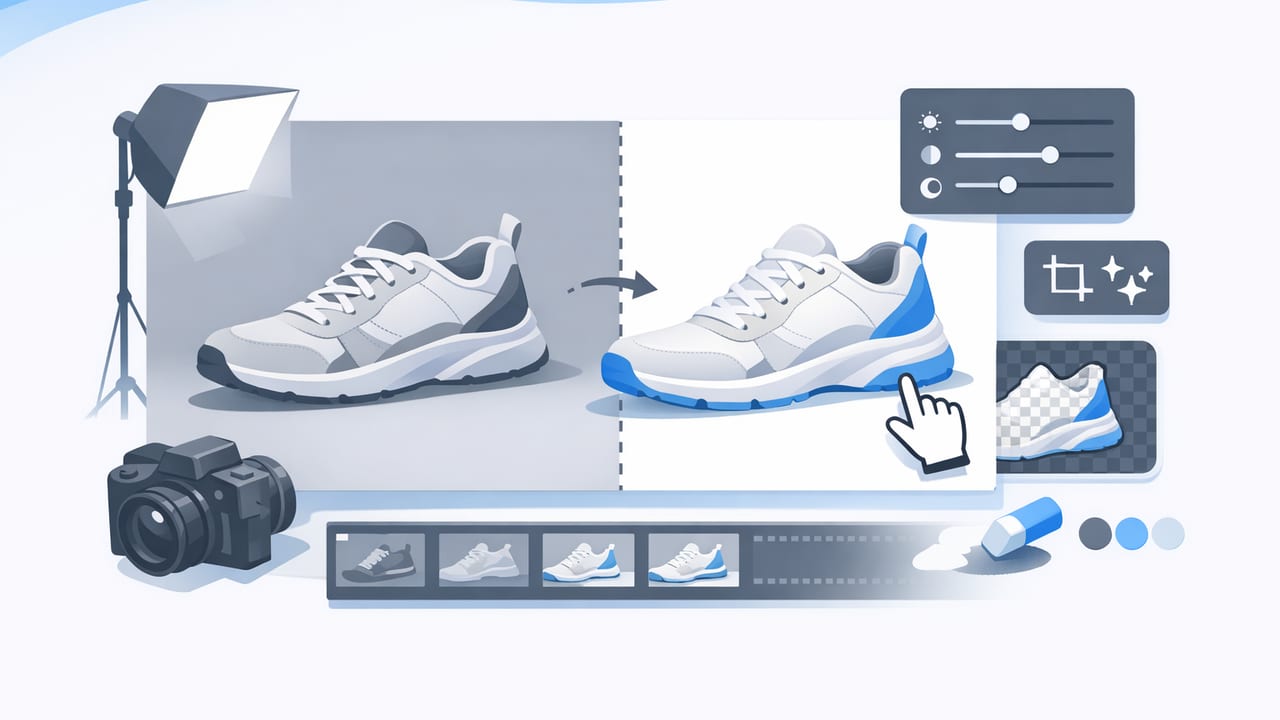
In fashion resale and e-commerce, your photos do most of the selling. A reliable product photo editor workflow helps you turn everyday snapshots into clean, consistent, marketplace-ready images—without spending hours per item. The goal isn’t “perfect” photos; it’s trust: accurate color, clear details, and a presentation style that looks professional across your entire closet or catalog.
This guide walks through a practical, repeatable editing system for clothing listings. You’ll learn what to fix (and what to leave alone), how to choose the best presentation style (flat lay vs on-hanger vs ghost mannequin), and how to export files that look sharp on platforms like Poshmark and eBay.
Why editing matters (even for low-cost items)
Buyers scan fast. When listings look inconsistent—different backgrounds, uneven cropping, distracting wrinkles—shoppers hesitate. A strong editing routine helps you:
- Increase click-through with brighter, cleaner thumbnails
- Reduce returns by keeping color and fabric texture accurate
- Build brand trust with a consistent “storefront” look
- Work faster by batch-editing with the same steps every time
Rule of thumb: Edit for clarity and consistency, not for a “filtered” look. If a buyer receives something that looks different from the photos, you lose trust.
Before you edit: capture photos that are easy to fix
The easiest product photo edits start with a good base image. You don’t need a studio—just repeatable conditions.
Quick capture checklist
- Light: use bright window light or a simple soft light; avoid harsh overhead shadows
- Background: plain wall, foam boards, or a clean sheet; avoid busy patterns
- Camera position: keep the phone level and centered; step back and zoom slightly to reduce distortion
- Garment prep: lint roll, straighten hems, tuck tags, and smooth obvious folds
- Consistency: shoot in the same spot so your edits don’t change item-to-item
If your raw photo is extremely dark, blurry, or heavily shadowed, editing becomes slower and less accurate—especially when trying to show texture and true color.
Choose the best clothing presentation style
Your editing approach depends on how the item is presented. Here’s a simple comparison to help you pick a style that matches your inventory and time.
| Style | Best for | Pros | Watch-outs |
|---|---|---|---|
| Flat lay | Tops, denim, tees, accessories | Fast to shoot, easy to keep consistent | Can look “flat” for tailored items; needs careful smoothing |
| On-hanger | Blouses, dresses, lightweight pieces | Shows drape, quick styling | Hangers can look messy; shoulders may collapse |
| Ghost mannequin | Jackets, structured tops, premium brands | Shows shape and interior labels; high-end look | Takes more cleanup if shadows/background are complex |
| Model (real or generated) | Trend pieces, fit-focused items | Helps buyers imagine fit; strong engagement | Must keep sizing/fit claims honest; consistency is harder |
The core product photo editor steps (do these in order)
A good workflow is like an assembly line: do the same steps, in the same order, on every item. This prevents over-editing and keeps your shop cohesive.
1) Select the hero image first
Pick one “main” photo that will be your thumbnail. Choose the sharpest, most centered shot with the cleanest drape. Edit this one first, then match the rest of the set to it.
2) Crop and straighten for a consistent frame
Consistency sells. Aim for the same framing across listings: similar headroom, similar garment size in the frame, and a straight vertical line (especially for hanger shots).
- Tip: keep the garment filling ~80–90% of the frame for mobile browsing.
- Tip: for pants/jeans, keep the waistband level and centered.
3) Fix exposure and white balance (avoid “filters”)
Most clothing photos need small adjustments:
- Exposure/brightness: lift slightly so details show in dark fabrics
- Highlights: reduce if whites are blown out
- Shadows: raise gently to reveal texture without making the image look gray
- White balance: neutralize yellow/blue casts so color is accurate
Be careful with saturation. Oversaturated photos may drive clicks, but they also increase returns if the color looks different in person.
4) Remove or clean the background
Background cleanup is one of the biggest “professional” signals—especially for marketplaces with crowded search pages. The simplest standard is a clean, plain background (often white or light neutral).
- Full background removal: ideal for consistent catalog-style listings
- Background cleanup: good when you want to keep natural shadows for realism
- Edge quality matters: watch fraying, lace, fuzzy knits, and sheer fabrics
After removing the background, zoom in around sleeves, hems, and collars to make sure edges look natural and not “cut out.”
5) Reduce wrinkles (without changing the garment)
Wrinkles can make a garment look worn even when it’s new. Light wrinkle reduction is usually safe; heavy smoothing can look unrealistic and may hide fabric characteristics.
- Do: smooth obvious fold lines from storage/shipping
- Don’t: erase natural texture (ribbing, linen slub, crepe)
- Do: keep seams, darts, and pleats intact
6) Create a ghost mannequin look (when it adds value)
Ghost mannequin images are most effective for structured items where shape matters—blazers, coats, dress shirts, knitwear with a defined silhouette. The editing goal is to show dimension and interior details (like collars and labels) while keeping the image clean.
If you use this style, make sure the neckline and shoulder lines look natural. A “floating” collar or uneven symmetry can be distracting.
7) Sharpen lightly and check texture
Light sharpening can improve perceived quality, especially after background removal. Over-sharpening adds halos on edges and can make knits look crunchy.
- Zoom to 100% and check edges (collar, cuffs, buttons).
- Make sure patterns (stripes, checks) don’t warp from distortion.
Batch editing: the fastest way to stay consistent
If you list multiple items at once, batch editing is where you save the most time. Build a “preset” approach:
- Edit your hero image until it matches your preferred look.
- Apply similar adjustments to the remaining photos (crop, brightness, background).
- Do a final pass for edge cleanup and color consistency.
Consistency beats perfection. A slightly imperfect but uniform shop often performs better than a mixed set of “randomly edited” listings.
Export settings that look good on marketplaces
Each platform compresses images differently, but these general rules work well for clothing:
- Format: JPEG for photos (high quality), PNG if you need transparency
- Resolution: export large enough to zoom (avoid tiny files); don’t upscale blurry originals
- Quality: high (but not maximum) to keep file sizes reasonable
- Color: standard sRGB is safest for consistent display
If you want a simple naming system to stay organized when batch editing, here’s an example you can adapt:
brand_itemtype_color_size_view.jpg
madewell_jeans_black_28_front.jpg
madewell_jeans_black_28_back.jpg
madewell_jeans_black_28_tag.jpg
Quality check: a quick checklist before you post
Use this fast review to catch the issues buyers notice most.
Marketplace-ready photo checklist
- Is the main image bright, centered, and easy to read as a thumbnail?
- Is the background clean and consistent across the set?
- Do edges look natural (especially around lace, fringe, fuzzy knits)?
- Does the color match real life (compare to the item near a window)?
- Are key details included (tag, fabric texture, flaws, closures)?
- Is there any over-editing (plastic texture, weird shadows, warped shapes)?
Common editing mistakes (and easy fixes)
Problem: The item looks “cut out”
Fix: soften edges slightly, keep a subtle natural shadow, and avoid overly bright white outlines.
Problem: Whites look yellow or blue
Fix: adjust white balance first, then re-check exposure. Neutral backgrounds help your eye judge color correctly.
Problem: Black clothing loses detail
Fix: raise shadows gently and add a touch of contrast. Don’t brighten so much that blacks turn gray.
Problem: Patterns look distorted
Fix: straighten the image, correct perspective if needed, and avoid extreme cropping that tilts the garment.
A simple “set” of listing photos that converts
If you’re unsure how many photos to include, this is a strong baseline set:
- Hero shot: front view (cleanest, most centered)
- Back view: show full back and hem
- Close-up: fabric texture and pattern
- Details: brand/size tag, material tag, closures
- Flaws (if any): clear, well-lit proof to reduce disputes
This structure pairs well with a consistent product photo editor workflow because you can crop and edit each “type” of photo the same way across listings.
Putting it all together
The best editing workflow is the one you’ll actually repeat. Keep it simple: crop and straighten, correct light and color, clean the background, reduce distracting wrinkles, then export consistently. Over time, your listings start to look like a cohesive shop—helping buyers trust what they’re seeing and making it easier for you to list faster.
If you prefer editing on an iPhone, an app like Clothing Studio can help streamline steps such as background removal, wrinkle reduction, and ghost mannequin-style presentation in one place.
