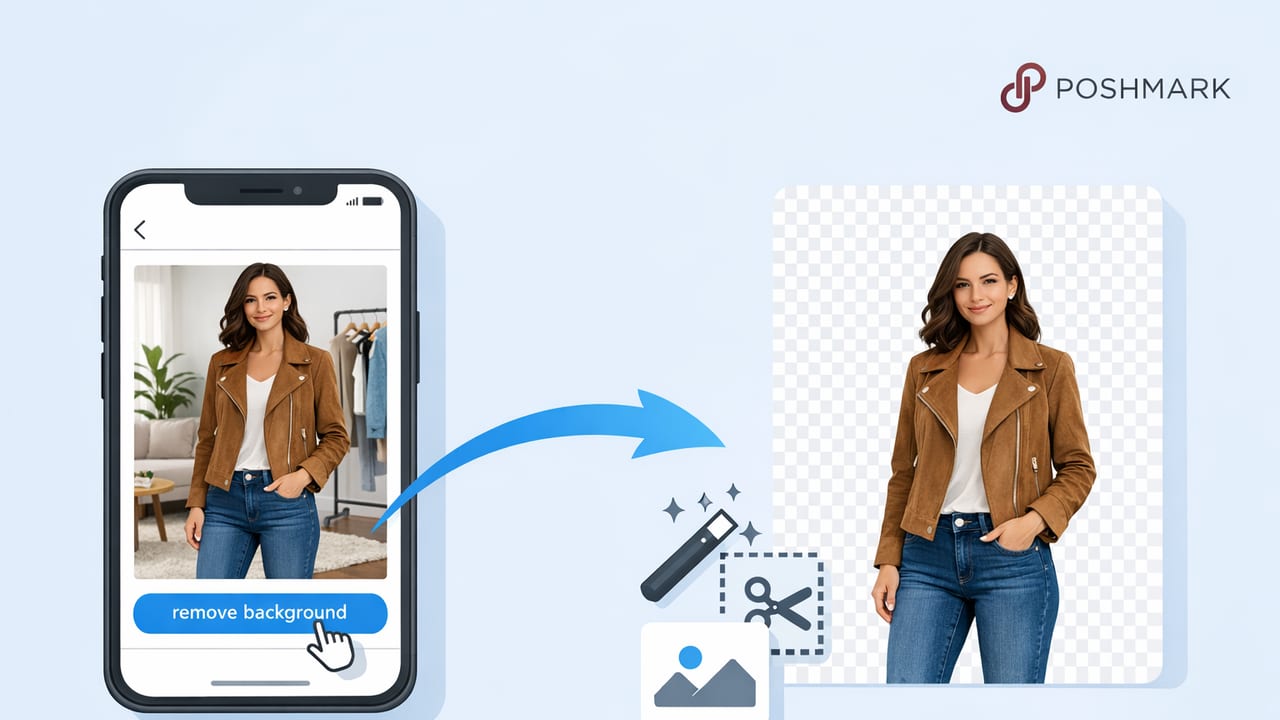
If you’re reselling fashion, your photos do most of the selling. On Poshmark, shoppers scroll fast, compare similar items instantly, and often decide in seconds whether to tap, like, or keep moving. A clean background isn’t just “nice to have”—it’s a clarity tool that helps buyers focus on the garment, understand its shape, and trust what they’re seeing.
This guide walks through a practical, non-fussy workflow for using a poshmark listing photo background remover (and a few supporting photo habits) so your listings look consistent, professional, and still true-to-life.
Why background removal works so well for Poshmark listings
Background removal isn’t about making your photos look “edited.” It’s about reducing distractions and increasing confidence. When the background is clean and consistent:
- Your item stands out in search results and feeds.
- Details read better (stitching, texture, prints, seams).
- Color looks more accurate because the camera isn’t balancing against a messy room.
- Your closet looks cohesive, which can increase follows and bundling.
Most buyers aren’t looking for “perfect” photos—they’re looking for photos that feel honest, clear, and easy to understand.
What “good” looks like: the goal isn’t sterile, it’s believable
A common mistake is going too harsh: pure-white cutouts with jagged edges, missing straps, or a floating garment with no shadow. The best edits are the ones nobody notices. Aim for:
- Clean edges around sleeves, lace, fringe, and straps.
- Natural shape (no warped waistbands or stretched collars).
- Soft, realistic grounding (a subtle shadow or gentle gradient is often better than “floating”).
- Accurate color (especially for blacks, whites, and saturated reds).
Choosing the best background style for resale clothing
You don’t have to use one background forever, but consistency helps. Here’s a quick comparison of popular options for clothing listings.
| Background style | Best for | Pros | Watch outs |
|---|---|---|---|
| White | Most categories | Clean, catalog-like, easy to batch | Can look cut-out if edges/shadow aren’t natural |
| Light gray | White or very light garments | More separation; hides minor edge flaws | Too dark can feel “moody” for basics |
| Simple lifestyle (neutral wall) | Premium pieces, styling-based items | Feels relatable and “real” | Harder to keep consistent across inventory |
| Transparent / cutout | Design work, cross-platform reuse | Flexible for reuse elsewhere | Poshmark shoppers often prefer a clear background, not a floating cutout |
The 10-minute workflow: from messy room to clean listing photo
This workflow is designed for speed, especially when you’re photographing multiple items in a session.
1) Start with a photo that’s easy to edit
The best background removal tools still rely on a decent original image. Before you edit, make sure the garment is:
- Well-lit (bright window light is great; avoid harsh overhead lighting).
- In focus (tap to focus on the garment, not the background).
- Simple in silhouette (smooth the garment so edges are clear).
Quick tip: If your item is black, shoot it against a lighter wall or sheet; if it’s white, shoot against a darker neutral. Separation makes cleaner edges.
2) Do basic “truthful” corrections first
Before removing the background, make light adjustments so the tool can “see” edges better and your final image looks accurate:
- Exposure/brightness: lift slightly if the item is underexposed.
- White balance: reduce yellow/blue casts so color reads correctly.
- Contrast: small boosts help define edges, but don’t crush shadows.
3) Remove the background (then zoom in and inspect)
Run your background remover and then inspect the result at high zoom. Check:
- Between straps and the body of the garment
- Along collars, cuffs, hems, and lace
- Any holes/cut-outs or fringe details
If the tool cut off thin details (spaghetti straps, belt loops), try reprocessing with a different setting (if available) or use a small “restore” brush to bring those areas back.
4) Add a subtle shadow (optional, but often worth it)
A faint shadow can stop the “sticker cutout” look. The goal is barely-there realism—not a heavy drop shadow. If your editor offers it:
- Choose a soft shadow
- Keep opacity low
- Match shadow direction to the original lighting when possible
5) Crop and align for a consistent closet look
Consistent framing makes your listings feel more professional and easier to browse. A simple rule:
- Keep the garment centered
- Leave a small, even margin around it
- Use similar crop ratios across items
If you’re photographing on-hanger or flat-lay, keep the top of the hanger or the neckline at roughly the same height across your cover images.
6) Export at clear quality (without overthinking it)
Poshmark compresses images, so start with a sharp export. Avoid excessive “clarity” or over-sharpening, which can make fabric look noisy. If your editor offers a quality slider, aim for high quality, then check the result on your phone screen.
Common background-removal mistakes (and how to fix them)
“Halo” edges around dark clothing
This happens when the background remover leaves a light outline around the garment. Fix by choosing a slightly off-white or light gray background, or refining edges with a gentle feather setting (if available).
Missing garment parts (straps, sheer fabric, lace)
Sheer and intricate fabrics are harder for automated tools. Use a “restore” brush for delicate areas, or photograph with better separation (solid, contrasting background) so the tool detects the fabric boundaries.
Over-whitening the item
When brightening a photo, it’s easy to blow out whites and remove fabric texture. Preserve detail by lowering highlights slightly and increasing exposure only a touch. Buyers want to see weave and texture—especially for knits, denim, and linen.
Cutouts that look too perfect
Ironically, ultra-crisp edges can look less real. Slight softness around edges (not blur) plus a soft shadow often looks more natural than a hard cutout on pure white.
A simple “cover photo” formula that works across categories
Your first image matters most. Here’s a repeatable structure that tends to perform well:
- Image 1 (cover): full garment, front view, clean background
- Image 2: full garment, back view
- Image 3: close-up of tag/brand/size
- Image 4: close-up of fabric/texture
- Image 5: flaws (if any), clearly shown
- Image 6+: measurements, style details, unique features
Background removal is most important on the cover image and the full-garment images. For close-ups, it’s usually optional because the garment fills the frame anyway.
Batch editing: how to stay fast when you have a lot of inventory
Speed comes from consistency. Try this approach:
- Photograph 10–30 items in one session with the same lighting setup.
- Edit in the same order every time: light correction → background removal → shadow → crop.
- Use one or two background styles max (e.g., white and light gray).
If you want an easy naming convention for organizing photos before upload, here’s a simple template:
brand_itemtype_color_size_view.jpg
Example:
madewell_denimjacket_black_M_front.jpg
When not to remove the background
Background removal is great for clarity, but there are cases where a simple, real backdrop can outperform a cutout:
- High-end pieces where styling and texture sell the story
- Items with tricky edges (very sheer, heavy fringe) if the tool can’t preserve details
- Footwear/accessories where a surface shadow helps show dimension (you can still remove and add a realistic shadow)
A balanced strategy: keep your cover image clean and consistent, and use one lifestyle-ish image later in the carousel when it adds useful context.
Quick checklist: a “clean edit” that still looks honest
- Edges look natural (no jagged cuts, no missing straps)
- Color matches real life (especially black/white items)
- Fabric texture is still visible (no over-smoothing)
- Background is consistent across your closet
- Shadow is subtle (or omitted if it looks fake)
FAQ
What’s the best background color for Poshmark?
White is a safe default, but light gray can look better for white garments and can reduce visible edge artifacts. The best choice is the one you can keep consistent and realistic.
Will background removal hurt trust with buyers?
Not if the item looks accurate. Buyers mainly react negatively to edits that hide flaws, change color, or distort shape. Use background removal to reduce clutter, not to “beautify” beyond reality.
How do I keep my listings from looking cut-out?
Use soft, believable shadows (or a very slight gradient background), avoid harsh sharpening, and ensure edges aren’t overly crisp or haloed.
Putting it all together
A good background remover workflow is less about fancy tools and more about repeatable habits: consistent light, clean framing, accurate color, and subtle finishing touches. Once you dial in a process, your closet becomes easier to browse, your items look more comparable (in a good way), and your photos do a better job of answering buyer questions upfront.
If you prefer editing on iPhone, there are AI photo editors built specifically for clothing workflows; for example, Clothing Studio offers background removal alongside apparel-focused enhancements in one place.
