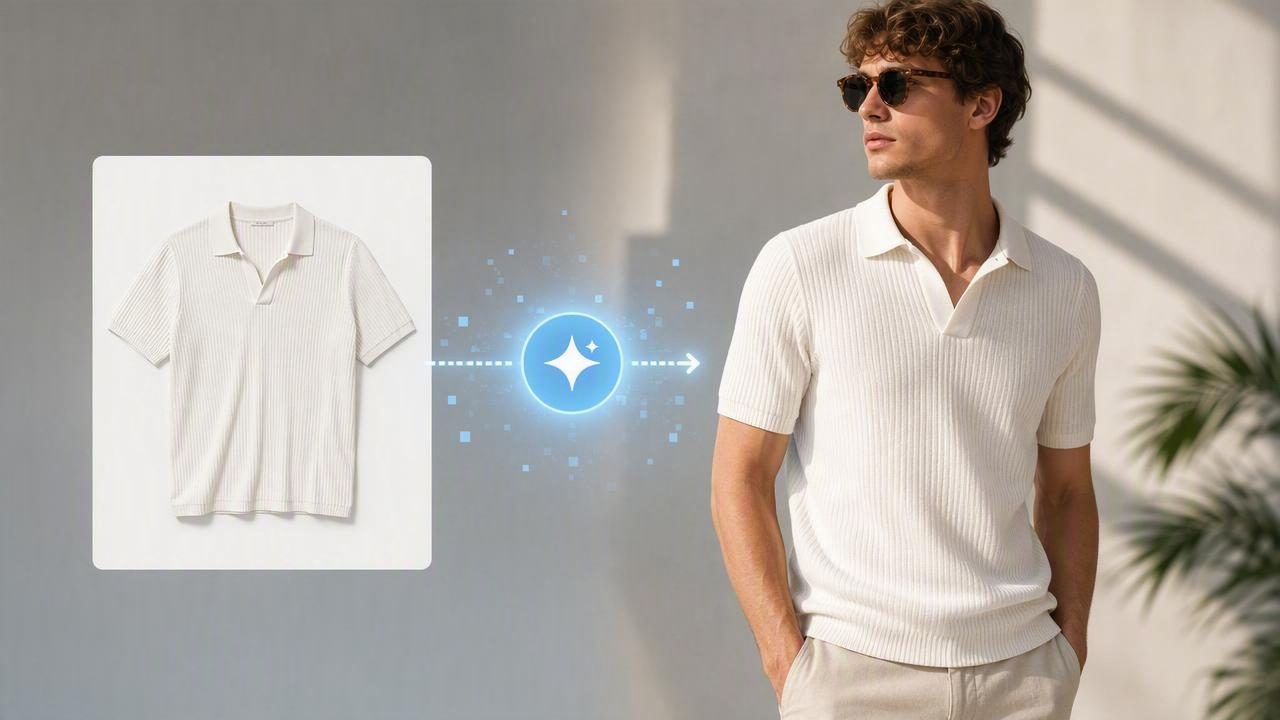
A model photo generator transforms a simple garment photo into a realistic on-model image in minutes. For fashion resellers and brands, that means faster listings, consistent visuals, and fewer scheduling headaches. This guide explains how model generators work, when to use them, how to set up a reliable workflow, and the practical checks that keep your images marketplace-ready and on brand.
What Is a Model Photo Generator?
A model photo generator uses AI to place your clothing on a lifelike model, creating the look of a professional studio shoot without hiring talent, booking a set, or managing post-production. Feed it a clear image of your item, choose a style (studio, street, lifestyle), set the identity traits (age range, body type, skin tone), and the tool produces an on-model image that matches your brand vibe.
The value is speed and consistency. You can create multiple style variations from one garment photo, test backgrounds, and maintain a unified catalog with minimal effort. For solo sellers and small teams, that puts polished visuals within reach — especially when listing across marketplaces with different requirements.
How a Model Photo Generator Works (Simple Overview)
- You capture a clean product photo (on hanger or flat).
- The tool identifies edges, fabric contours, and drape.
- It simulates how the garment would fit on a model, adding shape and realistic shadows.
- Optional: select model look, pose, lighting, and background.
- Output a high-resolution image ready for ecommerce.
You don’t need to understand the underlying tech to get great results. What matters most is providing a strong input photo and giving clear guidance about style and fit.
Live Shoot vs Ghost Mannequin vs Model Photo Generator
Each approach has strengths. Use the table below to choose the right method for your goals and budget.
| Use Case | Live Model Shoot | Ghost Mannequin | Model Photo Generator |
|---|---|---|---|
| Best for | Campaigns, brand storytelling | Detail-focused product pages | Fast, scalable on-model visuals |
| Cost | High (talent, studio, retouching) | Medium (photography + edit) | Low to medium (per-image or subscription) |
| Speed | Slow (planning and logistics) | Medium | Fast (minutes per look) |
| Consistency | Variable (depends on crew) | High | High (templates, presets) |
| Fit Representation | Real human fit | Implied fit/structure | Simulated fit (verify closely) |
Capture-to-Publish Workflow for AI On‑Model Images
Use this repeatable process to get studio-quality results from a model photo generator.
1) Capture a Clean Product Photo
- Lighting: Use soft, even light. A large window or two softboxes at 45 degrees often works best.
- Angle: Shoot straight-on. Avoid extreme angles and lens distortion.
- Backdrop: Plain, uncluttered. White or light gray reduces edge errors later.
- Prep: Steam or smooth wrinkles; lint-roll; align hems and seams.
- Support: On-hanger or flat. Use pins/clips on the back to tighten shape, not the front.
- Consistency: Keep camera height and distance the same for every shot.
2) Clean Up the Base Image
Remove background, fix minor wrinkles, and correct color. Even small improvements here amplify the generator’s final quality.
3) Choose Model Style and Settings
- Identity: Select age range, skin tone, hair, and body type to reflect your customer and your inclusivity standards.
- Pose: Minimal sway and neutral stance are safest for marketplaces. For editorial, try walking or seated poses.
- Lighting: Studio (soft and shadow-controlled) vs lifestyle (directional light and environment).
- Background: White for marketplaces; textured or on-location for brand content.
4) Provide Clear Fit Guidance
Use product details to help the generator simulate fit accurately:
- Garment type: e.g., oversized hoodie, slim-fit blazer, high-rise wide-leg jeans.
- Size worn vs model’s body type: If you know it, include it.
- Length cues: Cropped, ankle, longline, midi, etc.
- Key features: Structured shoulders, boxy cut, drop shoulder, A-line skirt.
5) Generate, Review, and Tweak
Run one to three variations, then review for realism, brand alignment, and marketplace compliance. Tweak pose, lighting, or crop if needed.
6) Export for Each Channel
- Aspect ratio: 1:1 or 4:5 for marketplaces; 3:4 or 16:9 for editorial and ads.
- Resolution: Aim for 2000–3000 px on the longest side for crisp zoom.
- Format: JPEG in sRGB for most platforms; PNG when transparency is needed.
Prompt Templates for a Model Photo Generator
If your tool accepts prompts or style instructions, start with these and adapt to your brand. Keep language simple and specific.
Minimal Studio (Marketplace-Friendly)
full-body studio photo of a [garment: e.g., slim-fit black blazer] on a model, neutral pose, soft even lighting, white background, true-to-color, crisp fabric texture, realistic shadows, no accessories, commercial lookStreetwear Lifestyle
model wearing a [garment: e.g., oversized khaki hoodie], relaxed stance, urban sidewalk scene, late afternoon natural light, casual styling, subtle motion, mood: laid-back, accurate color, realistic fabric drapePremium Editorial
fashion editorial image of a [garment: e.g., silk midi dress], elegant pose, soft directional light, muted warm backdrop, premium look, delicate highlights, clean composition, realistic fabric sheenPlus-Size and Fit-Focused
confident plus-size model wearing a [garment: e.g., high-rise straight-leg jeans], flattering natural pose, studio lighting, white background, accurate proportions, visible waist and hem, realistic shadowsConsistency Preset
studio catalog style, white seamless background, centered framing, eye-level camera, soft two-light setup, neutral expression, no props, consistent crop and scaleTip: If hands or accessories distract from the garment, add: 'no jewelry, no bags, no text or watermarks'.
Quality Checklist: Realistic and Trustworthy
Before you publish, run through this quick check:
- Fit: Does the drape match the fabric type (stiff denim vs fluid silk)?
- Seams and edges: Straight and aligned; no warping or melted details.
- Closures: Buttons, zips, and ties look real and functional.
- Logos/prints: Sharp, not smudged or mirrored.
- Hands/limbs: Natural anatomy; no extra fingers or bent angles.
- Shadows: Soft, consistent direction; garment anchored to the ground.
- Color: Matches the actual item under neutral light.
- Scale: Hem, sleeve length, and proportions look plausible.
Ethical and Legal Considerations
- Representation and inclusivity: Vary body types, ages, and skin tones to reflect your audience and values.
- Disclosure: If required by your channel or local regulations, label images that include AI-generated elements.
- Accuracy: Don’t misrepresent the item. The generated image must reflect the actual product you’re selling.
- Intellectual property: Avoid prompts that imitate recognizable faces or trademarked environments. Use your own product photos.
- Privacy: If you combine parts of real photos, ensure you have permission for any identifiable elements.
Marketplace Compliance Tips
Policies change, so always review the latest guidelines for each platform. As a general rule:
- Use white or light backgrounds for primary images when required.
- Avoid watermarks, logos, or decorative borders.
- Ensure the item is the focus. Limit props that obscure the product.
- Maintain true color and avoid unrealistic edits.
- Do not remove flaws that materially change the item’s condition for resale.
File Settings and Naming for Faster Workflows
- Resolution: 2000–3000 px on the longest edge for crisp detail.
- Color space: sRGB for consistency across devices.
- Format: JPEG (quality 80–90) for balance of size and clarity; PNG for transparency.
- Background: #FFFFFF for marketplaces; use a subtle gray for editorial depth.
- File names: brand_style-color_sku_front-model.jpg for easy search and bulk uploads.
Troubleshooting: Quick Fixes for Common Issues
- Fabric looks plastic or shiny: Soften lighting in the prompt and reduce contrast. Start from a well-lit, matte base photo.
- Weird hands or hair overlaps: Switch to a simpler pose; crop slightly higher; instruct 'neutral pose, hands relaxed by sides'.
- Color mismatch: White-balance your original photo and add 'true-to-color' or 'neutral lighting' to the prompt.
- Logo distortion: Provide a clearer base image; add 'sharp logo, accurate print alignment' to the prompt; regenerate.
- Scale feels off: Include garment length and fit notes (e.g., 'cropped at waist', 'ankle-length').
Simple ROI Snapshot
Use rough figures to estimate impact.
| Scenario | Time per Look | Cost per Look | Notes |
|---|---|---|---|
| Live model shoot | 45–90 min | $$$ | Talent, studio, edits |
| Ghost mannequin | 15–30 min | $$ | Good for product detail |
| Model photo generator | 3–10 min | $–$$ | Scalable, consistent catalog |
If your team lists 100 items a month, saving even 10 minutes per item adds up to more than 16 hours saved — enough time to source new inventory or improve descriptions.
Brand Consistency: Build a Reusable Style System
- Create preset prompts for core categories (tops, outerwear, dresses, denim).
- Standardize crop: e.g., full body for hero, mid-crop for secondary images.
- Fix camera perspective: Eye-level, straight-on to avoid distortion.
- Define lighting and background rules: 'Studio soft light, white seamless' for all primary images.
- Maintain inclusive size range across looks for authentic representation.
Do’s and Don’ts for Using a Model Photo Generator
- Do start with the cleanest possible base photo; garbage in, garbage out applies here.
- Do write simple, specific style instructions; avoid overly flowery language.
- Do check realism at 100% zoom before publishing.
- Don’t rely on a single variation; generate at least two options and pick the best.
- Don’t exaggerate fabric drape or structure beyond what’s real for the item.
- Don’t overlook diversity and accessibility in your model choices.
Frequently Asked Questions
Are AI on-model images allowed on marketplaces?
Many marketplaces focus on accuracy, clarity, and the absence of misleading edits. Check the latest policies for your category and region, and label AI elements if required.
Will a model photo generator replace live shoots?
It complements them. Use live shoots for campaigns and storytelling, and use AI to scale product imagery, test styles, and cover long-tail inventory faster.
How do I keep colors accurate?
White-balance your capture, avoid mixed lighting, and use a color-calibrated workflow. Add 'true-to-color' to prompts and compare outputs to the real item.
What’s the best background?
For product listings, white or light gray keeps attention on the garment and often satisfies platform guidelines. Use lifestyle backgrounds for ads and social.
Putting It All Together
A model photo generator can turn one well-shot garment photo into a complete, on-model image set that’s consistent, fast to produce, and aligned with your brand. Focus on clean capture, clear style guidance, and a strict quality checklist. With that foundation, you’ll list more items, test creative ideas, and present your catalog with confidence. If you want an approachable place to try this workflow on iPhone — including background removal, unwrinkling, ghost mannequin, and realistic model shots — the Clothing Studio app offers an easy starting point.
