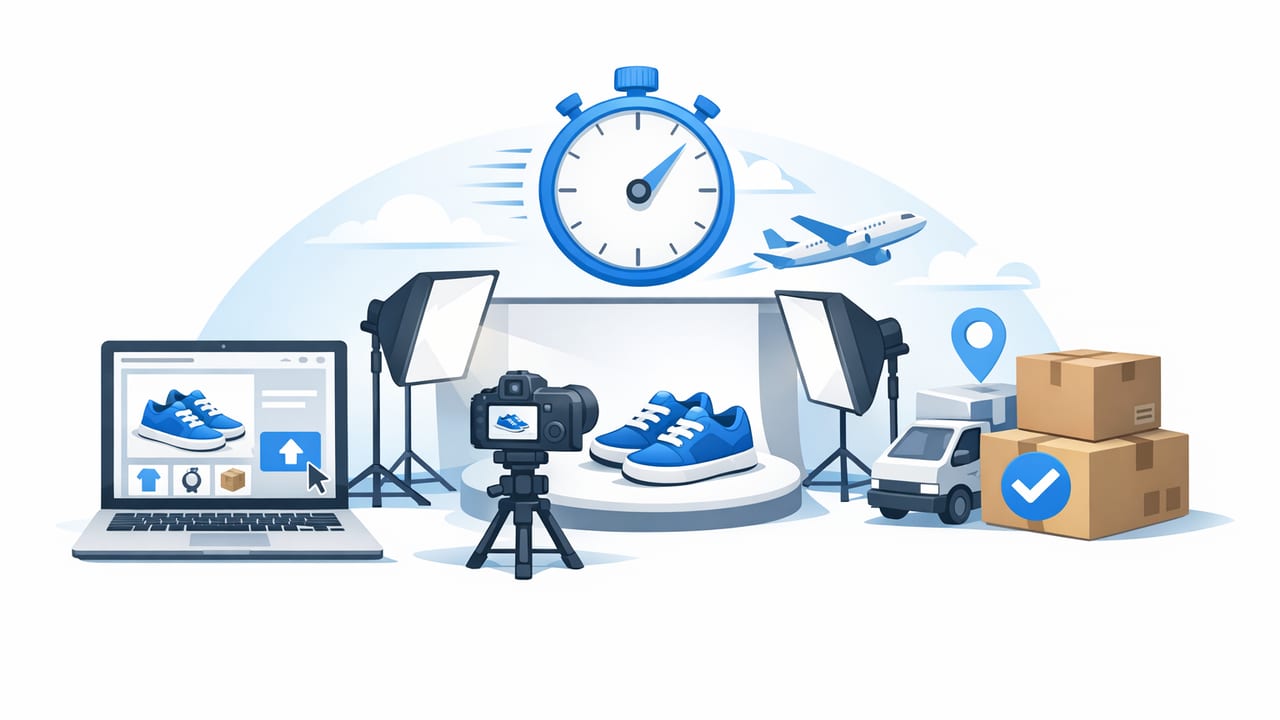
If you run a dropshipping store, product images can become a bottleneck fast. A supplier updates a variant, you add a new product line, or you discover your current photos look inconsistent—and suddenly you need last minute product images for dropshipping that won’t hurt conversions.
The good news: “last minute” doesn’t have to mean “low quality.” With a simple, repeatable workflow (and a few AI-friendly best practices), you can produce clean, consistent images quickly—without a studio, pricey gear, or advanced editing skills.
Speed matters, but consistency sells. A shopper doesn’t compare your photo to a luxury brand’s studio shoot—they compare it to other listings on the same results page.
What “good” looks like for dropshipping product images
When time is tight, focus on the three things that affect trust and click-through the most:
- Clarity: the product is sharp, well-lit, and easy to understand at thumbnail size.
- Consistency: similar crops, backgrounds, and color across the catalog.
- Accuracy: colors and details match what the customer receives (reduces returns).
If you sell apparel, add one more:
- Presentation: garments look structured (not wrinkled, slumped, or distorted).
When you need last minute product images for dropshipping
These scenarios are common—and all benefit from a quick image workflow:
- New supplier or product test: you want to validate demand before investing in a full shoot.
- Variant expansion: new colors/sizes require fresh visuals.
- Marketplace listing: eBay, Poshmark, Etsy, or TikTok Shop needs cleaner photos than your supplier provided.
- Rebranding: you’re updating the look of your storefront and need uniform images now.
A fast 45-minute workflow (from “messy” to shop-ready)
This workflow is designed for speed. You can do it with a smartphone, a basic light source (window or lamp), and AI photo editing tools that handle repetitive cleanup.
Step 1 (5 minutes): Decide your “image set” before you edit
Don’t start editing until you know what you need. For most dropshipping products, aim for:
- Main image (clean background, centered, best-selling angle)
- Secondary angle (side/back or close-up)
- Detail shot (texture, stitching, logo, closure, material)
- Scale/context (in-hand, on-body, or size reference)
For clothing, swap “scale/context” for one of these:
- Ghost mannequin look to show structure and neckline/waist shape
- On-model (real or AI-generated model image) to show fit and drape
Step 2 (10 minutes): Capture or collect source images the right way
If you’re photographing samples quickly, use this “fast but safe” setup:
- Light: stand near a window; turn off mixed indoor lighting to avoid color shifts.
- Background: plain wall, white sheet, or uncluttered surface (makes background removal cleaner).
- Camera: use your phone’s 1x lens; avoid ultra-wide (it can warp products).
- Angle: keep the camera level; shoot straight-on for the main image.
If you’re using supplier photos, pick the highest-resolution originals you can access. Avoid screenshots when possible—they compress and blur details, especially text and fabric texture.
Step 3 (15 minutes): Clean up the background and align your crop
For last minute product images for dropshipping, the fastest win is consistent background + consistent framing.
- Remove distractions: clutter, hangers, hands, floor texture, messy walls.
- Standardize the crop: keep products the same size in frame across listings.
- Leave breathing room: don’t crop too tight; marketplaces may add padding or crop previews.
Quick framing rule: place the product so it fills about 80–85% of the image height for apparel and 70–80% for accessories (so details don’t get chopped in thumbnails).
Step 4 (10 minutes): Fix wrinkles, shape, and “flatness” (especially for apparel)
Wrinkles and droopy fabric can make a product look cheaper than it is. If you can’t steam and reshoot, prioritize:
- Wrinkle reduction: keep results natural—remove harsh creases, not all fabric texture.
- Structure: sleeves, collars, and hems should look intentional and symmetrical.
- Shadow realism: a faint, natural shadow helps the item look grounded (not “floating”).
If you sell tops, dresses, or jackets, a ghost mannequin effect can be a fast way to show shape without hiring a model—useful when your supplier images are inconsistent or overly styled.
Step 5 (5 minutes): Export for the platform (without losing quality)
Speed often fails at the finish line: blurry uploads, wrong aspect ratios, or inconsistent naming. Keep it simple:
- Use square (1:1) or vertical (4:5) crops if your store theme favors them.
- Export high-res JPEG for photos; use PNG only when you truly need transparency.
- Check one thumbnail view (zoomed-out) before you batch-export the rest.
Platform cheat sheet: common image guidelines
Exact requirements can change, but these practical targets work well for most stores and marketplaces.
| Platform | Recommended aspect ratio | Practical size target | Main image tips |
|---|---|---|---|
| Shopify (most themes) | 1:1 or 4:5 | 2048px+ on the long edge | Consistent crop across products |
| eBay | 1:1 | 1600px+ on the long edge | Neutral background, sharp details |
| Poshmark | 1:1 | 1500px+ on the long edge | Bright, clean, garment centered |
| TikTok Shop / social commerce | 4:5 or 9:16 | 2000px+ on the long edge | Readable at small size, bold framing |
How to keep images consistent when you’re rushing
Consistency is what makes fast photos look “brand-level.” Use these shortcuts:
Create a mini style guide (one note in your phone)
- Background: pure white, light gray, or a specific color
- Crop: same padding above and below the product
- Shadows: either subtle natural shadow or none (but don’t mix)
- Color: avoid heavy filters; aim for true-to-life
Batch your edits
Do the same action across all images before moving to the next action:
- Background removal for all
- Cropping/alignment for all
- Light/color tweaks for all
- Export/naming for all
Use a naming convention so you don’t lose time later
This is simple, but it prevents upload mistakes and makes reorders easier. Here’s a template you can paste into your workflow:
SKU_productname_color_view.jpg
# Example:
TSHIRT102_crewtee_black_front.jpg
TSHIRT102_crewtee_black_back.jpg
TSHIRT102_crewtee_black_detail.jpg
TSHIRT102_crewtee_black_onmodel.jpg
Common mistakes that make “last minute” look cheap
- Over-smoothing fabric: removing texture can make clothing look fake.
- Inconsistent white balance: whites turn yellow/blue from photo to photo.
- Jagged edges after background removal: especially around lace, fur, fringe, or thin straps.
- Wrong scale: one product appears huge compared to another because of inconsistent cropping.
- Too much contrast: detail “crunches” and colors become inaccurate.
Practical examples: what to do with tricky products
Glossy items (bags, shoes, coated fabrics)
Gloss shows harsh reflections. Choose one soft light source (window) and avoid direct overhead bulbs. In editing, keep highlights controlled—don’t brighten so much that shine becomes a white patch.
Black or white garments
For black: lift shadows slightly so seams are visible. For white: protect highlights so you don’t lose texture. A subtle shadow under the item helps both look real.
Sheer, lace, or fringe
Background removal can struggle with fine edges. If speed matters, consider a light neutral background rather than pure white, and keep edges natural instead of overly “cut out.”
A simple quality check before you publish
Use this 60-second checklist right before uploading:
- Thumbnail test: zoom out—can you tell what it is instantly?
- Edge test: check straps, lace, sleeves, and hems for rough cutouts.
- Color test: compare to a known neutral (white paper) on your screen.
- Consistency test: open 6 products—do they look like one brand?
Tools that help (without making this complicated)
You don’t need a full desktop setup for last-minute work. Look for tools (often mobile-friendly) that can handle:
- Automatic background removal with clean edges
- Wrinkle reduction that keeps fabric texture believable
- Ghost mannequin / shape cleanup for apparel
- Model-style images when you need fit context quickly
If you’re an iPhone user working with apparel photos, an app like Clothing Studio can help streamline background cleanup and presentation edits when you’re on a tight timeline.
Bottom line: when you need last minute product images for dropshipping, prioritize clarity and consistency. A fast, repeatable workflow will outperform random edits every time—and it scales as your catalog grows.
