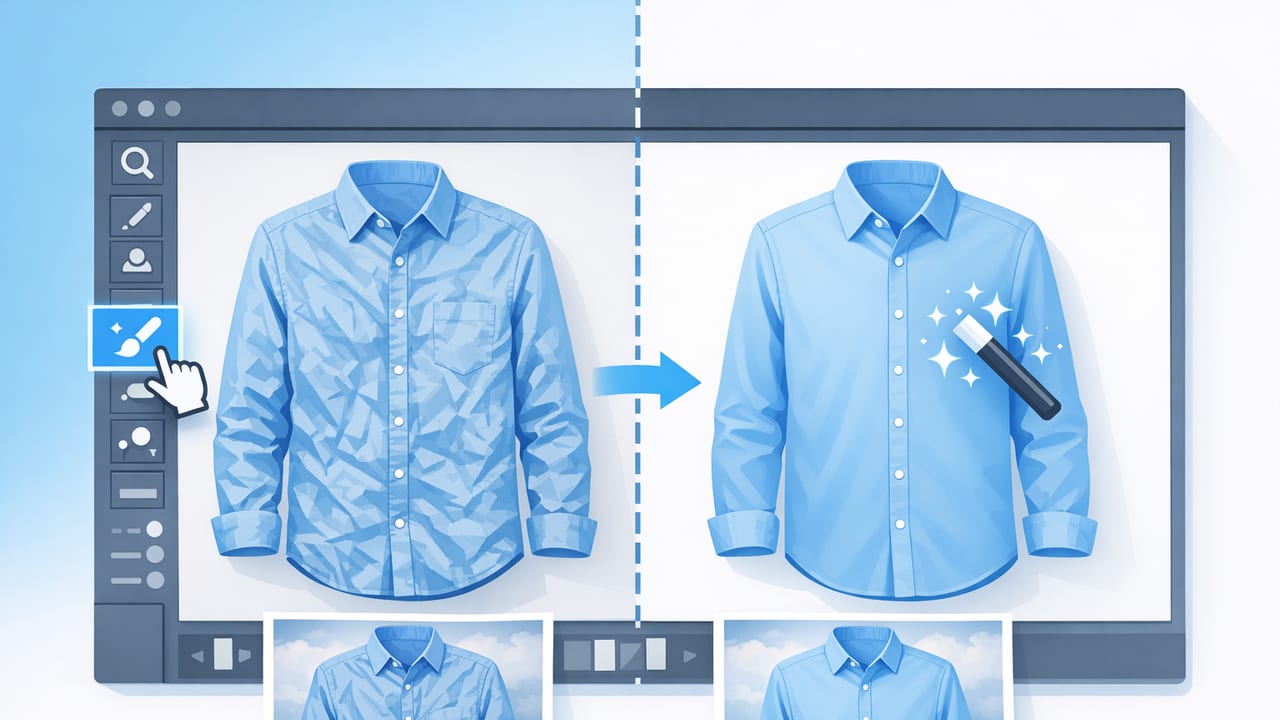
Wrinkles are normal in real life—but in product photography, they can make a great item look worn, cheap, or poorly stored. The good news: you don’t always need to re-steam and reshoot. When you know how to unwrinkle clothes in photos, you can make garments look crisp and well-presented while still keeping fabric texture realistic.
This guide walks you through a practical, reseller-friendly workflow: how to reduce wrinkles during shooting, how to fix creases in editing, and how to avoid the “plastic fabric” look that can hurt trust and returns.
Why wrinkles look worse in photos (even if the item is fine)
Camera lighting and lenses exaggerate creases. A few common reasons:
- Hard side light creates strong shadows along folds, making small wrinkles look deep.
- Phone HDR/sharpening boosts micro-contrast, emphasizing texture (including wrinkles).
- Thin or shiny fabrics (silk, satin, performance wear) show ripples easily because highlights outline every fold.
- On-hanger tension can create diagonal lines at the shoulders and hem.
That’s why a “light edit” often makes a bigger difference than you’d expect.
Before you edit: reduce wrinkles at capture (fast, no studio needed)
Editing is easiest when your starting photo is decent. Try these quick capture fixes first—especially if you’re shooting many listings in one session.
1) Use softer, front-facing light
Wrinkles are defined by shadow. To reduce them:
- Shoot near a bright window with sheer curtains (softens shadows).
- Avoid strong overhead lights that create harsh folds under collars and sleeves.
- If you use a ring light, keep it slightly above camera level and not too close.
2) Adjust garment tension (on-hanger, flat lay, or mannequin)
- On-hanger: Clip the back lightly (binder clips can help) to reduce torso ripples.
- Flat lay: Smooth fabric outward from the center using your hands (or a clean, dry towel).
- Mannequin: Ensure the garment sits correctly at seams to avoid artificial bunching.
3) Use distance + zoom (a simple phone trick)
Standing too close can distort the garment and emphasize wrinkles. Step back slightly and zoom in a bit (1.5–2x) to keep lines more natural.
Quick rule: Softer light + better tension = less editing and more believable fabric texture.
How to unwrinkle clothes in photos: a simple editing workflow
There are two goals that should guide every wrinkle edit:
- Reduce harsh crease shadows (the “aged” look)
- Keep real fabric texture (the “trust” factor)
Use this step-by-step workflow whether you’re editing in a mobile app, an AI editor, or traditional tools.
Step 1: Fix exposure and white balance first
Wrinkles are easier to judge when your photo is properly exposed. Start with:
- Exposure/Brightness: Slightly up if the garment looks heavy or dull.
- Highlights: Down a touch on shiny fabrics so folds don’t “blow out.”
- Shadows: Up slightly to soften crease shadows.
- White balance: Correct color first so edits don’t create odd gray or yellow patches.
Step 2: Reduce micro-contrast (but don’t blur)
Many apps have sliders like Clarity, Texture, or Sharpen. Wrinkles become louder when these are too high.
- If wrinkles look harsh, try lowering clarity/texture slightly.
- Keep enough detail so buyers can still see weave and material quality.
Step 3: Target the wrinkle zones (local edits)
Global edits help, but the most natural results come from adjusting only the areas that need it. Common wrinkle zones:
- Mid-torso (especially on tees and knits)
- Underarms and sleeve bends
- Hemline and waistband
- Collar points and plackets
Use a brush/mask tool (or an AI “wrinkle removal” feature) to:
- Lift shadows within creases
- Reduce contrast in the fold lines
- Preserve edges like seams, buttons, pockets, and pleats
Step 4: Keep seams, pleats, and intentional folds
The biggest mistake when learning how to unwrinkle clothes in photos is removing structure. You generally want to keep:
- Pressed pleats (skirts, trousers)
- Seam shaping (darts, princess seams)
- Cuffs, collars, lapels
- Intentional drape (wrap dresses, cowl necks)
If an edit makes a blazer look like a flat cutout, you’ve gone too far.
Step 5: Zoom out and verify realism
Wrinkle edits can look perfect at 200% and strange at full size. Do a final check at normal viewing size:
- Are there smudgy patches?
- Do certain areas look unnaturally smooth compared to the rest?
- Do shadows look consistent with the direction of light?
AI wrinkle removal vs manual editing: what to choose?
Both approaches can work. The best choice depends on your volume, fabric types, and how consistent you want your shop to look.
| Method | Best for | Pros | Watch-outs |
|---|---|---|---|
| AI wrinkle removal | High-volume listings, mixed inventory | Fast, consistent, minimal skill needed | Can over-smooth; may soften logos or stitching |
| Manual local edits (brush/mask) | Premium items, delicate textures | Maximum control, preserves detail | Takes longer; requires practice |
| Hybrid (AI + touch-up) | Most sellers and small brands | Speed with natural finish | Still needs a quick review pass |
A practical rule: use AI to do the heavy lifting, then do a quick check around seams, edges, and logos where artifacts tend to appear.
Common mistakes that make wrinkle edits look fake
A cleaner photo should still look like fabric. Avoid these pitfalls:
- Over-blurring: If knit texture disappears, buyers may think the image is overly edited.
- Creating halos: Lifting shadows too aggressively can create bright outlines along folds.
- Smearing prints: Patterns and screen prints can warp if tools treat them like wrinkles.
- Inconsistent light direction: Removing some shadows but not others can make the garment look “patched.”
- Removing natural drape: Soft folds around a waist tie or wrap front can be part of the design.
A quick checklist for shop-ready results
- Correct color first (white balance)
- Soften wrinkle shadows (shadows up, contrast down locally)
- Protect structure (seams, pleats, collars)
- Keep texture (avoid heavy blur)
- Check at full size (no smudges/halos)
- Maintain honesty (don’t edit out actual damage)
Workflow example: unwrinkling a tee vs. a blazer
T-shirt (cotton knit)
- Lift shadows slightly to reduce torso creases.
- Reduce clarity/texture a small amount to calm knit harshness.
- Keep neckline, sleeve hems, and side seams crisp.
Blazer (structured woven)
- Remove only shipping wrinkles on the body and sleeves.
- Preserve lapel roll, dart shaping, and shoulder line.
- Be careful around buttons and pockets (details signal quality).
Optional: naming your files for faster listing (tiny “automation” win)
This isn’t required for wrinkle removal, but it helps you move faster when you edit in batches and upload to multiple platforms. Here’s a simple filename pattern many sellers use:
brand_item_color_size_view_001.jpg
nike_hoodie_black_m_front_001.jpg
nike_hoodie_black_m_back_002.jpg
Clear filenames reduce mix-ups—especially when you’re editing several similar pieces.
FAQ
Is it okay to edit wrinkles out for resale listings?
Yes—wrinkle cleanup is generally considered basic photo enhancement (like color correction), as long as you don’t hide flaws that affect condition (tears, stains, holes, heavy pilling).
What wrinkles should you keep?
Keep intentional design folds (pleats, drape) and realistic fabric texture. The goal is a tidy presentation, not a different garment.
What’s the fastest way to unwrinkle clothes in photos on an iPhone?
Use soft lighting at capture, then apply a wrinkle-reduction or local shadow-lifting edit, finishing with a realism check at full size.
Final takeaway
Learning how to unwrinkle clothes in photos is mostly about managing shadows and preserving texture. Start with soft light and good garment tension, then use targeted edits to calm crease lines without flattening the fabric. With a repeatable workflow, you can make listings look cleaner, more premium, and more consistent—without reshooting every item.
If you prefer a streamlined, mobile-first workflow, some sellers use AI editors like Clothing Studio to speed up wrinkle cleanup along with background removal and other listing-ready finishing touches.
