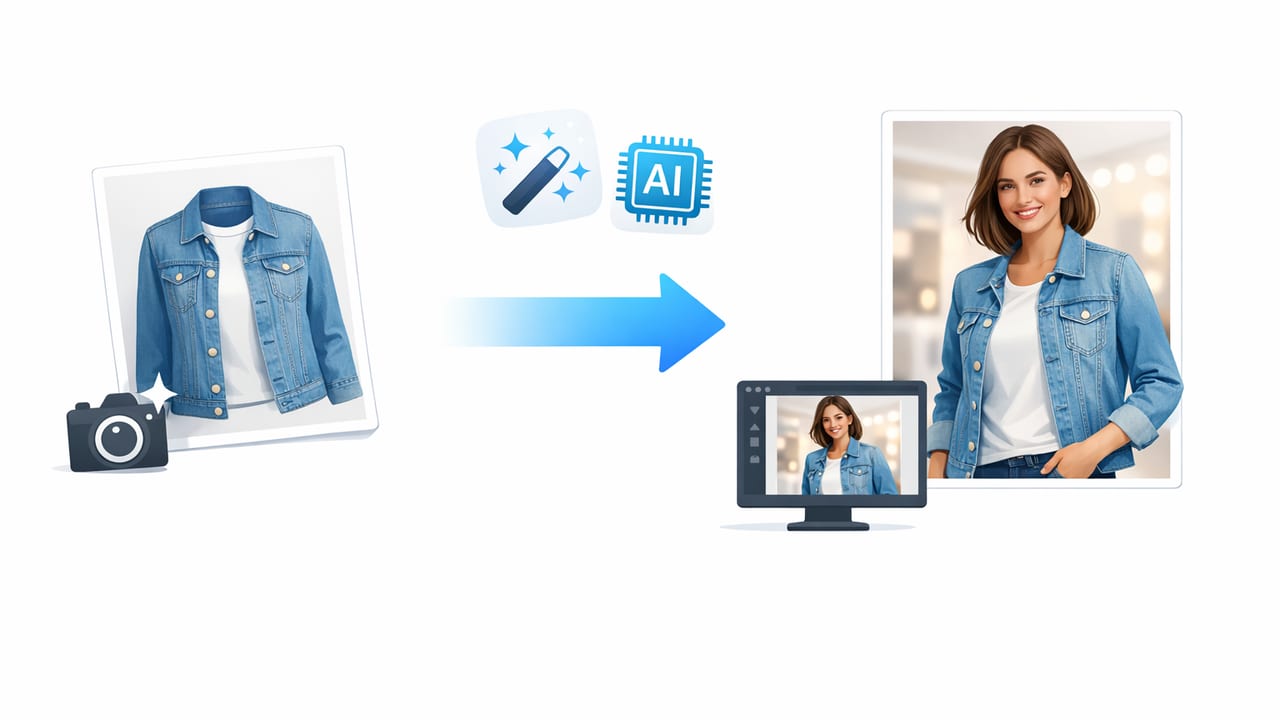
Shoppers buy with their eyes. For clothing listings, the biggest hurdle is helping someone imagine fit, drape, and style—especially when your inventory is photographed on a hanger, laid flat, or folded. That’s why many sellers look for ways to turn clothing photos into model shots without booking a photoshoot every week.
The good news: you don’t need perfect gear or a full studio to create clean, professional-looking “on-model” visuals. With a consistent photo capture routine and thoughtful editing (often assisted by AI photo editing), you can create images that feel polished, trustworthy, and ready for marketplaces like Poshmark and eBay.
This guide walks through a practical, reseller-friendly workflow: what to photograph, how to prep garments, how to edit for consistency, and when to choose alternatives like ghost mannequin or flat lay.
What “model shots” really do for clothing listings
A model shot isn’t just about aesthetics. It solves a buyer question fast: “How will this look when worn?” Even when the buyer knows sizes vary, on-model imagery helps them judge:
- Silhouette (fitted vs. relaxed)
- Drape and structure (stiff denim vs. fluid satin)
- Length cues (cropped, midi, maxi)
- Neckline and sleeve behavior (how it sits on a body)
- Outfit context (styling possibilities)
If you can deliver those cues consistently, you reduce uncertainty—which can increase buyer confidence and lower returns.
Choose the right source photo: you can’t “edit” a bad capture
Before editing, capture photos that give the editor something clean to work with. For the most natural-looking results, use one of these capture styles:
Option A: On-hanger (fast and scalable)
Great for tops, jackets, dresses, and outerwear. Use a consistent hanger style and keep shoulder seams aligned so the garment hangs symmetrically.
Option B: Flat lay (best for knits, tees, denim)
Flat lay gives clean edges and is easier to standardize, especially for items that don’t hang well (stretchy knits, soft tees).
Option C: Ghost mannequin prep (premium “3D” look)
Ghost mannequin images create a hollow, wearable look that mimics an on-body feel without showing a person. It works especially well for structured pieces like blazers, button-downs, and dresses.
Rule of thumb: If the garment’s shape matters (waist definition, shoulders, collar stand), shoot it in a way that clearly shows structure—then edit for polish.
A simple capture setup that makes editing easier
You don’t need expensive lighting—just consistency. Here’s a minimalist setup that supports clean background removal and more realistic “model shot” results.
- Use bright, even light: stand near a window or use two soft lights angled at 45° to reduce harsh shadows.
- Pick a plain background: a white wall, foam board, or seamless paper helps automatic background removal.
- Keep the camera level: shoot straight-on to avoid distortion (especially for pants and long dresses).
- Leave breathing room: frame with space around the garment so edges aren’t cropped.
- Lock in consistency: same distance, same height, same orientation for the whole batch.
Editing workflow: from basic cleanup to “model shot” look
To turn a regular clothing photo into something that reads like an on-model image, focus on three outcomes: clean shape, consistent presentation, and realistic texture. This workflow keeps things approachable and repeatable.
Step 1: Remove distractions (background + clutter)
Background removal is often the biggest visual upgrade per minute spent. A clean, consistent background:
- makes your shop look cohesive
- helps the garment color read accurately
- reduces “thrift store” visual noise (random rooms, busy floors, clutter)
After removing the background, choose a neutral fill (white, light gray, or a subtle off-white) and keep it consistent across listings.
Step 2: Smooth wrinkles (without erasing texture)
Wrinkles can make a garment look worn out—even when it isn’t. The goal isn’t to make fabric look plastic; it’s to reduce deep creases that distract from fit and design.
Tip: Preserve natural fabric cues like linen slub, denim grain, or ribbed knits. If everything looks perfectly airbrushed, buyers may distrust the photo.
Step 3: Correct color and exposure for accuracy
Color accuracy matters more than “looking pretty.” For buyer trust:
- Increase exposure slightly if the item looks dull
- Reduce yellow or blue casts caused by indoor lighting
- Match whites across your listings so backgrounds look consistent
Step 4: Create a wearable silhouette (the “model shot” effect)
Here’s where many sellers make the leap from “clean product photo” to “on-model feel.” Depending on your approach, you can:
- Use a ghost mannequin look to simulate a body inside the garment
- Use an AI model-style render to place the garment onto a professional-looking model image
- Use shaping edits that gently refine symmetry and presentation (without changing the item)
No matter which route you choose, keep the garment’s real proportions intact. Don’t cinch waists, lengthen hems, or narrow sleeves beyond what the product actually is.
Step 5: Standardize output (so your closet looks like a brand)
Consistency is what makes a shop look “expensive.” Create a repeatable standard:
- same aspect ratio (e.g., square or 4:5)
- same background tone
- same crop (headroom above hanger/neckline, similar spacing at sides)
- same shadow style (either none, or a subtle consistent drop shadow)
Model shots vs. ghost mannequin vs. flat lay: what to use when
| Presentation Style | Best For | Pros | Watch Outs |
|---|---|---|---|
| Model-style images | Trend items, dresses, statement pieces, bundles | Shows drape and styling; high buyer engagement | Keep sizing honest; avoid over-editing textures |
| Ghost mannequin | Structured garments (blazers, shirts, dresses) | Premium “wearable” look without a person | Requires clean edges and neckline/inner label handling |
| On-hanger | High-volume closets, basics, quick turnaround | Fast; easy batch workflow | Can look flat if shoulders aren’t aligned |
| Flat lay | Tees, knits, denim, accessories | Great shape control; easy to keep consistent | Less “wearable” unless styled carefully |
A repeatable “batch day” checklist (for fast scaling)
If you’re listing regularly, the biggest improvement is batching. Here’s a simple system that keeps photos consistent and editing quick.
Capture checklist
- Steam or smooth major wrinkles before shooting
- Photograph front, back, tag/label, fabric close-up, and flaws
- Keep the same distance and camera height for every item
- Use the same background and lighting setup
Editing checklist
- Remove background
- Unwrinkle lightly (keep texture)
- Correct exposure + white balance
- Apply your chosen presentation style (model-style / ghost mannequin / clean hanger)
- Export in a consistent size and crop
Naming and organization (optional but helpful)
If you ever lose track of photos, a simple naming pattern helps. Here’s an example you can copy:
brand_item_color_size_view.jpg
zara_blazer_black_m_front.jpg
zara_blazer_black_m_back.jpg
zara_blazer_black_m_label.jpg
Common mistakes when trying to “turn clothing photos into model shots”
- Over-smoothing fabric: Buyers want realism. Keep knit texture, denim grain, and natural seams.
- Inconsistent crops: If one photo is zoomed-in and the next is far away, your shop feels messy.
- Mixed lighting across listings: A warm photo next to a cool photo makes colors feel unreliable.
- Ignoring garment prep: Twisted straps, flipped collars, and uneven hems create a “cheap” impression.
- Using a busy background: Even a nice room can distract; clean backgrounds keep focus on the product.
FAQ: quick answers for resellers and small brands
Do model-style images work for every item?
Not always. Basics (plain tees, simple tanks) can sell perfectly well with clean hanger or flat lay shots. Save model-style images for pieces where drape, fit, or styling is a major selling point.
Will marketplaces allow AI-edited photos?
Rules can vary by platform and change over time. In general, keep edits truthful: don’t alter the product design, color, or condition, and include clear photos of details and any flaws.
How many photos should I include per listing?
A strong baseline is 6–10 images: front, back, close-up of fabric, label, size tag (if helpful), and any flaws. Add a model-style or ghost mannequin image when it improves buyer understanding.
Putting it all together: a practical, buyer-trust workflow
If you want results that feel “pro” without feeling complicated, prioritize: clean capture → background removal → light wrinkle reduction → consistent color → one signature presentation style. Do that for every listing, and your shop will look cohesive even as inventory changes.
When you’re ready to streamline the process on iPhone—especially for background removal, quick unwrinkling, ghost mannequin looks, or generating model-style images—an app like Clothing Studio can help you move faster while keeping a consistent style across your closet.
