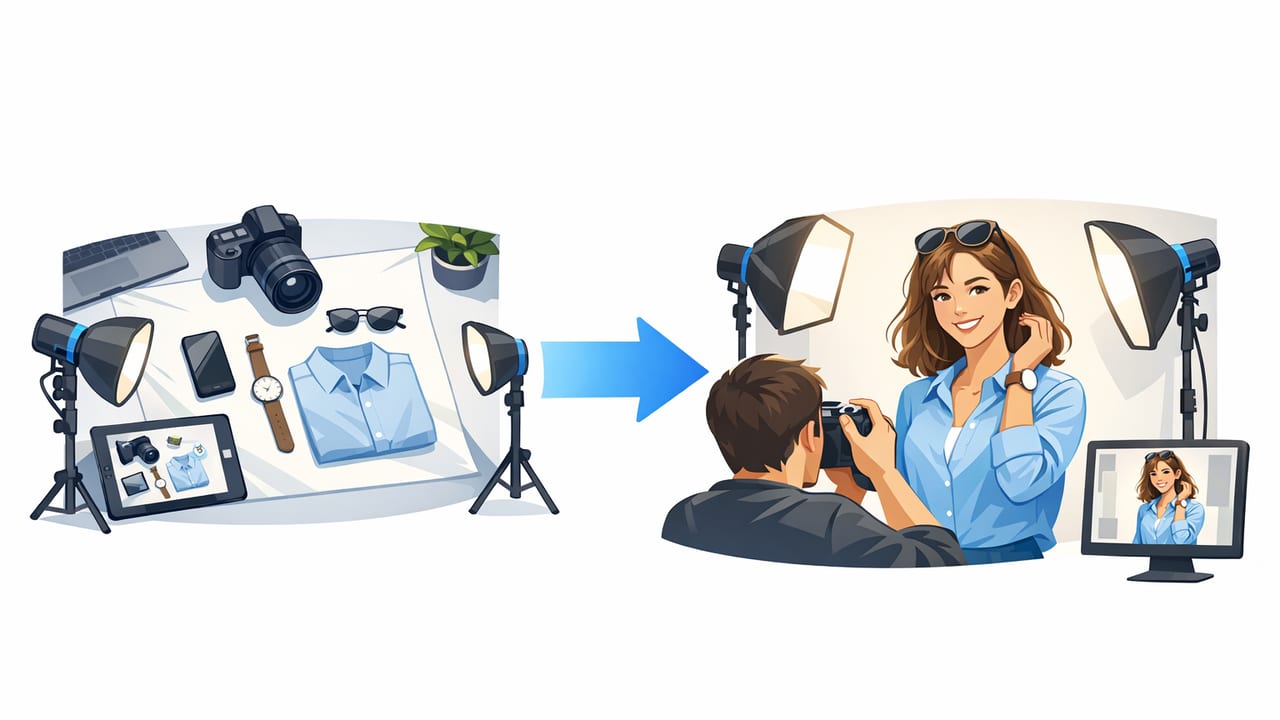
Flat lays are fast, consistent, and easy to shoot—but shoppers often want to see how a piece wears. That’s why many resellers and small brands look for ways to turn flat lay into model photo imagery without booking a photoshoot or keeping a fit model on standby. Done well, model-style images can increase buyer confidence, reduce “How does it fit?” questions, and help your listings look more premium across marketplaces.
This guide walks through a practical, non-technical workflow: how to shoot a flat lay that edits cleanly, how to choose the right “model” approach (AI model, ghost mannequin, or simple styled mockups), and how to keep results realistic and consistent for e-commerce.
Why convert flat lays to model-style photos?
Flat lays excel at showing details (fabric, print, condition), but they struggle to communicate three things shoppers care about:
- Drape (how the fabric hangs)
- Proportion (length and silhouette relative to a body)
- Styling context (how it looks as an outfit)
Model-style images help bridge that gap. The goal isn’t to “trick” buyers—it’s to create a clearer visualization, as long as you keep color, details, and fit representation honest.
Pick the right approach: AI model vs. ghost mannequin vs. classic flat lay
Before editing, decide what kind of upgraded image you actually need. Here’s a quick comparison:
| Option | Best for | Pros | Watch-outs |
|---|---|---|---|
| AI model photo | Scrolling-heavy platforms, social sharing, hero images | Shows drape and “on-body” feel; looks premium | Must look realistic; avoid changing design details |
| Ghost mannequin | Brands that want a clean catalog look | Professional, consistent, no distractions | Needs clean edges and natural shape |
| Improved flat lay (cleanup + background) | Fast listing volume, detail-focused listings | Quick and honest; easy to keep accurate | Doesn’t show drape as clearly |
Rule of thumb: Use model-style images to communicate shape and styling, then include at least one clear flat lay or close-up photo for true color, texture, and any flaws.
Shoot a flat lay that converts cleanly (the “edit-friendly” setup)
The quality of your output depends heavily on what you start with. If you want a smooth conversion into a model photo, aim for a flat lay with clean edges, even lighting, and true-to-life color.
1) Use soft, even lighting
- Stand near a window with indirect light, or use two lights placed at 45° angles.
- Avoid harsh overhead bulbs that create strong shadows under sleeves and hems.
- Keep lighting consistent across your whole store for a cohesive grid.
2) Choose a simple background
A plain surface (white foam board, neutral fabric, or a clean wall/floor) makes background removal and edge cleanup dramatically easier. Busy textures can confuse cutouts and create jagged edges around lace, fringe, or knits.
3) Style for natural shape
Think like a merchandiser: align seams, smooth the collar, and position sleeves symmetrically. If the garment is supposed to be fitted, use subtle shaping (without stretching). If it’s oversized, let it look oversized—don’t pin it into a different silhouette.
4) Capture high resolution
Use your phone’s main camera (not ultra-wide). Keep the item centered and shoot straight-on to reduce distortion. High-resolution input helps the final image look crisp when shoppers zoom in.
Step-by-step workflow to turn a flat lay into a model photo
Below is a simple workflow that works for most resellers and small brands. You can adapt it depending on your tools, but keep the sequence: clean → correct → convert → verify → export.
Step 1: Clean up wrinkles and lint (without over-smoothing)
Wrinkles and lint read as “thrifted” even when an item is premium. Start with basic cleanup:
- Remove lint, dust, and stray threads.
- Smooth obvious wrinkles, but keep the fabric’s natural texture (especially knits and linen).
- Be careful around seams and hems so they don’t look melted or blurry.
Step 2: Correct color and exposure
Color accuracy matters more than “vibe.” Before you convert to a model shot, do a quick correction pass:
- Adjust white balance so whites look neutral (not yellow or blue).
- Raise exposure slightly if needed, but keep blacks and dark denim detailed.
- Match color across your listing set (front, back, details).
Step 3: Remove or simplify the background
Background removal is often the make-or-break step for realism. A clean cutout makes the garment look like it belongs in its new scene.
- Zoom in on edges (neckline, straps, cuffs) and check for halos.
- Watch tricky areas: lace, fringe, sheer fabric, and fuzzy knits.
- Keep the cutout shape natural—don’t “shrink” sleeves or trim hems.
Step 4: Generate or place the garment onto a model scene
When you create a model-style image, prioritize believability. The most realistic results happen when:
- The garment’s perspective matches the model pose (avoid extreme angles if your flat lay is straight-on).
- Lighting direction looks consistent (no strong shadow on the model if your garment has soft light).
- Fabric weight and drape make sense (a stiff blazer shouldn’t look like thin jersey).
Step 5: Check realism: edges, shadows, and proportion
Before exporting, do a “three-zoom” review:
- Zoomed out: Does it look cohesive at thumbnail size?
- Mid zoom: Do shadows look natural and consistent?
- Close zoom: Are edges clean around straps, collars, and hems?
If the garment looks like it’s floating, add a subtle shadow under the hemline area or soften edges slightly (but don’t blur details).
Step 6: Export for your marketplace (sharp, clean, consistent)
Each platform compresses images differently, so export with clarity in mind:
- Use a square or vertical crop depending on the platform’s display.
- Avoid tiny text overlays; they often get compressed and look messy.
- Keep a consistent margin around the garment/model for a cohesive storefront grid.
A consistency checklist for multi-listing sellers
If you’re converting multiple flat lays into model-style photos, consistency matters as much as quality. Use this quick checklist:
- Same background style (clean studio, lifestyle, or neutral gradient—choose one)
- Same crop (similar headroom/legroom if showing full body)
- Same brightness (avoid one image looking “moody” next to bright whites)
- Same color standard (especially for whites, blacks, and denim)
- Same level of retouch (don’t over-edit some items and under-edit others)
Optional: simple file naming to stay organized
This makes it easier to track versions (flat lay vs. model vs. ghost mannequin):
SKU1234_top_front_flat.jpg
SKU1234_top_front_model.jpg
SKU1234_top_back_flat.jpg
SKU1234_top_detail_tag.jpg
Common mistakes (and how to fix them fast)
1) The item looks “painted on”
Cause: The garment edges are too sharp, or there’s no natural shadowing.
Fix: Slightly soften edges and add subtle, realistic shadows. Make sure lighting direction matches.
2) The neckline/shoulders look warped
Cause: The flat lay was stretched or styled unnaturally.
Fix: Re-shoot the flat lay with a natural shoulder line, or choose a more neutral pose for the model conversion.
3) The color looks different from the real item
Cause: White balance drift or heavy filters.
Fix: Correct color before conversion, and compare against a reference photo in neutral lighting.
4) Details changed (buttons, logos, patterns)
Cause: Over-aggressive edits or generation artifacts.
Fix: Prioritize accuracy: if a model-style version alters details, use it as a secondary image and keep a true-to-life flat lay as the primary reference.
Trust and transparency: keep your listings accurate
Model-style images can be helpful, but e-commerce trust is everything. Protect your return rate and reviews by staying clear on what’s real:
- Don’t modify garment features (length, neckline depth, logos, prints).
- Include measurements and fabric notes so shoppers can judge fit.
- If your platform or audience expects disclosure for AI-generated imagery, add a brief note in the description.
Practical “best of both worlds” listing set
A strong, conversion-friendly photo set often looks like this:
- Hero image: model-style photo for instant context
- Flat lay front: true color and overall condition
- Flat lay back: shape and design continuity
- Close-ups: tag, fabric texture, and any flaws
- Detail shot: buttons, embroidery, special features
This approach improves buyer confidence while still keeping your listing honest and informative.
Final thoughts
To successfully turn flat lay into model photo imagery, focus on an edit-friendly flat lay, clean background removal, realistic lighting, and consistent exports. The best results don’t look “generated”—they simply make it easier for shoppers to picture the item on a person while preserving accurate details.
If you’re looking for a streamlined mobile workflow that combines common steps like background removal, unwrinkling, and model-style outputs in one place, apps like Clothing Studio can help simplify the process without turning it into a full production project.
