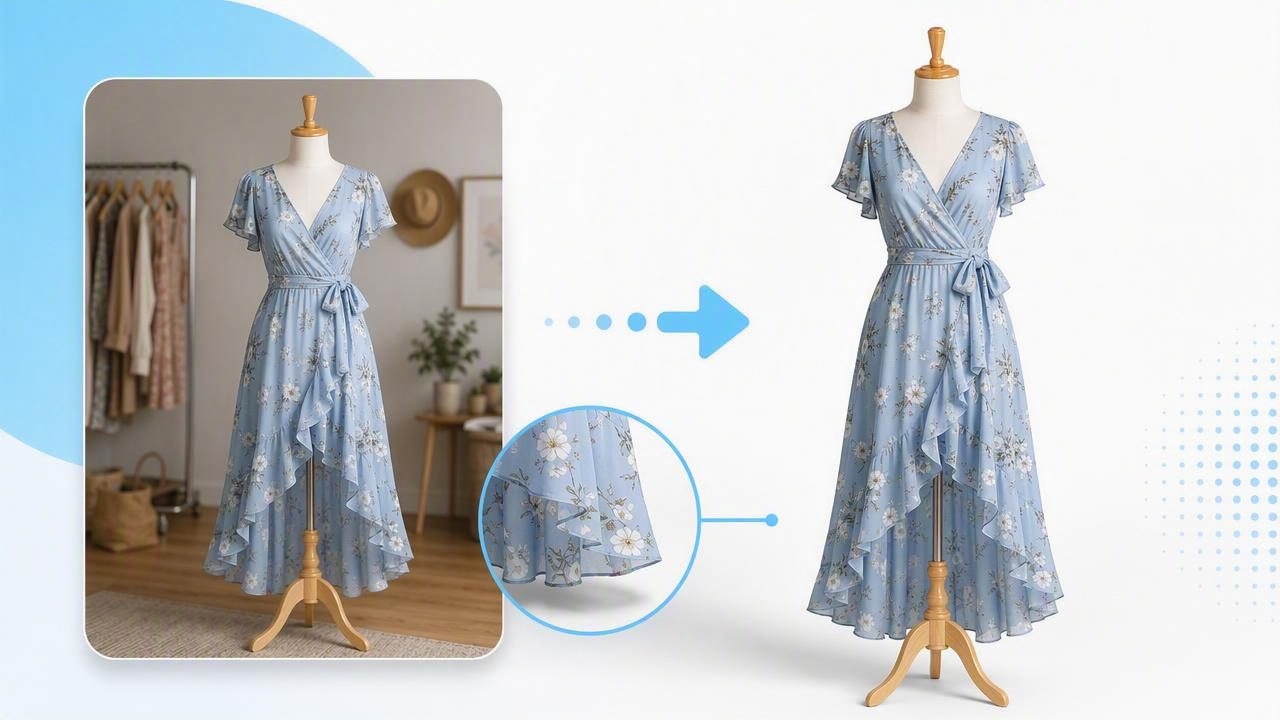
If you sell dresses online—or you’re building a catalog for a brand—your background can quietly make or break the sale. A busy bedroom, a wrinkled sheet, or a harsh flash shadow may feel “good enough,” but shoppers often read it as clutter, uncertainty, or inconsistency. The good news: you can remove distracting backgrounds from dress photos quickly and still keep the image looking natural, not cut-out.
This guide walks through a practical, non-technical workflow: how to shoot for easier edits, how to remove the background cleanly (especially around straps, ruffles, and lace), how to handle shadows, and how to deliver consistent, marketplace-ready photos.
Why distracting backgrounds hurt dress listings
A dress is all about shape, drape, texture, and detail. Distracting backgrounds compete with those cues. They can also distort color perception (a bright wall casts color onto fabric) and make your listing thumbnails look uneven side by side.
- Lower trust: clutter suggests “casual” or “unverified” condition.
- Less attention on details: prints, pleats, and embellishments get lost.
- Inconsistent brand feel: mixed backgrounds make a shop look uncurated.
- More returns: poor color cues and unclear edges lead to wrong expectations.
A clean background doesn’t just look nicer—it reduces visual noise so buyers can judge fit, fabric, and condition faster.
Start with a “background-removal-friendly” photo
Background removal is easiest when your original photo is clean. You don’t need a studio—just a repeatable setup.
Lighting: soft and even beats bright and harsh
- Shoot near a window with indirect light (avoid direct sun patches).
- Turn off overhead lights that cause yellow/green color casts.
- If using a lamp, bounce it off a white wall to soften shadows.
Backdrop: choose contrast without chaos
Pick a background that contrasts the dress color, but isn’t patterned. For example, a mid-tone dress (navy, emerald) separates better from a light wall; a white dress separates better from a medium gray or darker surface.
| Dress type | Common background problem | Better quick fix |
|---|---|---|
| Black dress | Blends into dark furniture | Use a light wall or light foam board behind it |
| White/ivory dress | Edges disappear on white wall | Use a mid-gray sheet or darker wall for separation |
| Lace/mesh dress | Fine details get “eaten” by patterns | Use a solid backdrop with gentle contrast |
| Satin/shiny dress | Specular highlights look blown out | Diffuse light (sheer curtain) and lower exposure slightly |
Angle and framing: keep edges clean
- Leave a little space around the dress so the outline is easy to detect.
- Keep the camera level to reduce perspective distortion.
- Take one “hero” photo plus a few detail shots (neckline, hem, zipper, tags).
Step-by-step: remove distracting backgrounds from dress photos
This workflow works whether you use an AI background remover or a manual selection tool. The key is to make the cutout look believable.
- Pick the best base image. Choose the sharpest shot with the cleanest outline (no motion blur, no harsh shadows crossing the dress).
- Run background removal. Use a background remover to isolate the dress. Export at high resolution if possible.
- Inspect edges at 200–300% zoom. Look for missing straps, jagged hems, and fringing (a halo of old background color).
- Refine problem zones. Repair edges around thin straps, lace, and ruffles. If your editor offers “erase/restore” brushes, use a small brush size and slow strokes.
- Add a clean background. White is common, but light gray can look more premium and hides minor edge issues.
- Rebuild realistic shadow (optional but powerful). A subtle shadow prevents the “floating cutout” look.
- Color-check and export. Keep colors accurate, then export in the size your marketplace prefers.
How to avoid the “cut-out sticker” look
The biggest giveaway of poor background removal is when a dress looks like it was pasted onto a new background. These fixes are simple and make a major difference.
1) Fix fringing and halos
Fringing happens when the original background color lingers around the edges—especially around hairline lace, sheer sleeves, or thin straps.
- Zoom in and gently remove halo pixels with an erase tool.
- Prefer a slightly softer edge rather than a jagged, over-sharpened outline.
- Match background brightness to your dress edge: very bright backgrounds can exaggerate halos.
2) Keep delicate details (lace, tulle, fringe)
Sheer and textured materials are where background removal tools struggle most. Instead of forcing a perfect hard edge, aim for a believable one.
- Use a lightly contrasting solid backdrop when shooting so the tool can detect transparency better.
- For lace hems, accept a tiny softness rather than cutting holes through the pattern.
- If the dress has fringe, consider leaving a small, natural blur at the ends to mimic real motion and softness.
3) Add a subtle ground shadow
A gentle shadow anchors the dress. Many editors let you add a shadow automatically. If you’re doing it manually, keep it minimal:
- Soft edges (blurred), not sharp.
- Low opacity (you should barely notice it).
- Direction consistent with your lighting (usually down and slightly back).
Which background should you use after removal?
After you remove the background, you’ll typically place the dress on a clean solid color. The “best” choice depends on your platform and your brand style.
- Pure white (#FFFFFF): classic, catalog-like, clean thumbnails. Can exaggerate edge flaws if your cutout isn’t refined.
- Light gray: forgiving, modern, premium feel; helps white dresses stand out.
- Off-white: warmer look, good for vintage or boutique vibes.
- Soft gradient: can look polished, but keep it subtle so it doesn’t become “distracting background” again.
Fast quality check: a 60-second checklist
Before you upload, run this quick inspection. It prevents the most common issues that reduce clicks and confidence.
- Edges: straps intact, hemline smooth, no chunks missing.
- No halo: check around shoulders and waist (common trouble spots).
- Color accuracy: compare to the real dress under neutral light; avoid overly warm edits.
- Consistent crop: similar spacing and scale across your listings.
- Resolution: sharp enough to zoom; avoid heavy compression artifacts.
Common dress-photo scenarios (and what to do)
On-hanger dress photos
Hanger shots are efficient, but the hook and shoulders can look messy when cut out.
- Center the dress and keep the hanger straight.
- Consider a ghost mannequin effect if you want a more dimensional look for the bodice and neckline.
- When removing the background, zoom in around hanger edges to avoid jagged corners.
Flat-lay dresses (folded or fully laid out)
Flat-lays make details easy to see, but sleeves and hems create complex outlines.
- Smooth the fabric before shooting to reduce wrinkles that look like stains or damage.
- Keep your camera parallel to the floor to avoid distortion.
- After background removal, check for tiny cut errors along long curves (neckline, armholes).
Dresses photographed on a person
If you’re removing the background around a worn dress, the challenge is usually the boundary between fabric and skin/hair.
- Use a clean, contrasting wall to help the tool separate edges.
- Prioritize a natural outline over a “perfect” one—over-erasing looks worse than slight softness.
- Keep lighting even to reduce harsh shadows along arms and waist.
Workflow tip: batch consistency beats “perfect” one-offs
Especially for resellers, time matters. A consistent, repeatable process often performs better than occasional perfect edits, because your storefront looks cohesive.
Try this simple batching approach:
- Shoot 10–30 dresses in the same spot with the same lighting.
- Pick one background style (white or light gray) and stick to it.
- Edit in batches: remove backgrounds first, then do edge fixes, then export.
Optional: filename and alt-text template (helps SEO)
If you also sell from your own site or blog, descriptive filenames and alt text can help image discovery.
Filename: brand-name_wrap_dress_green_floral_background-removed.jpg
Alt text: Green floral wrap dress on clean white background, background removed for product listing
Keep it simple, accurate, and avoid keyword stuffing. Use the phrase remove distracting backgrounds from dress photos in your article text (like this guide) rather than forcing it unnaturally into every alt tag.
FAQ
Is it better to remove the background or just shoot on a blank wall?
If you can consistently shoot on a clean, blank backdrop, that’s great and may reduce editing time. Background removal is most valuable when your environment changes, you’re shooting quickly, or you want a uniform catalog look across listings.
How do I keep the dress looking realistic after background removal?
Focus on three things: clean edges (no missing straps), no halo/fringing, and a subtle shadow. Those details make the dress feel “placed” rather than pasted.
What’s the easiest way to handle lace or sheer fabric?
Shoot against a solid background with gentle contrast, then refine edges carefully. Avoid overly aggressive cutouts that destroy the lace pattern—slight softness is usually more natural.
Closing thoughts
To remove distracting backgrounds from dress photos effectively, you don’t need a complicated setup—you need a repeatable shooting spot, a clean background-removal pass, and a quick edge-and-shadow check. The result is a more professional storefront, clearer product details, and stronger buyer confidence.
If you prefer doing this on an iPhone with a fashion-focused workflow (including background removal and tools for cleaner clothing presentation), an app like Clothing Studio can help streamline the process.
