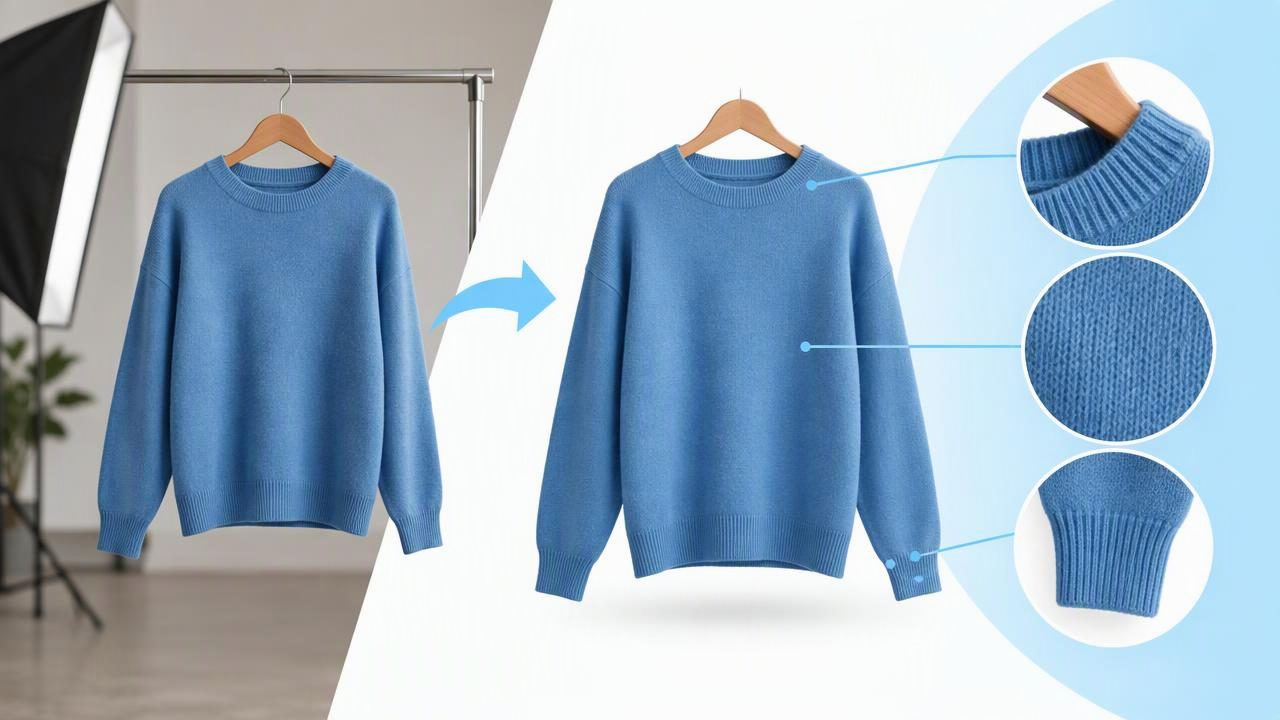
A distracting room, patterned rug, or cluttered hanger can pull attention away from the garment you are selling. Removing the background from clothing photos can make a listing look cleaner and help shoppers focus on the item. But a tidy image is only useful if it still shows the clothing accurately.
The best approach is not simply to erase everything behind a garment. It is to preserve its outline, color, texture, and visible condition while choosing a background that makes the item easy to assess. This guide explains how to remove a background for clothing photos, when to use a plain replacement, and what to check before publishing the edited image.
Why remove the background from clothing photos?
A background can compete with a product in several ways. Household objects may make an image feel busy, a wall color can cast a tint, and uneven lighting can make the garment harder to inspect. Removing the background can create a more consistent presentation across a shop or help a single item stand out in a crowded marketplace feed.
It can also make a clothing photo easier to reuse across different listing layouts. For example, you might want a neutral product image for a catalog while keeping a second photo that shows the garment in its original setting. The edit should support the information in the listing, not replace useful views of the item.
- Reduce visual distractions: Keep attention on the garment rather than furniture or room details.
- Create a consistent look: Use a similar backdrop across products when that suits your shop.
- Improve separation: Make the item easier to distinguish from the space around it.
- Prepare alternate layouts: Place a cutout on a simple background or use it as part of a clothing presentation.
Background removal is not a repair tool. It does not fix stains, holes, fading, or other garment defects, and it cannot make an inaccurate photograph truthful. Show material condition clearly and disclose flaws in the listing.
Start with a photo that is easy to edit
Even good editing tools can struggle when the garment and background blend together. Before taking a photo, choose a background that contrasts with the item without reflecting color onto it. A dark jacket is easier to separate from a light, plain wall than from a dark sofa. A white shirt may need a mid-tone background so its edges remain visible.
Keep the garment away from the wall when possible. A little distance can reduce hard shadows that merge with sleeves or hems. Arrange the item so its edges are visible: spread out a flatlay, separate overlapping sleeves, or leave space around a hanger. Use even light and avoid strong backlighting, which can make the outline difficult to identify.
Take a sharp, well-lit original and keep it unchanged as a reference. If the source image has motion blur, a sleeve is hidden behind another item, or a sheer fabric disappears into the background, removing the backdrop may not restore the missing information. Editing can separate visible pixels; it cannot reliably reveal details the camera did not capture.
Choose a replacement background that suits the garment
Once the original background is removed, the replacement affects how the clothing reads. A plain light background is a common choice for product listings because it is unobtrusive, but it is not right for every item. A pale garment may need a gentle gray or warm neutral behind it, while a dark garment can be more legible against a light tone.
Consider contrast, color, and intended presentation together. The goal is not to make every item look identical at any cost. A background that changes the perceived color of the clothing or makes an edge disappear can undermine buyer confidence.
| Presentation | Can work well for | Check before using |
|---|---|---|
| Plain neutral background | Clean, straightforward listing images | Light garments still have a visible outline |
| Soft contrasting color | Items that blend into white or black | The color does not cast a distracting tint |
| Flatlay on a simple surface | Showing an item’s overall shape and details | Fabric, seams, and sleeves are not hidden |
| Hanger or ghost mannequin presentation | Showing garment shape without a person in frame | The result does not imply unseen fit or construction |
For many resale listings, a neutral background is a practical default. Keep another image of the garment in context if it helps buyers understand scale, styling, or condition.
How to remove a background for clothing photos
- Choose the clearest source image. Use the original photo with the sharpest outline and the fewest objects crossing in front of the garment. Avoid screenshots or repeatedly compressed copies when the original is available.
- Run the background removal. Use an editing tool with an automatic background-removal option, then inspect the cutout rather than assuming the first result is accurate. Different fabrics and edges need different amounts of attention.
- Review the outline closely. Check collars, cuffs, hems, straps, buttons, and gaps between sleeves. Look for missing fabric, leftover background, jagged edges, or a thin halo from the original setting.
- Select a simple replacement. Choose a background that provides enough contrast and does not compete with the item. Avoid adding props or decorative effects that could be mistaken for included accessories.
- Compare with the original. Check the edited image beside the untouched photo. Confirm that the garment’s visible shape, color, folds, and flaws still agree with the source.
- Save and inspect the final image. View it at a useful size on a phone or computer. Make sure the item is not cropped, the edges remain clean, and the background looks even.
This review matters especially for soft, fuzzy, reflective, or semi-transparent materials. Fine fibers, loose threads, lace, and sheer fabric can be difficult to separate cleanly. A cutout may look convincing when viewed small but reveal missing detail when enlarged.
A practical example: removing a background from a sweater photo
Imagine listing a burgundy knitted sweater photographed on a cream wall. The sweater has a pale shadow along one sleeve, and a dark chair is visible near the hem. An automatic edit may remove the wall and chair, but it could also clip fine yarn at the cuffs or leave a light fringe around the shoulder.
Place the cutout on a quiet, light gray background and inspect the sleeve edges, collar, and bottom hem. Compare the burgundy color with the original photo under the same screen conditions. If the edit has removed part of the cuff or changed how the knit texture appears, return to the original or adjust the cutout if the tool allows. Do not use the replacement background to conceal a snag or stain. Include a close-up of any relevant wear and describe it in the listing.
This example shows the value of treating background removal as a presentation edit, not a way to improve the garment itself. If an edge cannot be separated cleanly, a less aggressive edit or the original photo may give buyers a more reliable view.
Common background-removal problems to watch for
Missing or uneven edges
Dark fabric against a dark background and light fabric against a light one can make the outline hard to detect. Look around the full garment, not only at the body. Thin straps, loose sleeves, and small gaps near buttons are easy to overlook.
Halos and leftover shadows
A faint border from the old background can show up after placing a cutout on a different color. Shadows may be part of the original scene rather than the garment. Inspect around hems and shoulders, and avoid presenting leftover background as though it were part of the item.
Unnatural-looking fabric
Some edits can soften, simplify, or remove texture near an edge. Knits, fur, fringe, lace, and sheer panels deserve particular attention. Do not assume the edit preserves every fiber or reproduces the fabric perfectly. Keep a source photo available for comparison and use detail images where texture matters.
Color that no longer matches
A new background may change how a garment’s color appears on screen, even if the item itself has not been edited. Compare the result with the original and avoid strong background colors that can make the clothing seem warmer, cooler, brighter, or darker than it is.
Misleading garment presentation
A clean cutout can make a clothing item look more polished, but it should not imply a fit, shape, or feature that the source image does not show. A ghost mannequin or styled presentation can help communicate form, yet it is not proof of exact fit. Include straightforward views of the actual garment and disclose condition honestly.
When to keep the original background
Removing the background is optional. Keep the original setting when it gives helpful scale, shows how a garment hangs, or helps buyers understand its condition. If the source background is already plain and the garment is easy to see, editing may add little value. For vintage or secondhand clothing, an unaltered photo can also help demonstrate that the item is real and show its condition in context.
A balanced listing can use both: a clean main image for quick recognition and additional photos that show the garment close up, from another angle, or in its original setting. Follow the marketplace’s current image rules, and avoid presenting a composite as an unedited photograph.
Keep edited clothing photos useful and trustworthy
Before publishing, ask three questions: Can a shopper see the whole garment? Does the edited image still match the original item? Are wear, color, and construction represented clearly? If any answer is no, revise the image or add a more informative photo.
Background removal works best as one part of thoughtful e-commerce photography. A simple, well-chosen backdrop can reduce clutter, while careful edge checks and original-photo comparisons help keep the result credible. For an additional clothing presentation option, read this guide to ghost mannequin photos; tools such as Clothing Studio offer AI-assisted clothing photo editing, with full features available through a subscription.
