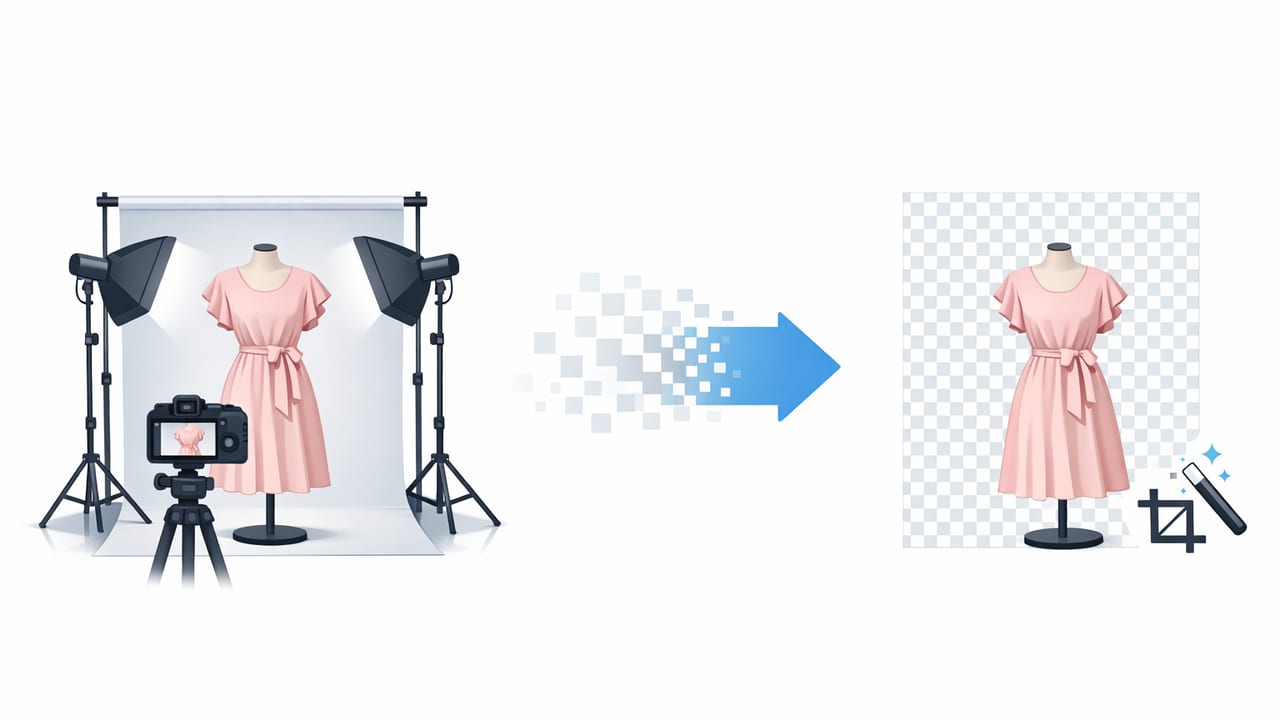
Clean product images sell confidence. When shoppers can instantly see the shape, color, and details of a garment—without distracting walls, messy rooms, or harsh shadows—they’re more likely to click, zoom, and buy. That’s why learning how to remove background for clothing photos is one of the highest-impact skills for fashion resellers and brands.
This guide walks you through a practical, repeatable workflow: how to shoot photos that are easy to cut out, how to get smoother edges on tricky fabrics, and how to export images that look consistent across your listings—without getting overly technical.
Why background removal works so well for clothing listings
Background removal isn’t just about making images look “clean.” It directly supports how customers shop online:
- Faster scanning: A consistent background makes it easier to compare items in search results.
- Better focus on the product: Details like texture, stitching, and silhouette stand out.
- More professional presentation: Even budget inventory can look premium when it’s lit well and neatly cut out.
- Flexible reuse: Once the background is removed, you can place the item on white, light gray, or brand-colored backdrops for different channels.
Start with a photo that’s easy to edit (this matters most)
The best background removal results come from good input photos. You don’t need a studio—just a consistent setup.
Quick shooting setup checklist
- Use soft light: Stand near a window with indirect light, or use a simple softbox. Avoid direct sunlight stripes.
- Choose contrast (but not extreme): A medium-tone backdrop behind light clothing, or a light backdrop behind dark clothing, helps the subject separate.
- Keep the background simple: Plain wall, seamless paper, or a solid sheet. Fewer patterns = cleaner edges.
- Stabilize your phone: A tripod or a stable surface reduces blur that can create jagged cutout edges.
- Leave breathing room: Frame the garment with extra space around it so the editor can detect edges properly.
Hanger, flat lay, or mannequin?
Background removal works for all three, but each has tradeoffs:
- On-hanger: Great for tops and jackets; watch for hanger hooks and strap cutouts.
- Flat lay: Easy edges for denim and tees; harder for black items on dark surfaces.
- Mannequin: Best for shape; can be paired with a ghost mannequin effect for a “hollow” interior look.
A simple step-by-step workflow to remove backgrounds
Use this workflow whether you edit in a mobile app, desktop editor, or a marketplace tool. The names of buttons differ, but the steps stay the same.
-
Pick your hero photo(s)
Choose the sharpest image with the best lighting. If you shot multiple angles, start with the main front view.
-
Correct exposure and white balance first
Do small edits before removing the background: brighten slightly, reduce harsh highlights, and correct color cast (for example, yellow indoor light). If the garment color is off, background removal won’t fix it.
-
Remove the background
Use an auto background removal tool, then inspect the edges at zoom. Good tools will preserve clean lines around hems, collars, and sleeves.
-
Refine edges (the pro step)
Look closely at areas that commonly need cleanup: straps, lace, fringe, fuzzy knits, and gaps between armholes. Use refine tools such as edge smoothing, feathering (lightly), and small “erase/restore” brushes where needed.
-
Add a consistent background
Most sellers choose white or very light gray. If you add pure white, make sure the garment edges don’t get washed out. A subtle light gray often looks more natural and still reads as “clean.”
-
Align, center, and crop consistently
Keep product size similar across listings. Center the garment, straighten it, and crop so the item fills the frame without cutting off details.
-
Export in the right format
Use high-quality JPG for most marketplaces. Use PNG only if you need transparency for design work. Avoid overly small exports that look soft when zoomed.
Choosing a background color: what looks best for clothing?
The “best” background depends on your brand and where you sell. Here’s a practical comparison:
| Background option | Best for | Watch out for |
|---|---|---|
| White (#FFFFFF) | Classic marketplace look, clean grids, most categories | White garments can blend into the background unless edges are crisp |
| Light gray | More natural separation, less “cutout” look, dark and light items | Too dark can look dingy; keep it subtle |
| Soft brand tint (very pale) | Brand-owned shops, cohesive feeds, lookbook-style storefronts | Strong colors can affect perceived garment color |
| Lifestyle photo (not removed) | Social posts, ads, storytelling | Harder to keep consistent; can look cluttered in listings |
Common edge problems (and how to fix them)
If you’ve tried to remove background for clothing photos and the result looks “off,” it’s usually one of these issues.
1) Fuzzy sweaters and faux fur
- Problem: The tool either chops off fuzz or leaves a halo.
- Fix: Use a gentle edge refine/feather setting and place on light gray instead of pure white. Avoid aggressive smoothing.
2) Lace, mesh, and cutouts
- Problem: Holes get filled in or look patchy.
- Fix: Zoom in and restore transparency in the lace areas (or manually erase). Keep the original photo well-lit so the pattern is clear.
3) Black clothing on dark backgrounds
- Problem: Sleeves disappear into the backdrop.
- Fix: Reshoot on a lighter background when possible. If not, raise shadows slightly before background removal to reveal the outline.
4) Strap tops and thin edges
- Problem: Straps look jagged or partially cut off.
- Fix: Use a smaller restore brush and keep straps thicker by avoiding heavy edge shrink settings.
Batch editing: how to stay fast without losing quality
If you’re listing frequently, the goal is consistency at speed. A good rhythm looks like:
- Shoot in batches (10–30 items per session) with the same lighting and setup.
- Edit in batches using the same background color and crop ratio.
- Check only the tricky zones (edges, lace, straps) instead of re-editing everything.
One underrated trick is using a naming convention so your images stay organized across platforms.
SKU-Front.jpg
SKU-Back.jpg
SKU-Detail1.jpg
SKU-Tag.jpg
This makes it easier to upload in order, reuse photos later, and match images to inventory records.
Quality control: a 30-second checklist before you post
Before uploading your edited images, do a quick scan. This prevents returns caused by confusion and keeps your shop looking consistent.
- Edges: No missing hems, no weird cutouts around sleeves, no leftover background chunks.
- Color: Does the garment match real life? (Compare to your item in the same lighting.)
- Shadows: If you added a shadow, it should be subtle and consistent across items.
- Crop: Similar zoom level across listings; don’t let one item look tiny next to another.
- Details: Include at least one close-up for texture, flaws, and label/size.
When not to remove the background
Background removal is powerful, but not always the best choice:
- True color is the priority: Some fabrics (silk, velvet) can look different when isolated against pure white. A controlled, neutral real background may show truer tone.
- You’re selling “vibe”: Vintage, festival, or streetwear sometimes performs better with a styled environment—just keep it uncluttered.
- Lighting is messy: If the original photo has hard shadows and mixed lighting, the cutout may look unnatural. Reshooting can be faster than heavy fixing.
FAQ: removing backgrounds for clothing photos
Will background removal make my listings rank higher?
It won’t magically change marketplace algorithms, but it can improve conversion signals: better click-through, longer viewing, and fewer buyer questions—especially if your shop becomes visually consistent.
Should I use PNG or JPG after removing the background?
Use JPG for most listings because it’s smaller and widely supported. Use PNG only if you need transparency (for design layouts or if a platform supports transparent backgrounds).
How do I avoid the “sticker cutout” look?
Use light gray backgrounds, avoid heavy edge smoothing, and keep lighting soft. If you add a shadow, make it faint and realistic (not a dark outline).
Bring it all together
If you want cleaner, more consistent listings, the fastest path is: shoot with soft light + simple backdrop, then remove background for clothing photos and standardize your crop and background color. Over time, this builds a recognizable shop aesthetic and makes your inventory look more trustworthy.
Tip: If your edits take longer than your photography, it usually means your shooting setup needs a small upgrade (better light, more contrast, steadier framing).
If you prefer editing on iPhone, there are AI-powered tools designed specifically for apparel workflows (unwrinkling, ghost mannequin-style looks, and fast background cleanup), such as Clothing Studio.
