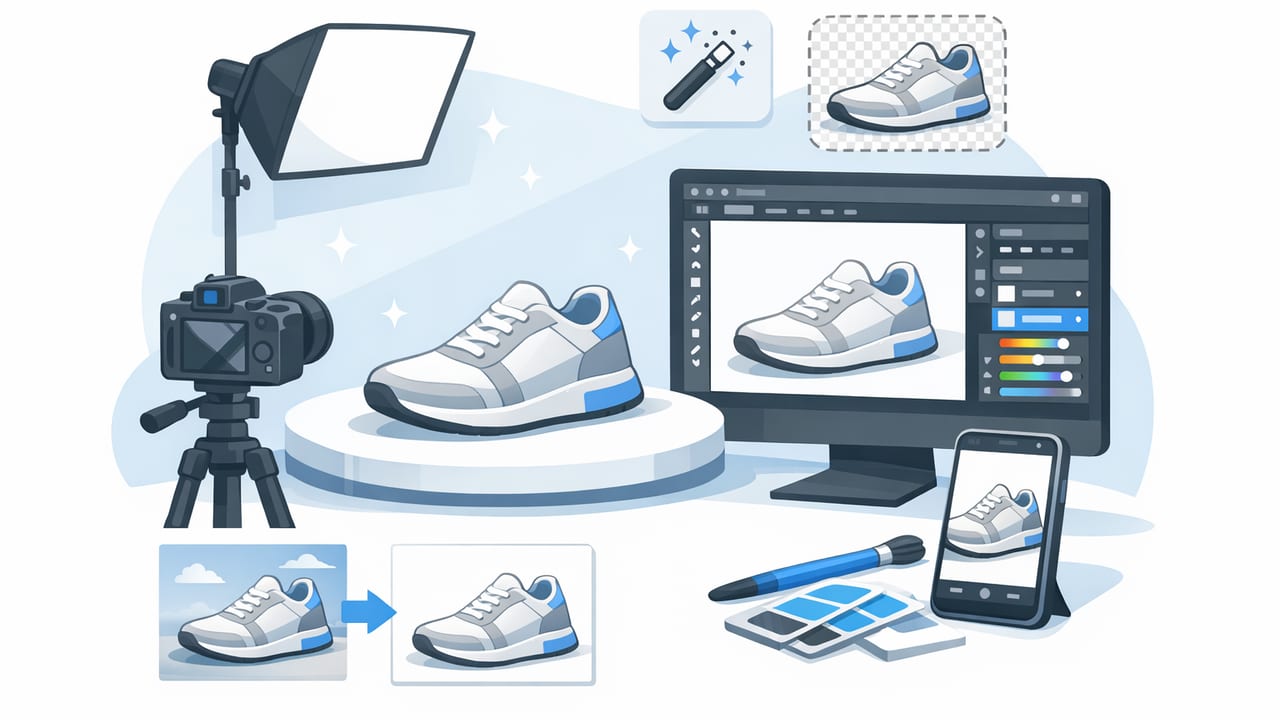
In fashion resale and e-commerce, your photos do most of the selling. Shoppers can’t feel fabric or try on fit, so they rely on clear, consistent images to judge condition, color, and value. The good news: you don’t need a studio to make product photos look professional. You need a repeatable setup, a simple shot list, and a light editing workflow that keeps everything clean and consistent.
This guide focuses on clothing photography—on-hanger, flat lay, folded, ghost mannequin, and model-style images—so you can get polished results quickly and list faster without sacrificing quality.
What “professional” clothing photos actually mean
Professional-looking product photos aren’t about fancy cameras. They’re about clarity and consistency. A “pro” clothing listing typically has:
- Accurate color (no weird yellow/blue cast)
- Even lighting (no harsh shadows, no blown highlights)
- Clean background (no distractions)
- True-to-life texture (fabric detail visible)
- Consistent framing (each item presented the same way)
- Visible proof points (tags, flaws, measurements)
Rule of thumb: If a shopper can’t answer “What is it, what condition is it in, and how will it fit?” from your photos, your images aren’t doing their job yet.
Step 1: Set up a simple “always-ready” photo space
To make product photos look professional consistently, you need a repeatable environment. The goal is to remove variables (mixed lighting, cluttered backgrounds, shifting camera angles).
Lighting: the fastest upgrade you can make
Natural window light can look great, but it changes throughout the day. For consistent results, consider:
- Two soft lights (or one ring light plus one soft light) positioned at 45° angles from the garment
- Diffusion (a softbox or sheer curtain) to reduce harsh shadows
- Avoid overhead warm bulbs that cause yellow skin tones and inaccurate clothing colors
If you use window light, shoot at the same time of day and turn off indoor lights to avoid mixed color temperature.
Backdrop: clean beats “creative” for commerce
For most marketplaces, a clean neutral background increases focus and trust. Options:
- White foam boards (cheap and portable)
- Seamless paper (great for consistency)
- A plain wall plus good lighting (surprisingly effective)
Stabilize your camera
Handheld photos often introduce blur and inconsistent framing. A simple tripod (or a phone stand on a shelf) helps you keep every image aligned and sharp. If your phone supports a timer, use it to reduce shake.
Step 2: Choose the best clothing presentation for your inventory
Different categories sell best with different presentations. Pick one primary style for your store, then add a secondary style for details.
On-hanger (fast and reliable)
Great for tops, dresses, jackets, and items where shape matters. Use a sturdy hanger and keep the garment centered. Clip excess fabric at the back (out of view) to define the silhouette.
Flat lay (best for showing full garment clearly)
Ideal for tees, knitwear, denim, and casual items. Smooth fabric and align seams before shooting. Keep the camera directly overhead for symmetry.
Folded (good for bulky items)
Works for sweaters, hoodies, and stacks. The key is a clean fold with visible branding or texture.
Ghost mannequin (premium “retail” look)
Ghost mannequin images help buyers visualize structure—collars, shoulders, and drape—without a visible model. It’s a strong option for higher-priced inventory where perceived value matters.
Model-style shots (high conversion for fit-focused items)
Model images (even AI-generated) can clarify fit and styling. Use them sparingly and ensure the product details remain accurate and honest.
Step 3: Follow a “shot list” so you never miss key angles
A consistent shot list is how you make product photos look professional at scale—especially if you’re listing daily.
Core shots (for every item)
- Front (centered, full item)
- Back (full item)
- Brand + size tag
- Fabric/texture close-up
Category-specific shots
- Pants/jeans: waistband, inseam, hem, pocket details
- Dresses: neckline, waist, sleeve details, lining
- Outerwear: zipper hardware, cuffs, interior label
- Shoes/bags: soles, corners, serial tags, interior
Condition shots (build trust)
If there’s a flaw, photograph it clearly and include one wider shot that shows location on the garment. Professional photos don’t hide issues; they present them cleanly.
Step 4: Capture better photos in-camera (so editing stays easy)
Editing can help, but it’s not magic. Start with a solid image so your workflow stays fast.
- Tap to focus on the garment (not the background)
- Keep horizons straight and edges parallel
- Fill the frame while leaving a small margin for cropping
- Avoid digital zoom—step closer instead
- Check whites: if your “white” background looks gray or yellow, adjust lighting before shooting more
Step 5: Use a simple editing workflow that keeps listings consistent
This is where many sellers either over-edit (making items look inaccurate) or under-edit (leaving distractions). The goal is a clean, repeatable baseline that helps make product photos look professional without turning your process into a time sink.
The “clean commerce” edit stack
- Crop + straighten (match a consistent aspect ratio)
- Background cleanup (remove clutter, unify to white or light neutral)
- Exposure + contrast (even lighting, visible details)
- White balance (correct yellow/blue tint)
- Texture clarity (light touch—avoid crunchy oversharpening)
- Wrinkle reduction (subtle; keep fabric realistic)
Background removal: when and why it helps
If you shoot in a busy room, background removal can instantly elevate images. It also helps unify a store aesthetic across mixed inventory. The most important rule: edges must look clean around sleeves, lace, and straps. If edges look jagged, the photo reads “edited,” not professional.
Wrinkle cleanup: keep it believable
Wrinkles can make items look worn, even when they’re not. A gentle unwrinkle pass can improve perceived quality. Avoid flattening fabric texture completely—knits, linen, and denim should still look like themselves.
Ghost mannequin: a high-impact option for structured pieces
For blazers, dresses, and collared shirts, ghost mannequin styling can create a retail-ready look. Make sure the neckline and shoulders are symmetrical, and avoid warping that changes fit.
Quick reference table: what to fix (and what to avoid)
| Issue | What it does to your listing | Best fix | What to avoid |
|---|---|---|---|
| Yellow/blue tint | Makes color look inaccurate | Correct white balance; use consistent lighting | Heavy filters that shift color |
| Cluttered background | Distracts and lowers trust | Clean backdrop or background removal | Busy patterns behind clothing |
| Harsh shadows | Hides details and fabric texture | Diffuse light; add a second light | Direct flash on the garment |
| Wrinkles everywhere | Looks “used” even if new | Steam/flatten + light wrinkle cleanup | Over-smoothing that removes texture |
| Inconsistent framing | Makes your store look messy | Tripod + consistent crop ratio | Random zoom levels and angles |
Step 6: Build consistency with templates and naming (saves hours)
Professional listings feel uniform. One of the easiest ways to achieve that is to standardize file naming and image order. This also makes it easier to re-list or cross-post.
A simple naming pattern
Here’s a lightweight approach you can adapt:
brand_itemtype_color_size_view.jpg
example:
madewell_denim_jacket_blue_m_front.jpg
madewell_denim_jacket_blue_m_back.jpg
madewell_denim_jacket_blue_m_tag.jpg
If that feels like too much, at least keep the view order consistent (front, back, tag, detail, flaw). Buyers notice.
Step 7: Platform-friendly export settings (without getting technical)
Most marketplaces compress images. To keep your photos looking crisp:
- Export high quality (avoid “low data” modes)
- Use a consistent aspect ratio so thumbnails look uniform
- Check the first photo at small thumbnail size—if it’s too zoomed out, it won’t stand out
Common mistakes that stop photos from looking professional
- Mixed lighting (window light + warm lamp = odd colors)
- Over-editing (fabric looks plastic, edges look cut out)
- Not showing scale (no hanger/flat lay consistency, no key close-ups)
- Skipping condition proof (buyers assume the worst)
- Inconsistent background across listings (store looks chaotic)
A fast checklist to use before you post
- Is the garment centered and straight?
- Do colors match real life?
- Is the background clean and distraction-free?
- Did you include front, back, tag, and at least one detail shot?
- Are flaws shown clearly (if any)?
- Does your cover photo look good as a small thumbnail?
Putting it all together: a realistic 10-minute workflow per item
- Prep (1–2 min): lint roll, straighten seams, clip if needed
- Shoot (3–4 min): front/back/tag/details + any flaws
- Edit (3–4 min): crop, lighting, background cleanup, gentle wrinkle reduction
- Review (1 min): check thumbnail + color accuracy
With a consistent setup, you’ll naturally get faster—and your entire shop will look more cohesive. That cohesion is the secret sauce: it signals reliability and makes shoppers more comfortable buying.
Final thoughts
If your goal is to make product photos look professional, focus on the basics that buyers respond to: clean backgrounds, accurate color, consistent angles, and honest detail shots. Start simple, standardize your shot list, then add time-saving edits (like background removal or ghost mannequin) once your process feels steady.
If you prefer editing on iPhone, apps like Clothing Studio can help streamline common clothing-photo tasks (background cleanup, wrinkle reduction, ghost mannequin-style results) as part of a quick workflow.
