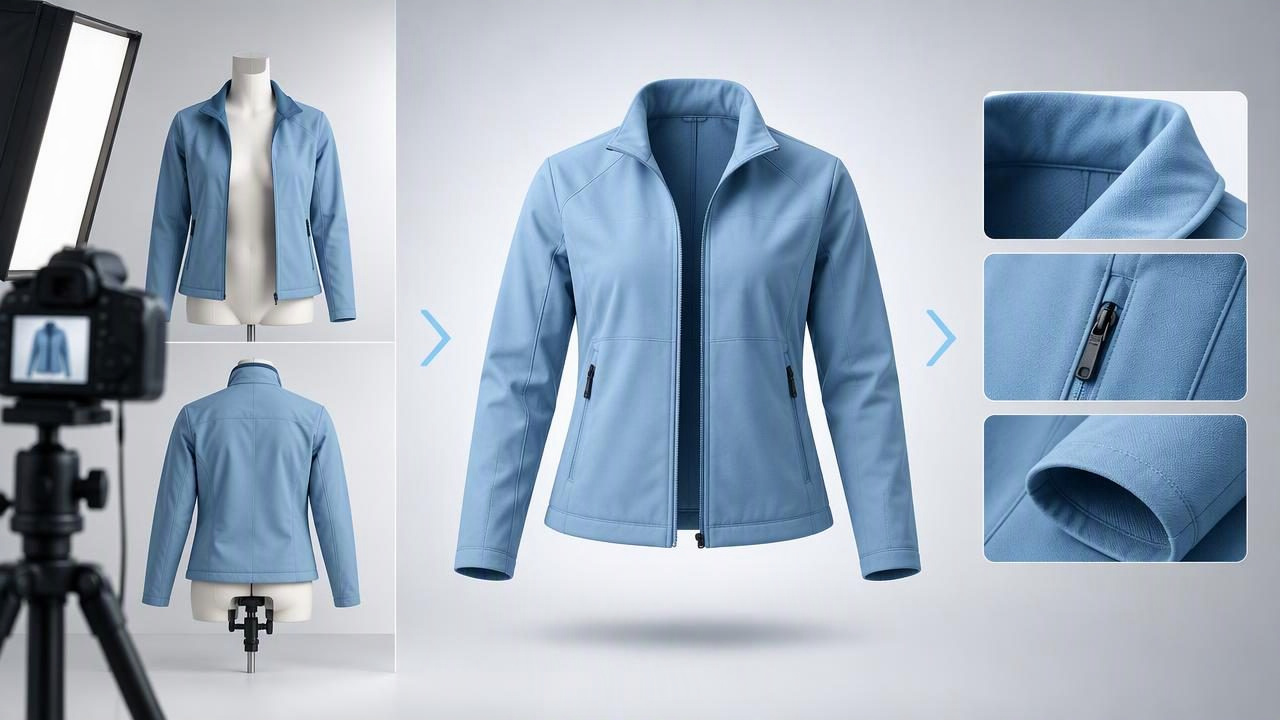
Ghost mannequin product images show clothing as if it were being worn, without a visible model or mannequin. The style can help shoppers understand a garment’s shape while keeping attention on its color, construction, and details. For fashion resellers and clothing brands, a clean result can also make a product page look more consistent.
To make ghost mannequin product images, you can photograph a garment on a mannequin and edit out the mannequin, use a layered photography technique, or use an AI editing tool to create a mannequin-free presentation from a garment photo. Whichever route you choose, the source image matters: editing cannot reliably show areas the camera never captured or correct details that are missing from the original.
What makes a ghost mannequin image?
A ghost mannequin image presents the garment with a three-dimensional shape but no visible mannequin. A shirt may appear to have a body and sleeves, for example, while the neck opening looks naturally finished. This is different from a flat lay, which shows the garment resting on a surface, and a hanger photo, which displays it hanging from a hook.
The effect is especially useful for structured or shaped items such as jackets, blazers, dresses, and button-down shirts. It can communicate how a garment hangs more clearly than a tightly cropped detail shot. Still, it is a product presentation, not proof of exact fit. It should not imply a particular body shape or guarantee how the item will fit a buyer.
Choose a suitable garment and source photo
Start with the garment you actually intend to list. Check its condition and note any visible wear before photographing. A ghost mannequin edit can change the presentation, but it does not repair a hole, remove a stain from the real item, or make a damaged seam sound. Those details should remain visible in the listing when relevant.
For a useful source photo, place the garment on a mannequin that is reasonably close to its shape, or arrange it so the shoulders and sleeves sit naturally. Use a plain background with enough contrast to distinguish the garment’s edges. Soft, even light helps reveal the fabric without strong shadows that can be mistaken for marks or folds.
- Keep the camera level. A straight-on view makes it easier to judge the garment’s proportions.
- Show the full outline. Leave a little space around the edges so sleeves, hems, and collars are not cropped.
- Arrange fabric deliberately. Straighten twisted sleeves and align the front before taking the photo.
- Capture important details separately. Photograph labels, closures, texture, and flaws for additional listing images.
A sharp, well-lit image gives an editor more useful information than a dark or blurry one. Do not rely on a later edit to invent a missing sleeve, reconstruct a hidden neckline, or establish a garment’s true color from a poorly lit photo.
Three ways to make ghost mannequin product images
1. Photograph on a mannequin and edit it out
This approach starts with the garment on a mannequin. The mannequin provides shape while you photograph the front, and editing is used to remove the visible support. A clean background and a clear separation between the mannequin and garment make the removal task easier. The neck and inner collar may need particular attention because those areas can be difficult to show naturally once the mannequin is removed.
Some traditional workflows photograph the inside of the garment separately and combine that view with the front. This is often called a compositing or “invisible mannequin” technique. It can offer control over the final neckline, but requires additional, well-matched source photos and careful editing. It is not necessary for every item or every seller.
2. Use an AI editing tool
An AI editor can create a mannequin-free presentation from an uploaded clothing photo. The exact result depends on the image and the tool. Before using the output, inspect the collar, armholes, cuffs, hem, and areas where fabric overlaps. These are places where a generated or reconstructed edge can look different from the real item.
Keep the original photo so you can compare it with the edited version. If the edited image changes a logo, button, seam, print, or garment edge, use a more faithful source or choose another image style. A polished appearance is not worth misleading a shopper about what is being sold.
3. Choose a different presentation when it is clearer
Not every garment needs a ghost mannequin image. A hanger photo can be faster for a simple blouse, while a flat lay may show the full outline of a soft T-shirt or pair of trousers more honestly. Folded photos can work for knitwear and basics, but they hide some construction details. Use the format that makes the item easiest to assess, rather than forcing every product into the same look.
A practical example: a button-down shirt
Imagine listing a secondhand cotton button-down. First, photograph the shirt from the front with the collar open enough to show its shape and the sleeves arranged naturally. Take separate close-ups of the brand label, buttons, fabric texture, and any wear. If there is a small mark near the cuff, photograph it clearly rather than expecting the ghost mannequin image to conceal or fix it.
Next, create a mannequin-free version from the front image. Compare the result with the original at full size. Check that the collar points, placket, buttons, sleeve cuffs, and hem still match the actual shirt. If an AI edit has smoothed away a seam or changed the spacing of the buttons, do not use that output as the sole product image. You might retain the original as the main view and use the edited image only if it accurately represents the item.
Finally, include the detail and condition photos in the listing. The ghost mannequin view helps communicate the overall shape; the additional angles help shoppers verify construction and condition. Together, they give a more complete account than a single highly edited image.
Check the image before adding it to a listing
Review your image at the size shoppers are likely to see it, then zoom in for a detail check. Look for changes to garment features, awkward cutout edges, and distracting shadows. Compare the image against the physical item or the unedited source—not just against your preferred visual style.
| Area to review | What to check |
|---|---|
| Shape | Does the outline resemble the garment, without exaggerated shoulders or an implausible silhouette? |
| Neck and openings | Do the collar, neckline, armholes, and any visible interior look consistent with the original? |
| Details | Are buttons, zippers, stitching, prints, labels, and pockets still accurate? |
| Color and texture | Does the image remain a reasonable match for the real fabric and shade? |
| Condition | Are relevant flaws still disclosed through the image set or listing description? |
Light wrinkle retouching may help a garment look tidier, but avoid smoothing fabric until its texture disappears. A crease can also be part of the item’s real condition. When an edit makes you unsure whether a mark is a wrinkle or a defect, refer back to the original and show the item honestly.
Common mistakes to avoid
- Using a weak source image. Blur, low light, and clutter make it harder to judge edges and details.
- Removing too much context. A clean cutout should not erase garment features such as a hood, straps, or layered panels.
- Relying on one edited view. A front image cannot show the back, interior, or every condition issue.
- Assuming the shape proves fit. A mannequin-free silhouette does not provide measurements or show how an item fits a real person.
- Making every listing look identical at the expense of accuracy. Different fabrics and cuts may need different photo styles.
Keep presentation polished and accurate
Ghost mannequin photos work best when they clarify a garment’s shape without asking the edit to do more than the source image supports. Start with a clear photograph, choose a presentation suited to the item, and inspect edited edges and details against the original. Use additional photos to show the back, close-ups, measurements where appropriate, and any visible wear.
If you want an app-based way to explore this style, Clothing Studio’s guide to ghost mannequin photos explains the presentation and its practical considerations. Its full features require a subscription. Whatever editing route you choose, make the final listing reflect the garment a buyer will actually receive.
