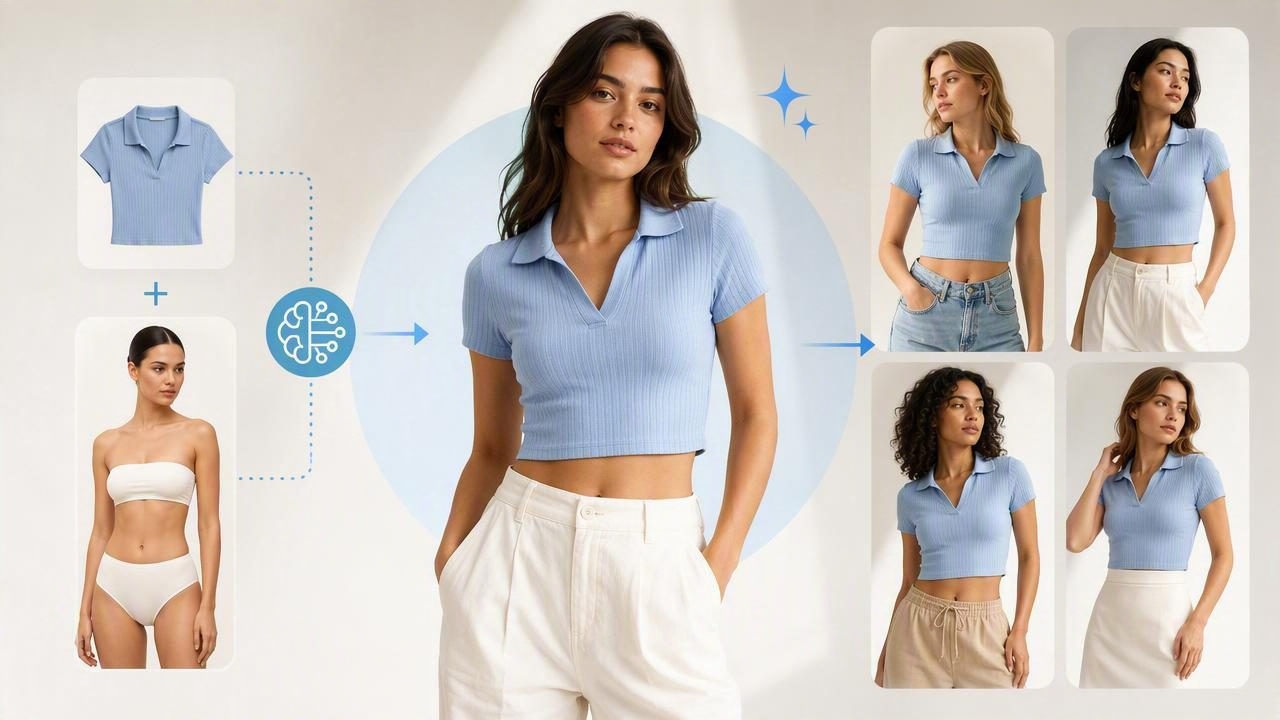
Model photos can lift a listing from “maybe” to “add to cart” because they answer the buyer’s biggest questions fast: How does it drape? Where does it hit on the waist? Will it look boxy or fitted? For resellers and small brands, though, traditional shoots are expensive, time-consuming, and hard to repeat consistently.
That’s why more sellers are learning how to generate model shots for clothing using AI photo editing—so they can get the “on-body” look without booking a studio. The key is doing it in a way that stays accurate, believable, and compliant with marketplace expectations.
Goal: A model image should help shoppers understand the garment—without changing what the garment truly is.
What “generate model shots for clothing” really means
In e-commerce photography, “model shots” usually describe images where clothing appears worn by a person. With AI, you’re typically doing one of these:
- Adding a model presentation to an existing garment photo (often a clean front view).
- Improving a real model photo (unwrinkling, background removal, lighting cleanup).
- Creating a consistent set of listing images: cover shot, detail shots, back view, and a model-style hero image.
This approach works especially well for fashion reselling, where you have one item at a time and need speed, consistency, and a clean catalog look across platforms.
When AI model shots make sense (and when they don’t)
Great use cases
- Basic tees, knits, denim, jackets where fit and silhouette are the main selling points.
- Consistent storefront branding across Poshmark, eBay, Depop, Shopify, and more.
- Time-sensitive drops where you need professional images quickly.
- Small teams without a dedicated photo studio.
Be more cautious with
- Highly reflective fabrics (sequins, metallics) where lighting “truth” matters.
- Sheer materials where transparency and layering must be clearly represented.
- Complex prints where AI might subtly distort pattern alignment.
- Items requiring measurements to avoid misunderstandings (occasionwear, tailoring).
If the garment’s defining feature is a tricky texture or a very specific construction detail, you can still use AI model shots—but back them up with crisp close-ups and an accurate description.
Choose the right “base photo” for the best AI result
The biggest predictor of a good AI model image is the starting photo. If you want to generate model shots for clothing that look natural, aim for a base image that’s:
- Front-facing and centered (avoid angles for the hero shot).
- Evenly lit (soft daylight or diffused indoor light).
- In-focus with visible edges (especially sleeves, hems, collars).
- Wrinkle-reduced (steam if possible; AI unwrinkling can help too).
- True-to-color (lock exposure; avoid heavy filters).
On-hanger, flat lay, and ghost mannequin images can all work as inputs, but they each have tradeoffs (more on that below).
A practical workflow to generate model shots for clothing
Here’s a seller-friendly workflow that keeps results consistent and minimizes “AI weirdness,” while staying focused on accurate clothing presentation.
Step 1: Capture 3–5 must-have angles
Even if you plan to use AI for a model-style hero image, you’ll sell more (and reduce returns) when your listing includes key angles.
- Front (your hero/base photo)
- Back
- Tag/label (brand, size, fabric)
- Close-up of texture or print
- Any flaws (honesty builds trust)
Step 2: Clean up the garment photo first
Before generating a model-style image, do your “polish pass”:
- Background removal for a crisp outline (especially sleeves and hems).
- Unwrinkle to reduce distracting creases.
- Color correction to match the real item (compare to the garment in hand).
- Crop consistently so your grid looks professional.
This is the same cleanup you’d do for e-commerce photography in general—AI model shots simply benefit more from it.
Step 3: Generate the model-style shot (keep it believable)
When you generate model shots for clothing, your best results usually come from conservative choices:
- Neutral poses (standing front, slight turn) read more realistic than dramatic movement.
- Simple styling (avoid scarves, heavy layering, or busy accessories that hide fit).
- Minimal shadows keep attention on the garment and reduce “cutout” vibes.
- Consistent model framing (e.g., mid-thigh to head) across listings.
If your tool allows it, prioritize settings that preserve garment structure: neckline shape, sleeve length, hemline, and overall silhouette.
Step 4: Validate accuracy (a quick checklist)
Before you upload, compare the AI model image to your original photos and the physical garment. Look for these common issues:
- Neckline drift: scoop becomes crew, V-neck becomes too shallow/deep.
- Hem changes: cropped looks full-length (or vice versa).
- Print distortion: stripes suddenly curve or spacing changes.
- Logo/details missing: embroidery disappears or shifts position.
- Color shift: black becomes charcoal, cream becomes bright white.
If any of those happen, use a different base photo, choose a simpler generation option, or skip the model shot and rely on ghost mannequin plus detailed close-ups.
Step 5: Build a listing set that converts
A strong image set often follows this order:
- Hero image: model-style or ghost mannequin on a clean background
- Front (flat/ghost/hanger): the most “truthful” view
- Back view
- Details: fabric, buttons, zippers, pockets
- Measurements reference: tape measure photo or text overlay
- Flaws (if any)
Model shots vs ghost mannequin vs flat lay: what to use when
| Presentation style | Best for | Pros | Watch-outs |
|---|---|---|---|
| AI model shot | Silhouette, drape, “how it looks on” | High engagement; fast hero images; consistent storefront | Must verify accuracy; avoid misleading fit or altered details |
| Ghost mannequin | Structure, neckline, torso shape | Professional catalog look; clear garment outline | Needs clean input; may not show movement/drape |
| Flat lay | Casual items, quick shoots, bundles | Simple setup; great for details and styling | Harder for buyers to judge fit; can look less “premium” |
| On-hanger | Closet-style reselling, fast intake | Quick; shows length and hang | Shoulders can look stretched; shadows and wall clutter reduce quality |
Many sellers combine these: use an AI model image as the scroll-stopping hero, and use ghost mannequin or flat lay images to confirm the garment’s true shape and details.
Marketplace trust: how to stay accurate and avoid returns
AI photo editing can make listings look more professional, but trust is what keeps your return rate low. A few simple practices help buyers feel confident:
- Don’t “resize” the garment visually. Avoid generations that make waists smaller, hems longer, or sleeves tighter.
- Include measurements in the description (and ideally a photo).
- Show at least one non-generated image (front or detail) so shoppers see the real fabric and finish.
- Be consistent with lighting and background so the set looks cohesive and credible.
File naming and alt text that helps SEO (without feeling spammy)
If you sell on your own site (or cross-post to platforms that index well), image SEO can bring long-tail traffic. Keep file names and alt text descriptive, not stuffed.
# Simple filename pattern
brand-itemtype-color-front.jpg
brand-itemtype-color-model.jpg
brand-itemtype-color-detail-zipper.jpg

# Example
levis-denim-jacket-medium-wash-model.jpg
For alt text, describe what the image shows in plain English:
- Good: “Women’s black wrap dress shown on model, front view”
- Not great: “generate model shots for clothing best AI model generator cheap fast”
Common questions about generating model shots for clothing
Will buyers get upset if a model image is AI-generated?
Buyers mainly care about accuracy. If the garment looks true-to-life and your listing includes clear real-item photos and measurements, model-style images typically function as a helpful preview rather than a surprise.
Do I still need detail shots?
Yes. AI model shots improve context (fit and silhouette), but details close sales: fabric texture, stitching quality, closures, lining, and any wear.
What’s the fastest way to get consistent results?
Consistency comes from repeatable inputs: same lighting spot, same crop, same background choice, and the same angle for your base image. Treat it like a mini “photo template” you follow every time.
Can I use AI model shots for every item?
You can, but a mixed approach often performs best: model-style hero + ghost mannequin or flat lay truth shots + close-ups. That combination gives both appeal and proof.
Putting it all together: a simple, scalable routine
If you want a routine you can repeat for every listing, try this:
- Photograph front/back + details in soft, even light.
- Remove background and unwrinkle for a clean base.
- Generate a model-style hero image from the best front view.
- Quality-check accuracy against the original garment photos.
- Upload a complete image set: hero, front/back, details, measurements, flaws.
This approach keeps your shop looking professional while protecting buyer trust—so you get the benefits of AI photo editing without drifting into “too good to be true.”
Note: If you’re looking for an iOS workflow that combines background removal, unwrinkling, and model-style outputs in one place, apps like Clothing Studio are designed with clothing listings in mind.
