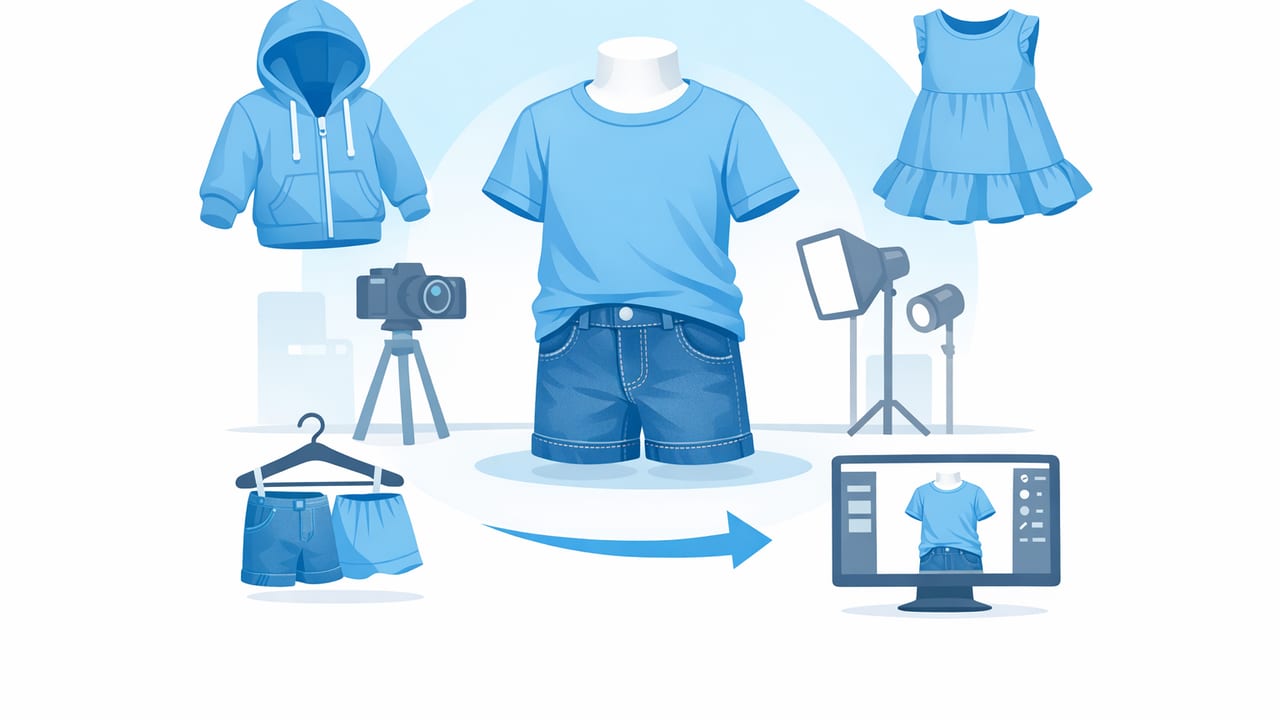
The ghost mannequin effect is one of the cleanest ways to present apparel online—especially children’s clothing, where fit, shape, and tiny details matter. When done well, it looks like a garment is being worn, but without showing a person or mannequin. The result is a polished, “catalog-style” image that helps buyers understand the silhouette, neckline, and interior labels without distractions.
This guide shows you how to generate ghost mannequin for kids clothing using a simple, repeatable workflow. You’ll learn how to prep small garments, capture the right angles, and combine images so the inside of the collar (or waistband) looks natural. No studio build-out required.
Why the ghost mannequin effect works so well for kids apparel
Kids clothing can look “flat” or shapeless when photographed folded or on a hanger. Ghost mannequin solves that by creating a 3D look that highlights:
- True shape and fit (shoulders, sleeves, waist)
- Construction details (collar depth, hood shape, inner lining)
- Brand cues (tags, stitching, plackets) without clutter
- Consistency across a storefront, even when sizes vary
For kidswear, clarity beats creativity. A clean ghost mannequin image reduces returns because buyers can see what they’re actually getting.
What you need (minimal gear)
You can create a great ghost mannequin effect with a very small setup. Here’s a practical kit:
- Phone camera (rear camera preferred)
- Simple mannequin or dress form (child size is ideal, but adult forms can work with adjustments)
- Clips and pins (binder clips, sewing clips, safety pins)
- White foam board (for bounce light) or a plain wall
- Two light sources (window light + lamp, or two soft lights)
- Tripod (helpful for consistency, but optional)
Choosing a mannequin for kids clothing
If you’re aiming to generate ghost mannequin for kids clothing at scale, a child-size torso form makes life easier. If you only have an adult form, you can still succeed by:
- Clipping the garment at the back to remove excess fabric
- Stuffing shoulders/upper chest lightly with tissue paper for shape
- Keeping the camera angle straight-on to avoid distortion
Step-by-step: How to generate ghost mannequin for kids clothing
Step 1: Prep the garment (this matters more than editing)
Ghost mannequin images expose wrinkles, twists, and uneven hems. Spend 2–3 minutes on prep:
- Smooth and de-lint (roller or tape works fast).
- Close closures (zip zippers, button top buttons) unless your listing needs them open.
- Shape the garment so seams sit where they should: shoulder seams aligned, sleeves not flipped.
- Clip from behind to reduce bagginess. Keep clips out of frame.
Kidswear tip: Tiny necklines and narrow shoulders can collapse. A small roll of tissue paper behind the collar can help hold a clean neckline without looking stuffed.
Step 2: Set lighting for soft, even shadows
Your goal is a gentle shadow that defines shape without harsh edges. Try this quick setup:
- Place the mannequin near a bright window (indirect light).
- Put a white foam board opposite the window to bounce light back.
- If needed, add a lamp behind the foam board to fill shadows.
Avoid overhead lights that create dark under-chin or under-collar shadows—those become hard to “fix” later.
Step 3: Shoot the “front” image (the base)
Stand centered and shoot straight-on. Keep the phone level with the center of the garment (mid-chest for tops, mid-waist for bottoms). Take a few frames and choose the sharpest.
- Keep background simple (plain wall works).
- Leave margin around the garment for easier cutouts.
- Focus on texture (tap-to-focus on the garment, not the background).
Step 4: Shoot the “inside” image (the key to the ghost effect)
This is what many people skip. The ghost mannequin look comes from showing the inner collar/label area (or waistband) as if the mannequin disappeared.
After shooting the front image:
- Carefully remove the garment from the mannequin.
- Turn the garment slightly inside-out at the neck opening (or waistband for pants/shorts).
- Lay it flat or hold it upright so the inner area is visible and not wrinkled.
- Photograph just that inner section from a similar angle and distance.
Kidswear tip: For small collars, get closer and fill the frame with the neckline area. A crisp inner-collar shot blends better than a wide shot with lots of empty background.
Step 5: Cut out the background cleanly
Whether you use a phone editor or desktop software, aim for edges that look natural around sleeves and hems. Watch for:
- Fuzzy edges on knits
- Jagged cut lines on ruffles
- Missing holes (like between straps on overalls)
If your background is white, keep it truly white (not gray) so it matches most marketplace standards.
Step 6: Layer the “inside” image onto the base
This is the compositing step:
- Open the front/base image.
- Add the inner-collar (or inner-waistband) image as a new layer.
- Resize and rotate until the inner opening aligns naturally.
- Mask/erase the extra parts of the inner image so only the inside area remains.
If the neckline looks “cut out,” add a tiny soft shadow around the inner opening (subtle is best). The goal is realism, not a graphic outline.
Step 7: Final polish (keep it honest)
Finishing should improve clarity, not change the product. A good final checklist:
- Adjust brightness so colors look true-to-life
- Reduce wrinkles lightly (don’t smear fabric texture)
- Correct white balance (remove yellow/blue cast)
- Center the item and crop consistently
Quick QC checklist:
[ ] Edges clean (no halos)
[ ] Neck/waist opening looks natural
[ ] Logo/print not warped
[ ] Color matches real garment
[ ] Same crop + scale across listings
Kids clothing specifics: common scenarios and how to handle them
Hoodies and sweatshirts
Hoods can slump and hide the neckline. Try lightly stuffing the hood with tissue paper so it holds shape, then remove it for the inner-collar shot. Make sure drawstrings (if any) hang evenly.
Dresses with ruffles or tulle
Ruffles can look jagged after background removal. Use softer lighting and capture high-resolution detail. When masking, keep a tiny bit of natural edge texture instead of over-smoothing.
Overalls and rompers
Straps and buckles create gaps that must be preserved. When cutting out, zoom in and ensure holes remain transparent. For the “inside” shot, focus on the chest opening or waistband area depending on the design.
Pants and shorts (ghost mannequin for bottoms)
You can still use a ghost effect for bottoms by emphasizing the waistband interior:
- Base image: bottoms on a lower-body form or clipped to a flat board
- Inside image: waistband turned slightly inside-out to show lining and label
Troubleshooting: the most common mistakes
| Problem | What it looks like | Fix |
|---|---|---|
| Neckline looks “floating” | Inner collar doesn’t match the opening | Reshoot inner-collar closer; align angle; add a subtle shadow |
| Edges have halos | Light outline around sleeves | Shoot with more contrast vs background; refine cutout; avoid over-sharpening |
| Fabric texture looks smeared | Knits look plastic | Use lighter wrinkle reduction; keep texture; increase clarity slightly |
| Color inconsistency | Same brand looks different listing to listing | Lock lighting location; use the same edit settings; check white balance |
| Size distortion | Small items look stretched | Step back and zoom slightly; keep camera level; avoid wide-angle closeups |
Consistency tips for resellers listing many kids items
If you’re photographing multiple sizes (2T to 10/12, for example), consistency is what makes your store look professional. These habits help:
- Use the same distance: mark a spot on the floor for your tripod or feet.
- Standardize cropping: keep similar headroom/side margins across tops, dresses, and bottoms.
- Create a simple naming system: “brand_item_size_front” and “brand_item_size_inner”.
- Batch your workflow: shoot all fronts first, then all inner-collar shots, then edit in one sitting.
When to use ghost mannequin vs. flat lay vs. on-hanger
Ghost mannequin isn’t always necessary. Here’s a quick decision guide:
- Use ghost mannequin for jackets, hoodies, dresses, structured shirts—anything where shape sells.
- Use flat lay for casual tees, leggings, pajamas—items that buyers understand without 3D shaping.
- Use on-hanger for speed when you have high volume and the garment hangs naturally (some knits and tops).
If your goal is to generate ghost mannequin for kids clothing that competes with brand-level listings, prioritize it for higher-priced items or pieces where fit and structure drive purchase decisions.
Final thoughts
Creating the ghost mannequin effect for children’s clothing is mostly about two things: clean prep and the extra inner-collar (or inner-waistband) photo. Once you have those inputs, the edit becomes a repeatable process that makes your listings look consistent, clear, and trustworthy.
If you prefer to do this workflow on iPhone with fewer steps—especially for background removal, quick wrinkle cleanup, and assembling a clean ghost look—apps like Clothing Studio can help streamline the process without needing a full desktop setup.
