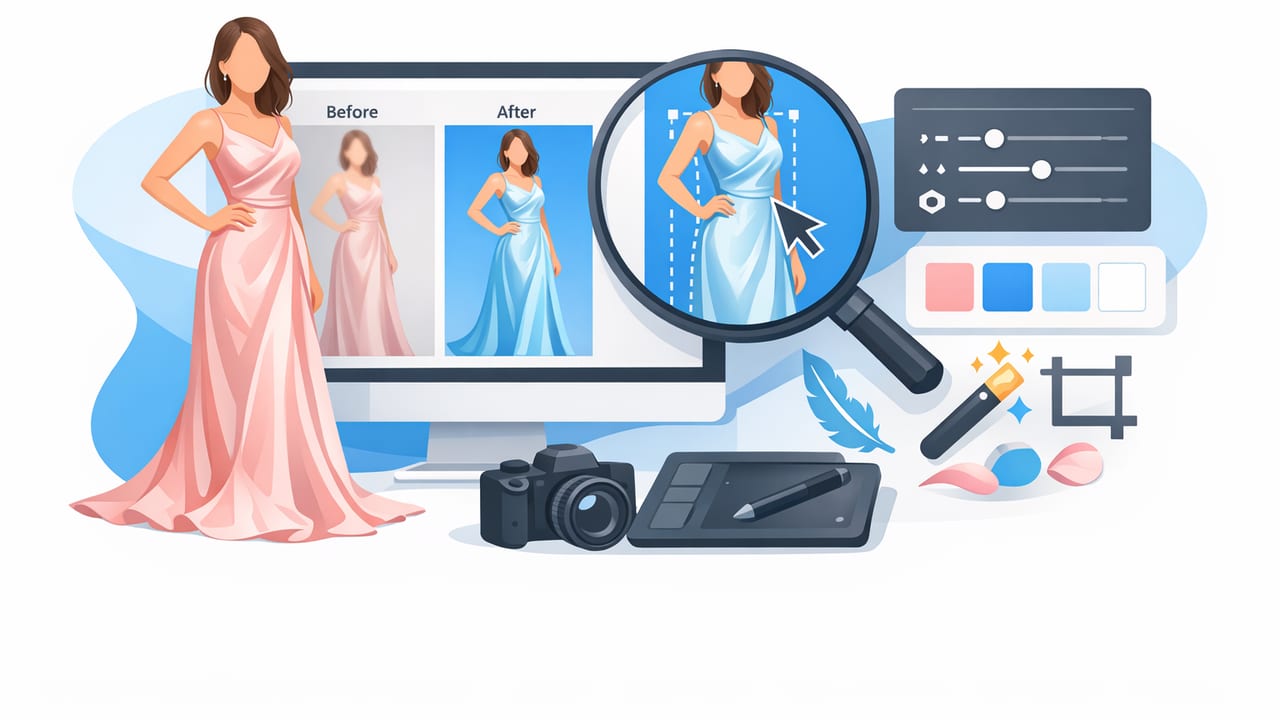
Silk is one of the hardest fabrics to photograph well—and one of the easiest to “ruin” in editing. The same qualities that make silk look luxurious in person (soft drape, delicate texture, reflective sheen) can turn into harsh hotspots, strange color shifts, and distracting wrinkles in photos.
This guide walks you through how to edit silk dress images so they look premium, accurate, and consistent across your listings—without over-editing or making the fabric look plastic. You’ll learn a practical workflow for lighting fixes, wrinkle cleanup, color accuracy, background cleanup, and export settings for marketplaces.
Why silk needs a different editing approach
Silk behaves differently from cotton or denim because it reflects light in a directional way. Small changes in angle or exposure can create:
- Hotspots (bright reflective patches that look blown out)
- Crushed shadows that hide drape and seams
- Color cast from nearby walls, floors, or warm bulbs
- Texture loss if clarity/sharpening is too aggressive
The goal is to keep silk looking like silk: luminous, smooth, and dimensional—while still showing true color and construction details.
Before you edit: capture choices that make editing easier
Editing can’t fully fix poor capture. If you can re-shoot, these small changes reduce editing time dramatically:
- Use soft, large light: face a window with sheer curtains or use a softbox. Avoid bare bulbs.
- Angle the dress slightly: turning the garment 10–20 degrees often reduces hotspots.
- Keep the background neutral: white/gray reduces reflected color on silk.
- Lock exposure on your phone: tap-and-hold to AE/AF lock so the brightness doesn’t jump between shots.
- Include one reference shot with a neutral gray card (or even plain white paper) to help correct color later.
Step-by-step: the best workflow to edit silk dress images
Use this order to avoid “chasing” problems (like fixing color before exposure is stable). You can do this in most photo editors, including mobile apps.
1) Start with exposure: protect highlights first
With silk, highlight control is everything. If reflective areas are too bright, the fabric looks cheap or “wet.”
- Lower Highlights until shiny areas regain detail.
- Adjust Exposure slightly if needed, but don’t brighten so much that hotspots return.
- Lift Shadows gently to reveal folds and seams.
- Set Whites/Blacks for contrast, but keep it subtle—silk should feel soft, not harsh.
Tip: If you only change overall exposure, you’ll often make highlights worse. Prioritize Highlights and Whites controls before global brightness.
2) Fix the color cast (silk shows it more than other fabrics)
Silk easily picks up warm indoor lighting or green reflections from plants/walls. Correcting white balance makes the dress look more expensive and more accurate for buyers.
- Temperature: Reduce warmth if the dress looks yellow/orange; add warmth if it looks too blue/sterile.
- Tint: Move slightly toward magenta if the image looks green; toward green if it looks overly pink.
If your app offers a white balance “eyedropper,” click a neutral part of the background (or your reference paper) to get close—then fine-tune by eye.
3) Make silk shine look intentional (not blown out)
Good silk photos have controlled sheen: you can see highlights, but they’re not white patches. After basic exposure:
- Use local adjustments (brush/patch tools) on hotspots: lower highlights only in the shiny area.
- If the dress looks dull after highlight recovery, add a touch of contrast or whites, but keep hotspots in check.
- Avoid heavy clarity/structure—it can make silk look like satin plastic.
4) Reduce wrinkles while keeping natural drape
Wrinkles are common in silk, especially if the item was folded or shipped. In editing, the aim is not “perfectly flat”—it’s clean and presentable while still realistic.
- Remove distracting creases (especially across the bust, waistline, and skirt front).
- Keep intentional folds that show drape and shape.
- Use a gentle tool (healing/smoothing) and zoom out often so the fabric doesn’t look airbrushed.
Editing principle: If the texture starts to look like a flat gradient, you’ve gone too far. Silk should still show subtle weave and tonal transitions.
5) Clean the background for a premium listing
A clean background helps the dress color read correctly and makes your store feel consistent.
- Remove background (or brighten/neutralize it) depending on your platform style.
- Watch the edges: silk straps and thin hems can look jagged if masking is sloppy.
- Add a subtle shadow if your cutout looks “floating.”
If you prefer a white background, keep it clean but not glowing. Overly bright whites can make silk look gray or washed out.
6) Correct shape: keep proportions believable
Wide-angle phone lenses can warp straight lines, especially on hanger shots. Subtle geometry fixes can make the dress look more true-to-life:
- Straighten verticals (door frames, walls) so the dress doesn’t tilt.
- Use perspective correction if the top looks stretched or the hem looks curved.
- Crop consistently across your shop (similar padding and framing).
7) Add detail shots (and edit them differently)
Detail photos often sell silk: labels, zipper, lining, cuffs, hem, and any flaws. For close-ups:
- Increase sharpness slightly, but don’t overdo texture tools.
- Keep color consistent with the main image (copy/paste edits where possible).
- Brighten just enough to show stitching and weave.
Common silk photo problems (and the easiest fixes)
| Problem | What it looks like | Best edit fix |
|---|---|---|
| Hotspots | White shiny patches with no detail | Lower Highlights/Whites; use local brush to target only shiny areas |
| Yellow/green cast | “Not the same color” complaints | Adjust Temperature/Tint; neutralize background first |
| Silk looks dull | Flat and lifeless fabric | Add gentle contrast; lift midtones; avoid heavy clarity |
| Wrinkles dominate | Item looks poorly stored | Selective wrinkle cleanup; keep natural drape folds |
| Edges look messy | Jagged straps/hem after cutout | Refine mask edges; feather slightly; zoom in/out to verify |
A simple “silk-safe” edit recipe you can reuse
If you want a repeatable baseline, start here and tweak per photo. The exact sliders vary by app, but the logic stays the same.
Silk Dress Baseline (starting point)
- Exposure: small adjustments only
- Highlights: down (moderate)
- Shadows: up (light)
- Contrast: small increase
- White Balance: neutral (remove yellow/green cast)
- Clarity/Structure: low or off
- Sharpening: low to medium (more for detail shots)
- Saturation: small changes only (protect true color)
- Local fix: reduce highlights on hotspots + soften harsh shadow lines
How to keep color accurate across a whole listing
Silk colors—especially champagne, blush, emerald, navy, and black—can shift dramatically between photos. To keep your listing trustworthy:
- Edit one “hero” image first, then copy the settings to the rest.
- Use the same background tone so the dress color doesn’t appear to change.
- Include a range of angles: front, back, close-up of texture, and a shot that shows sheen (but controlled).
- Don’t oversaturate to compensate for dull lighting—buyers notice when the real item arrives.
Marketplace-ready export settings (quick and safe)
Every platform compresses images differently, but these general rules work well for most resale and e-commerce sites:
- Resolution: export the long edge at ~2000–3000 px for crisp zoom without huge files.
- Format: JPEG (high quality). Use PNG only if your platform benefits from it and file size isn’t an issue.
- Keep edits natural: heavy smoothing can trigger weird compression artifacts on shiny fabric.
Quick checklist: edit silk dress images in under 10 minutes
- Recover highlights (hotspots first)
- Neutralize color cast (temperature + tint)
- Targeted hotspot reduction with a local tool
- Wrinkle cleanup: remove distractions, keep drape
- Background cleanup/removal + edge refinement
- Consistent crop + straighten
- Export at a marketplace-friendly size
Final tip: aim for “luxury realistic,” not “perfectly polished”
Silk should look smooth and elevated, but still believable. Buyers want to see the real drape, the real sheen, and the real color. If your edits preserve detail in highlights, maintain gentle texture, and present the dress cleanly against a consistent background, your photos will look high-end—and your returns and color-related complaints tend to drop.
If you prefer doing this on iPhone with an apparel-focused workflow (wrinkle cleanup, background removal, and consistent outputs), an app like Clothing Studio can simplify the process while keeping the results natural-looking.
