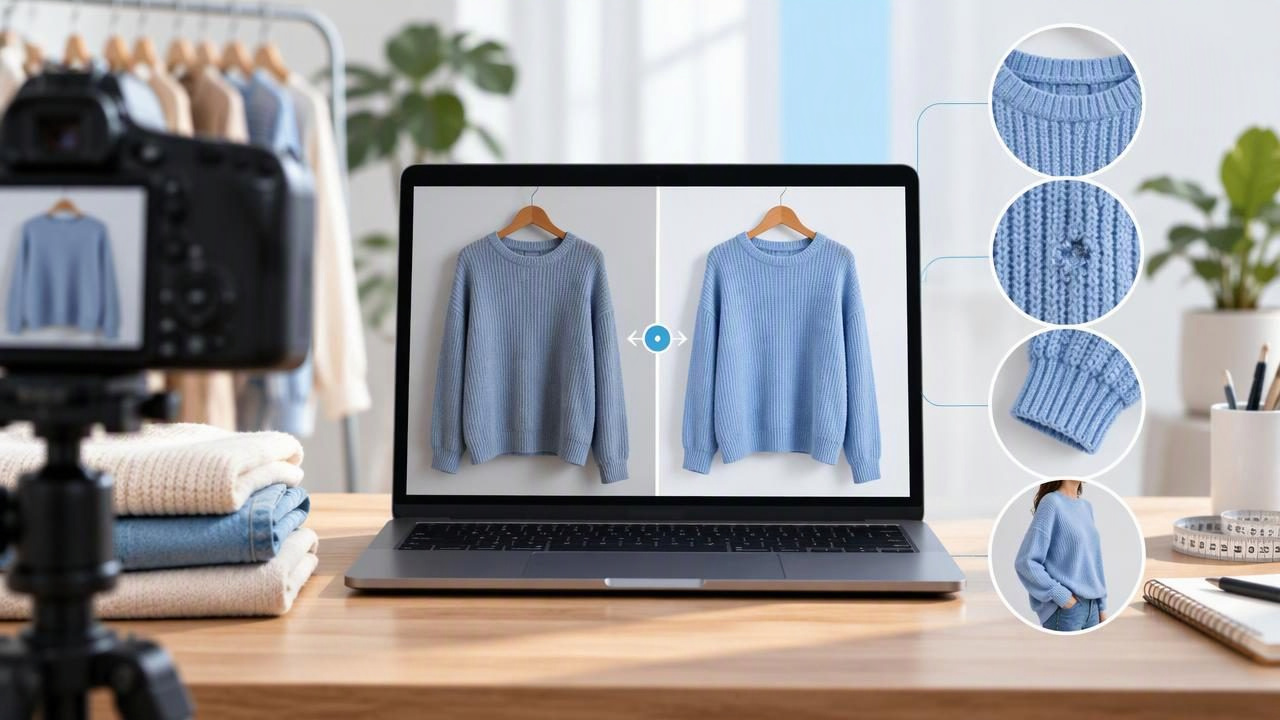
Clear photos can help a Poshmark listing answer the questions a buyer cannot resolve by handling the item: What color is it? What is the condition? How does the fabric look, and where are the details? Editing can make clothing images easier to see, but it should not make an item appear newer, smoother, or different from the garment you will ship.
If you want to edit clothing photos for Poshmark, think of the process as presentation, not transformation. Improve the lighting and framing, remove distracting background clutter, and choose a layout that suits the piece. Then compare every edited image with the original so you can catch changes that might misrepresent color, texture, shape, or condition.
Start with a truthful, useful photo set
Editing cannot replace the information a good set of listing photos provides. Before opening an editor, decide which views will help someone evaluate the specific garment. A simple top may need front and back views, a fabric close-up, and a label or size detail. A jacket with pockets, buttons, and a lining may need additional photos of those features.
Use the first image to make the item easy to recognize, then use supporting images to answer likely questions. Keep original photos of condition details, including small marks, pilling, loose threads, or wear. A polished cover image may attract attention, but accurate supporting images help buyers understand what they are considering.
- Show the whole garment: Avoid cropping off sleeves, hems, collars, or other defining parts.
- Include useful details: Photograph labels, closures, fabric texture, and distinctive design elements where relevant.
- Document condition: Give visible flaws their own clear image rather than relying on a general view.
- Keep the item recognizable: Use a presentation style that makes the garment’s real shape and construction understandable.
Choose a layout that suits the garment
The best clothing presentation depends on the item and the details a buyer needs to see. A hanger photo can show a garment’s overall length and natural drape. A flat lay can make a compact item easy to frame and compare, while a folded view may suit basics or sets when the fold does not hide important features. A ghost mannequin presentation can show the shape of some garments without a visible person, but it is not automatically the clearest option for every listing.
For example, a structured blazer may be easier to understand on a hanger or in a ghost mannequin-style image because the lapels and body shape remain visible. A knit scarf could be better shown laid flat, with a separate close-up to reveal its weave. Do not fold a garment in a way that hides a stain or makes the item seem more complete than it is. Whatever style you choose, include other views when one image cannot show the relevant details.
Make basic edits before trying dramatic changes
For most listings, start with adjustments that improve visibility without changing the garment itself. Crop away excess empty space while leaving a comfortable border around the item. Straighten a tilted image, and adjust brightness or exposure if the photo is noticeably too dark. A restrained white-balance correction may help if indoor lighting has given the image an obvious color cast.
Use the original garment and the photo conditions as your reference. A navy sweater that looks nearly black in a dim photo may need more light, but pushing brightness or saturation too far can make its color inaccurate. Avoid filters that give every item the same warm or cool tint. If you are unsure whether a change is faithful, compare the edited image with the item under neutral, even light.
| Edit | Useful for | Watch out for |
|---|---|---|
| Crop and straighten | Making the garment the clear focus | Cutting off hems, cuffs, or other key features |
| Light exposure adjustment | Helping buyers see a dark or dimly photographed item | Washing out color or hiding stains and wear |
| Background cleanup | Reducing visual clutter around the garment | Removing edges, ties, or details that belong to the item |
| Wrinkle retouching | Reducing distracting creases in presentation | Making fabric look unnaturally smooth or concealing damage |
Remove distractions without changing the garment
A plain, tidy background can help a listing feel easier to browse. If you remove or replace the background, inspect the outline carefully: thin straps, lace, fringe, sheer fabric, and loose fibers can be mistaken for background and accidentally erased. Check around sleeves, hems, and openings as well as the center of the image.
Keep shadows and edges believable. A cutout with a bright halo, jagged border, or missing section can draw attention away from the item and make its shape unclear. Background removal is a presentation choice, not a reason to hide a garment’s actual size or construction. When an edit makes the silhouette hard to judge, use a straightforward original photo instead.
Handle wrinkles and condition details carefully
Wrinkles can distract from a garment, particularly when they come from storage or the way an item was laid out for the photo. You can improve the presentation by steaming or arranging the item before photographing it, or by making a restrained edit to distracting creases. But wrinkles and fabric texture are not always separate: aggressively smoothing an image may remove knit detail, change seams, or make material appear unlike the real item.
Compare close-ups before and after editing, especially on textured fabrics. A tool may also alter small details, so do not assume a clean-looking result is accurate. Editing cannot repair a hole, remove a stain from the actual garment, or make a hidden defect visible. Keep condition photos intact, and disclose known issues in the listing. If retouching makes it difficult to tell what the fabric really looks like, dial it back or use the unedited photo.
For a more focused walkthrough, see this guide to removing clothing wrinkles in photos while keeping real details in view.
Keep colors and proportions honest
Color accuracy is one of the easiest things to lose during editing. Screen settings, room lighting, and camera processing can all affect how a shade appears. Use consistent, neutral light when you can, and avoid changing hue or saturation just to make an item look more vivid. If the garment’s color varies slightly between photos, review the set and correct only an obvious lighting mismatch rather than forcing every image to look identical.
Be equally cautious with shape. Do not stretch, narrow, lengthen, or reshape a garment in an editor to suggest a fit it does not have. A generated model or mannequin-style image may help communicate presentation, but it should not be treated as proof of exact fit or drape. Use real measurements and the garment’s actual photos to provide sizing context. If a generated view differs from the item’s visible construction, leave it out.
A practical example: editing a used blazer
Imagine listing a charcoal blazer with a lightly creased sleeve, a small loose thread near one cuff, and a lining that is in good condition. Start with a clear front photo on a hanger or another suitable display. Crop to include the complete hem and both sleeves, straighten the frame, and adjust the exposure only enough to show the charcoal color and lapels. If you clean up a busy wall behind it, inspect the sleeve edges and buttons for accidental cutout changes.
Next, take a back view and close-ups of the fabric, label, lining, and cuff. Retouching a distracting storage crease may be reasonable if the cloth still looks like the original, but do not smooth away the loose thread or imply the sleeve is flawless. Photograph the thread clearly and describe it in the listing. The result is a neat set of images that improves presentation while giving buyers a fair view of the blazer’s condition.
Use a quick review checklist before posting
Review the full image set at normal size and zoom in on areas where edits are most likely to go wrong. Check that the garment’s outline is intact, its color looks plausible, and the images do not contradict each other. Ask whether a buyer could understand the item’s condition from the pictures and description together.
- Is the complete garment visible in at least one useful view?
- Do the photos show important features, labels, and condition details?
- Does the color remain close to the actual item in neutral light?
- Did background cleanup preserve the garment’s edges and fine details?
- Did wrinkle retouching leave texture and possible flaws understandable?
- Does any styled or generated view risk suggesting an exact fit that it cannot verify?
Make the listing look polished and trustworthy
Effective Poshmark photo editing is usually subtle: a well-framed image, clear lighting, a suitable garment layout, and a background that does not compete with the item. Build consistency across your listings with similar framing and restrained adjustments, but let each garment’s real color, texture, shape, and condition guide the final edit. When a polished effect conflicts with an accurate view, accuracy should win.
AI photo editing can help with tasks such as background removal, wrinkle retouching, or creating a different garment presentation, but results need review and may not preserve every detail. Clothing Studio is one option for fashion sellers exploring these edits; its ghost mannequin photo guide explains the presentation style. Full app features require a subscription, so review the available options before deciding whether they suit your workflow.
