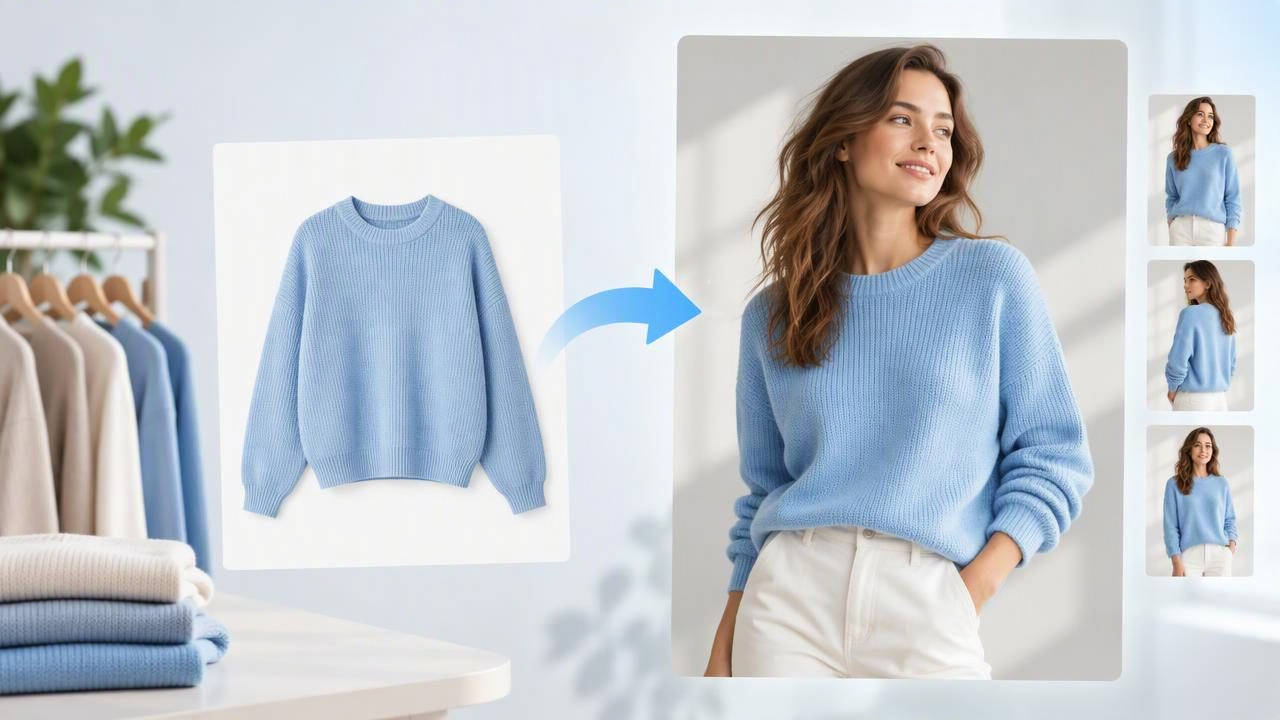
Want to create model shots from photos of a garment without arranging a live photo shoot? AI image tools can turn a clothing photo into a model-style presentation, giving shoppers a better sense of how an item might look when worn. But the result is an interpretation, not a fitting-room photo: it can change details, and it cannot prove exactly how a garment fits a real person.
For fashion resellers and small brands, the useful question is not simply how to make the image look polished. It is whether the generated image still represents the actual item. This guide explains which source photos work best, what to review in the result, and when a flat lay, hanger photo, or ghost mannequin image is the more dependable choice.
What Does It Mean to Create a Model Shot From a Clothing Photo?
A model-shot generator uses an existing garment image as a reference and creates a new image showing clothing on a person. Depending on the tool and input, the source may be a flat lay, a hanger presentation, or another clear product photo. The output can provide a lifestyle-style view that is more engaging than a garment shown by itself.
It is different from photographing the actual item on a live model. The person, pose, lighting, and way the garment sits may be generated or altered. That distinction matters when an image is used to sell one specific secondhand item: the generated result should support the real photos, not replace evidence of the item's condition or exact construction.
Choose a Source Photo That Shows the Garment Clearly
The source image gives the tool its visual reference. A simple, well-lit photo with the whole garment in frame is usually more useful than a dramatic image with distracting props or deep shadows. Lay the item flat or hang it neatly, and keep sleeves, hems, collars, and other important edges visible. A plain background can make the garment easier to distinguish from its surroundings.
Before uploading, check whether the photo shows the characteristics a buyer would care about: color, shape, neckline, closures, pockets, print, and length. Smooth out ordinary wrinkles if doing so will not conceal the fabric's real condition. If a mark, pulled thread, or other flaw is present, photograph it separately and disclose it in the listing rather than relying on an AI model image to show it.
Not every source format is equally suitable. A flat lay may show the outline and details clearly, while an on-hanger photo can communicate how the item hangs. A tightly cropped image may leave too little information for a convincing result. No source image can provide details that are hidden, out of frame, or obscured.
How to Create Model Shots From Photos: A Practical Review Process
Rather than treating image generation as a one-click path to a finished listing, think of it as creating an additional presentation image that needs careful checking. A focused process helps you spot problems before shoppers see the result.
- Decide what the image needs to communicate. Choose a model-style view when shoppers could benefit from seeing the garment in a wearable context, such as the proportions of a loose blouse or the overall look of a jacket. If the main concern is a flaw, fabric texture, or a precise construction detail, take a real close-up instead.
- Start with the clearest available garment photo. Use an image that shows the complete item and its distinctive features. Avoid choosing a source solely because it looks stylish; legibility is more important than atmosphere when the result represents a product for sale.
- Keep the requested presentation straightforward. A neutral pose and uncluttered setting keep attention on the clothing. Elaborate styling can make it harder to tell whether the tool preserved the original shape, color, or details. Choose an output that complements your existing listing photos rather than competing with them.
- Compare the output directly with the original. Look at the two images side by side. Check the garment's color, print placement, sleeve and hem length, collar, seams, buttons, pockets, and overall outline. Zoom in on areas where small changes would affect a buyer's understanding.
- Keep real photos in the listing set. Use actual item photos to document the garment's condition and specific features. A generated model shot can be supplementary, but it should not be the only view of a one-off resale item. Label or otherwise present generated imagery transparently where appropriate, and follow the marketplace's current image rules.
A Concrete Example: A Resale Blouse
Imagine listing a secondhand cream blouse with a small embroidered collar and a faint mark near one cuff. Your source photo shows the blouse laid flat, with the collar, cuffs, buttons, and hem in frame. An AI-generated model image might help a shopper picture the blouse as an outfit piece, but it is not a reliable record of the cuff mark or exact fit.
Compare the generated view against the flat-lay original. Is the embroidery still in the right place? Do the buttons and collar resemble the actual blouse? Does the generated version appear to have a different sleeve length, color, or silhouette? If a detail has shifted, do not use that image to represent the item. If the image is broadly consistent, you could include it as a secondary styling view while keeping clear photos of the real blouse—and a close-up of the mark—as the factual listing evidence.
This approach is especially useful for unique vintage or pre-owned pieces. A model shot can make a listing feel more styled, while original photos answer practical questions about the specific garment being sold.
What AI Model Images Can—and Cannot—Show
Generated images can offer a quick way to explore a model-style presentation without photographing a person. They may help make a catalog visually varied or show a broad styling idea. However, image generation is not a guarantee that every garment detail will remain unchanged, even when the source photo is clear.
- Texture may look different. Fine knit patterns, sheen, embroidery, and fabric grain can be softened, altered, or interpreted. Preserve original close-ups for material and construction details.
- Color can shift. Lighting and image processing may change how a shade appears. Compare the result with a well-lit original, and use the real photo as the main color reference.
- Fit is not verified. A generated pose does not establish how the item will fit a particular body or how it drapes in real life. Avoid presenting the image as an exact fit simulation.
- Hidden areas remain unknown. The tool cannot reliably document what the source does not show. It does not repair hidden defects or confirm the condition of unseen parts.
- Shape and details can be reinterpreted. Seams, closures, pockets, hems, and proportions may not match the original exactly. Reject or clearly avoid using an output when a noticeable change could mislead a buyer.
When accuracy is more important than styling, use real photography for the primary listing images. A clean hanger view, carefully arranged flat lay, or ghost mannequin presentation can show garment structure without implying that a generated person is wearing the exact item. Each style has trade-offs: a flat lay shows the full outline, a hanger view is straightforward to make, and a ghost mannequin image can emphasize shape while omitting a visible model.
Build a Listing Image Set Buyers Can Evaluate
A model-style image works best as one part of a balanced set, not a substitute for all other views. For an individual resale listing, consider a real front view, a back view, a close-up of notable design details, and photos of any wear or damage. Add the generated presentation only if it remains consistent with those photographs.
Use a repeatable review checklist for each item:
- Does the main photo show the actual garment clearly?
- Can a shopper see the item's condition and any disclosed flaws?
- Does the generated view agree with the source on visible design details?
- Could its pose or styling suggest a fit or feature that has not been verified?
- Is the generated image identified or presented transparently in line with the sales channel's rules?
If you also need to show a garment's shape without a person, Clothing Studio offers AI photo editing for apparel; its guide to ghost mannequin photos explains that alternative presentation. Full app features require a subscription.
When to Skip the Generated Model Shot
Leave the image out if the garment changes substantially, if a defining detail appears invented, or if the output makes the piece look materially different from the original. It may also be unnecessary when a simple product view already communicates the item well. For luxury, vintage, tailored, or visibly damaged clothing, accurate real images and detailed descriptions may be more valuable than a polished generated scene.
The goal is not to make every listing look like a campaign. It is to help a shopper understand what is for sale. Create model shots from photos when they add useful context, verify them against the garment, and keep real photos available to establish what the buyer will actually receive. That balance makes AI a presentation aid—not a replacement for honest e-commerce photography.
