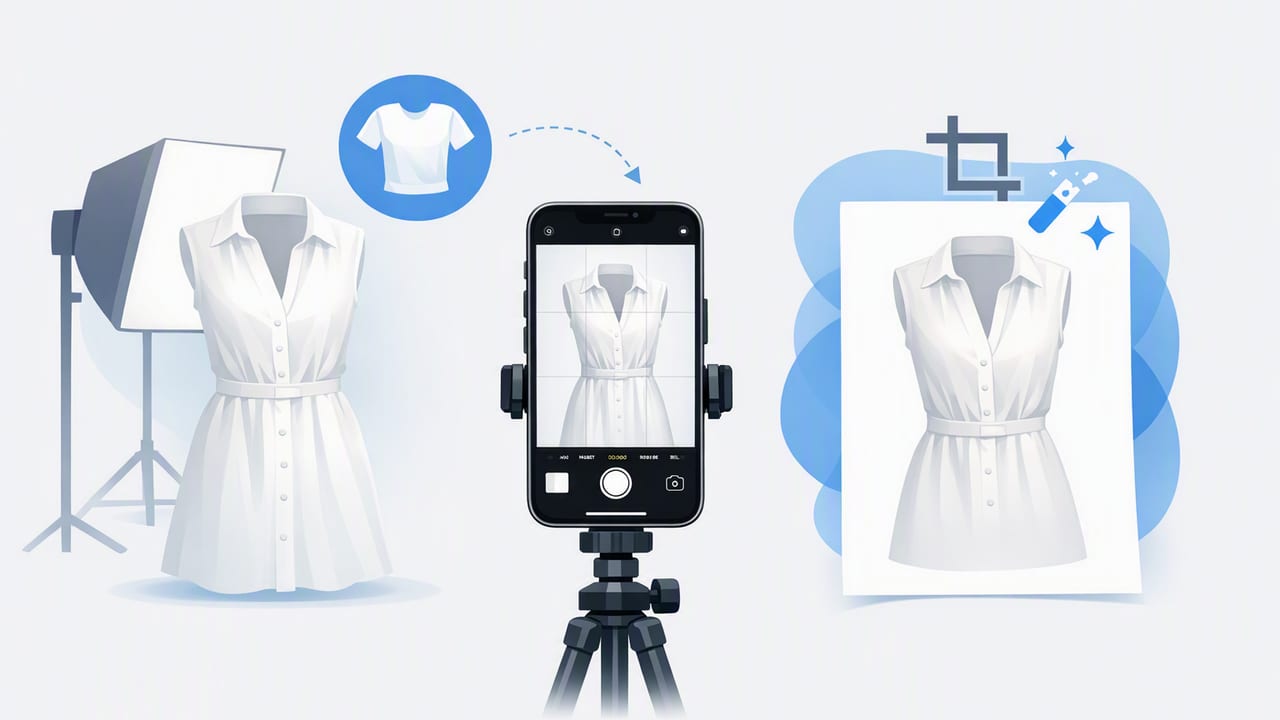
Ghost mannequin photos (sometimes called “invisible mannequin” images) make clothing look structured, premium, and consistent—without showing a person or a visible form. For fashion resellers and small brands, they’re one of the fastest ways to level up listing photos because buyers can clearly see shape, fit, and details like collars, waistlines, and sleeves.
This guide shows a practical, iPhone-friendly workflow to create ghost mannequin images on iPhone, from prepping the garment to editing, quality checks, and common mistakes to avoid. You don’t need a studio setup—just a repeatable process.
What is a ghost mannequin image (and why it converts)?
A ghost mannequin image is a product photo where the clothing appears worn and three-dimensional, but the mannequin or model is removed. The result emphasizes structure and fit while keeping the listing clean and brand-neutral.
- Fit looks clearer: buyers can “read” the silhouette better than in a flat lay.
- More premium presentation: similar to major retail product pages.
- Consistency across listings: helps your shop look trustworthy and intentional.
Consistency is a selling feature. When your thumbnails and product pages look uniform, buyers spend less time evaluating your credibility and more time evaluating the item.
Ghost mannequin vs. hanger vs. flat lay
Each presentation style has a place. Ghost mannequin is often the sweet spot when you want structure without styling a full outfit.
| Style | Best for | Pros | Trade-offs |
|---|---|---|---|
| Ghost mannequin | Tops, dresses, jackets, structured pieces | 3D shape, clean look, professional feel | Requires clean editing + a repeatable setup |
| On-hanger | Quick listings, lightweight garments | Fast to shoot, minimal prep | Can look droopy; shoulders/neckline may distort |
| Flat lay | Tees, knitwear, casual basics | Easy to control wrinkles and symmetry | Less sense of fit; can look “flat” in thumbnails |
What you need to create ghost mannequin images on iPhone
You can keep this simple. Here’s a practical starter kit:
- iPhone camera (any recent model is fine)
- A bright, even light source: window light or a basic softbox
- A clean background: plain wall, backdrop paper, or a large foam board
- A form (optional but helpful): mannequin torso, dress form, or even a hanger + careful clipping for some items
- Clips/pins to shape the garment (binder clips work)
- A lint roller + steamer for fast polish
- An AI photo editor that can remove backgrounds and help simulate ghost mannequin results
Step 1: Prep the garment like a pro (5 minutes that pay off)
Most “editing problems” start as prep problems. Before you shoot:
- Steam or de-wrinkle: focus on seams, plackets, cuffs, and hems.
- Remove lint and dust: especially on dark fabrics and knits.
- Shape it: use clips behind the garment to create a natural waist/torso line (don’t over-tighten).
- Check tags and straps: tuck inner tags, align shoulder straps evenly, straighten collars.
- Close it consistently: zip the zipper to the same point across similar items; button the same number of buttons each time.
Quick fabric-specific notes
- Knitwear: avoid stretching; clip gently and keep shoulders symmetrical.
- Shiny fabrics: move the item slightly until glare is reduced (tiny angle changes matter).
- Black clothing: add more distance from the background to prevent edge blending.
Step 2: Set up a simple iPhone shooting “station”
A repeatable station beats a perfect station. Aim for the same light, distance, and framing each session.
- Lighting: stand near a window with indirect light, or use a softbox at a 45° angle.
- Background: plain and smooth (white/light gray tends to edit easiest).
- Distance: keep the phone far enough to reduce lens distortion; zoom slightly (1.2–2x) if needed.
- Height: keep the camera roughly centered on the garment’s midline for balanced proportions.
Recommended iPhone camera settings (simple)
- Turn on grid to keep vertical lines straight.
- Tap to focus on the garment and slightly lower exposure if whites are blowing out.
- Avoid ultra-wide for clothing listings; it can warp edges.
Step 3: Shoot the two photos that make ghost mannequin editing easier
Traditional ghost mannequin work often uses multiple images. On iPhone, you can still follow the same logic to get cleaner results.
A. “Front” image (main)
Photograph the garment on the form (or carefully supported) with the neckline and shoulders sitting naturally. Keep sleeves and hems symmetrical.
B. “Inside label/neck” or “back-of-neck insert” image (helper)
To mimic the “hollow” interior look, take a second photo that shows the inside neck/collar area (or the inner back area) cleanly. For some pieces, simply flipping part of the garment inward and capturing that area can provide the texture needed if your editor supports compositing.
Tip: Even if you don’t manually composite, this second photo is useful for detail shots and helps maintain a consistent set.
Step 4: Edit on iPhone—your ghost mannequin workflow
The goal is a clean, structured garment with a natural-looking interior opening (neckline/armholes) and a consistent background. Most modern editors can get you close with background removal + shape cleanup.
1) Remove the background
Start with automatic background removal. Check the edges around:
- collars and lapels
- straps and thin fabric areas
- lace, fringe, and loose knits
- dark-on-dark edges (e.g., black blazer on a dark wall)
If your editor offers edge refinement, use it lightly—over-smoothing can make fabric look artificial.
2) Straighten and align
Rotate so the garment is vertical, then crop consistently. A reliable pattern is:
- leave a small margin above the shoulders
- center the garment
- keep the hemline level
3) Create the “ghost” look (neckline depth)
This is the step that makes the image feel high-end. Depending on your app, you’ll typically do one of the following:
- Use a ghost mannequin/invisible form feature if available (fastest).
- Layer the helper image (inside-neck shot) to show inner fabric where the mannequin would be, then blend edges.
- Use a subtle shadow/contrast adjustment at the neckline to suggest depth (avoid harsh, unrealistic shadows).
4) Fix wrinkles and fabric dents (lightly)
Wrinkle reduction is helpful, but keep it believable. Buyers still want to see texture. Focus on:
- shipping fold lines
- collar bends
- minor ripples around buttons
5) Color-correct for accuracy
Accurate color reduces returns. On iPhone, aim for:
- White balance: whites look neutral (not yellow/blue).
- Exposure: fabric detail is visible in dark areas.
- Saturation: avoid pushing colors beyond what the eye sees.
6) Export in a consistent format
Use the same dimensions and background style across your store. If you sell on multiple platforms, keep a master version and export variants as needed.
A simple quality checklist (before you publish)
- Edges: no jagged collar lines; straps aren’t cut off.
- Symmetry: shoulders even; sleeves similar length/shape.
- Background: uniform tone; no gray patches or shadows.
- Depth: neckline/armholes look natural, not like a flat cutout.
- Color: matches your in-hand item under neutral light.
- Consistency: crop and scale match your other listings.
Common mistakes when you create ghost mannequin images on iPhone
These are the issues that most often make ghost mannequin images look “off”:
- Over-editing edges: too much smoothing creates a fake outline.
- Floating collars: if the neckline isn’t shaped, it can look like it’s hovering.
- Distorted proportions: shooting too close (or with ultra-wide) warps sleeves and side seams.
- Inconsistent crop: buyers notice when one item looks larger/smaller in thumbnails.
- Wrong shadows: heavy drop shadows can look like a sticker; keep it subtle.
Batch workflow: save time when listing multiple items
If you list regularly, batch work is where iPhone editing becomes truly efficient.
Suggested batching order
- Prep 10–20 garments (steam, lint roll, clip)
- Shoot all fronts in the same spot
- Shoot helper/detail shots (neck interiors, tags, flaws)
- Edit backgrounds in one session
- Apply the same crop/format
- Export and upload
Optional: a consistent file naming pattern
This helps you stay organized when you’re uploading to multiple marketplaces.
brand_itemtype_color_size_view_###.jpg

Example:
madewell_denimjacket_black_M_front_001.jpg
madewell_denimjacket_black_M_back_002.jpg
madewell_denimjacket_black_M_tag_003.jpg
When ghost mannequin isn’t the best choice
Ghost mannequin is excellent for structure, but consider alternatives when:
- Very flowy pieces: some dresses photograph better with movement (model shots) or careful draping.
- Small accessories: bags, belts, jewelry usually perform better as flat lay or styled close-ups.
- Highly textured items: heavy knits may look more honest in a flat lay with visible texture and thickness.
FAQ
Do I need a physical mannequin to create ghost mannequin images on iPhone?
No. A mannequin torso helps with structure, but you can still get a clean “invisible form” look using careful shaping (clips/pins) plus background removal and neckline depth edits.
What background color is easiest for editing?
White or light gray is usually easiest, especially for background removal. For white garments, use light gray to keep edges visible.
How do I keep photos consistent across my store?
Use the same shooting location, camera distance, crop ratio, and export settings. Consistency matters more than perfection on any single photo.
Final takeaway
To create ghost mannequin images on iPhone that look polished (not “cut out”), focus on three things: clean prep, repeatable shooting, and natural-looking depth around the neckline and openings. Once you have a consistent station and a batch workflow, you can produce premium-looking listings quickly—without turning your home into a full studio.
If you’re looking for an iOS editor that combines background removal, quick clothing cleanup, and ghost mannequin-style presentation tools in one place, you can explore Clothing Studio as an option.
