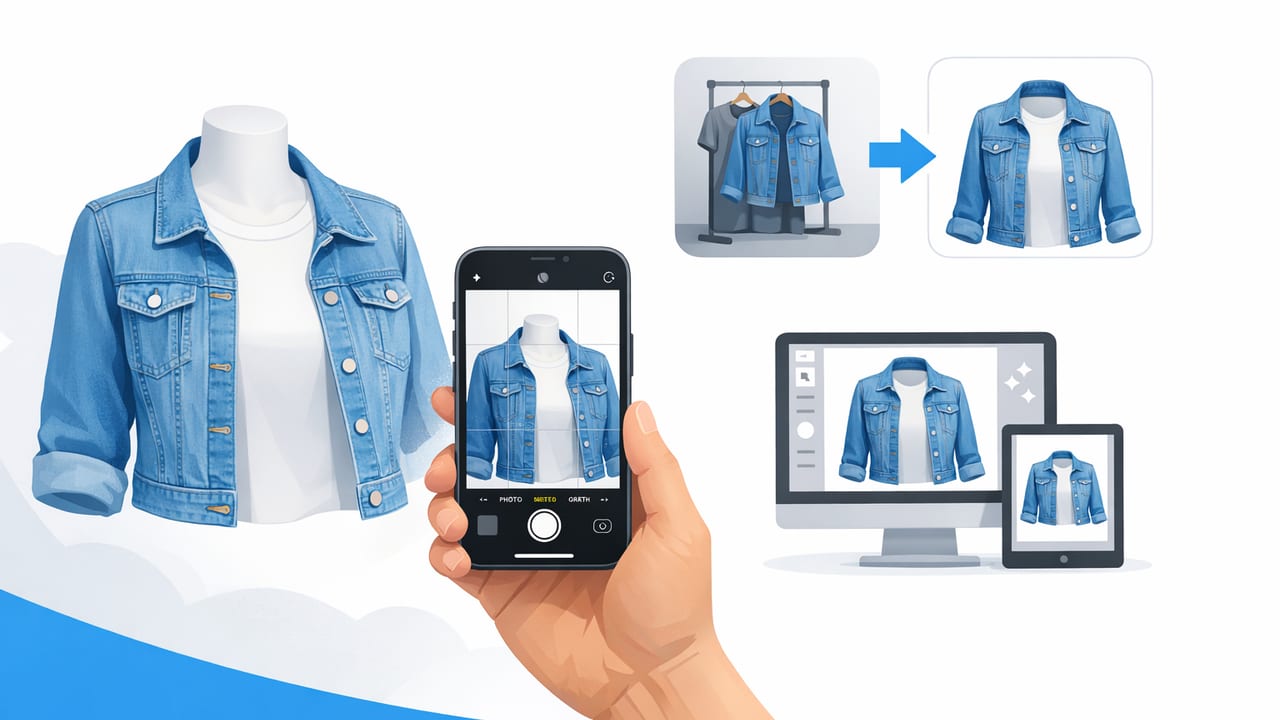
If you sell clothing online, you’ve likely noticed that the best listings have one thing in common: a clean, consistent presentation that helps shoppers focus on the garment. The ghost mannequin effect does exactly that—showing shape and fit without distracting mannequins, hangers, or backgrounds.
This guide walks you through how to create ghost mannequin images on iPhone using a practical workflow that works for resellers, small brands, and anyone photographing apparel at home. You’ll learn what to shoot, how to light it, how to edit it, and how to avoid the most common mistakes that make ghost mannequin photos look “cut out.”
What is the ghost mannequin effect (and why it sells)?
A ghost mannequin image makes a garment look like it’s being worn—showing natural shape at the shoulders, chest, and waist—while the mannequin (or model) is removed in editing. Many versions also show an “inner label/neck area” insert, which creates that premium, hollow 3D look used by big apparel brands.
Why shoppers respond to it:
- Fit clarity: Clothing appears structured, not flat or wrinkled.
- Less distraction: No busy room backgrounds, hands, or hangers stealing attention.
- Consistency: Your closet/storefront looks cohesive, which builds trust.
- Marketplace-friendly: Clean images typically perform better on e-commerce platforms.
What you need to create ghost mannequin images on iPhone
You don’t need a studio, but you do need a repeatable setup. Here’s a simple checklist.
Gear (minimal, practical)
- iPhone camera (any recent model is fine)
- Mannequin or dress form (full, half, or torso; matte is best)
- Tripod (prevents angle changes between shots)
- Clips/pins (to tuck excess fabric behind the mannequin)
- Solid background (white wall, backdrop paper, or a tidy blank space)
- Soft light (window light or an inexpensive softbox)
Optional (but helpful)
- Steamer (reduces wrinkles before you shoot)
- Lint roller (quick win for darker fabrics)
- Reflector (even a white foam board works)
The shooting setup: get the photos right before editing
Ghost mannequin images look professional when the camera angle, lighting, and garment styling are consistent. Editing can’t fix everything—especially warped angles and harsh shadows.
1) Set your camera angle once and keep it
Place your tripod so the iPhone camera is roughly mid-chest height of the mannequin and level (not tilted down). A tilted camera creates distortion: shoulders widen, hems curve, and the garment looks “off.”
2) Use soft, even lighting
Aim for light that wraps around the garment. A bright window with sheer curtains works well. If you use artificial light, avoid a single harsh lamp that creates deep shadows inside sleeves and under collars.
3) Style the garment like a buyer would wear it
- Button or zip it as intended (unless you’re intentionally showing it open).
- Align shoulder seams and collars.
- Tuck loose fabric behind the mannequin with clips so the silhouette looks neat.
- Smooth pockets, plackets, and hems so they read clearly in photos.
The two-photo method (best for the premium “inner neck” look)
The most convincing ghost mannequin effect usually comes from combining two photos:
- Main image: Garment on the mannequin (front view).
- Insert image: A shot of the inside label/neck area (or back neckline), used to create the hollow interior look.
Step-by-step: what to photograph
Photo A: Front on mannequin
- Center the garment in the frame with a little breathing room around it.
- Keep the mannequin straight; double-check vertical lines (placket/zipper).
- Take 2–3 shots to ensure sharpness.
Photo B: Inside/neck insert (the “ghost” part)
- Remove the garment, turn it slightly inside out at the neckline, or photograph the back neckline area so you capture the inner label/collar shape.
- Match lighting and angle as closely as possible to Photo A.
- Keep it tight: you only need the neckline/collar area that will be inserted.
Tip: If you don’t need the hollow-neck look, you can still do a simpler ghost mannequin by removing the background and mannequin from a single shot. The two-photo method just looks more “brand catalog.”
Editing workflow on iPhone: clean, realistic ghost mannequin results
When editing, the goal is not to make the garment look “AI-generated”—it’s to make it look accurate, clean, and consistent. Prioritize realistic edges, true color, and natural fabric texture.
1) Remove the background first
Start by isolating the garment from the background so you can see edges clearly. A clean cutout makes every next step easier—especially around sleeves, collars, and hems.
2) Remove the mannequin (or mask it out)
Depending on your app, you’ll either remove the mannequin automatically or mask it out manually. Watch the tricky areas:
- Armholes and sleeves: avoid jagged edges
- Collars: keep the collar shape crisp
- Sheer fabrics: avoid over-aggressive cutouts
3) Add the insert (Photo B) for the hollow interior
Place the neckline/label area inside the main image so it looks like the viewer can see into the garment. The realism comes from:
- Correct scale: the insert should be slightly smaller than the outer neckline opening
- Matching color: whites should match whites; warm vs. cool tones matter
- Soft edge blending: avoid harsh cut lines where the insert meets the garment
4) Smooth wrinkles and refine shape (lightly)
Wrinkle reduction can help, but keep fabric texture. Over-smoothing makes cotton and knits look plastic. Aim for “freshly steamed,” not “painted.”
5) Color and exposure: keep it true-to-life
For listings, accuracy beats drama. Make sure your edit doesn’t shift navy into black or cream into bright white.
- Lift exposure slightly if needed
- Reduce harsh highlights
- Check color against the real item in the same lighting
6) Export settings for marketplaces
Most platforms prefer clean, high-resolution images. As a general rule:
- Use a square crop if that’s your platform’s default grid
- Export at the highest quality your workflow supports
- Keep a consistent margin around the garment from listing to listing
Common mistakes (and quick fixes)
Hard cutout edges
Fix: Zoom in and refine the mask around collars and sleeves. Slight feathering/edge smoothing can help, but don’t blur details.
Insert doesn’t match perspective
Fix: Retake Photo B from the same height and distance as Photo A. The more consistent your camera setup, the easier the composite.
Strange shadows inside the garment
Fix: Use softer lighting, or add fill light (a white board opposite the window). In editing, avoid heavy “clarity” that exaggerates shadows.
Over-editing texture
Fix: If the fabric starts looking waxy, dial back smoothing and sharpening. Let knits look like knits.
Best use cases: what sells well with ghost mannequin photos
- Tops: blouses, tees, sweaters, hoodies
- Dresses: especially structured bodices
- Outerwear: jackets and coats (great for shape)
- Uniform or workwear: where fit and structure matter
For items like leggings or very flowy pieces, flat-lay can sometimes show details better. You can still keep your shop consistent by using the same background and color workflow.
Ghost mannequin vs. flat lay vs. on-hanger: a quick comparison
| Method | Best for | Pros | Cons |
|---|---|---|---|
| Ghost mannequin | Tops, dresses, outerwear | Shows shape/fit, premium look, consistent | Needs mannequin + extra editing |
| Flat lay | Tees, denim, casual items | Fast to shoot, great for details | Less “fit” visibility, can look wrinkly |
| On-hanger | Quick listings, lightweight items | Minimal setup, easy batching | Can look slouchy, hanger distraction |
A simple batching system for faster iPhone ghost mannequin sessions
When you photograph in batches, you reduce time per item and your listings look more consistent.
- Prep stack: lint roll + steam everything first
- Shoot stack: take Photo A for each item (front), then Photo B (insert) right after
- Edit stack: remove background, then mannequin, then add insert
- Quality check: compare edges and color across the batch
If you want to keep your camera roll organized, use a simple filename or note system when exporting:
SKU123_front.jpg
SKU123_insert.jpg
SKU123_ghost_final.jpg
Checklist: a “clean ghost mannequin” standard you can repeat
- Garment centered and straight
- Soft lighting, minimal harsh shadows
- Edges clean around sleeves/collar/hem
- Insert aligned and blended naturally
- Wrinkles reduced but texture preserved
- Color matches the real garment
- Consistent crop and spacing across listings
Final note: choosing an iPhone editing app
The best app is the one that helps you get consistent results quickly—especially for background removal, mannequin removal/masking, and light wrinkle cleanup. If you want an iOS option designed around apparel workflows, Clothing Studio is one tool that combines these steps in a streamlined way.
