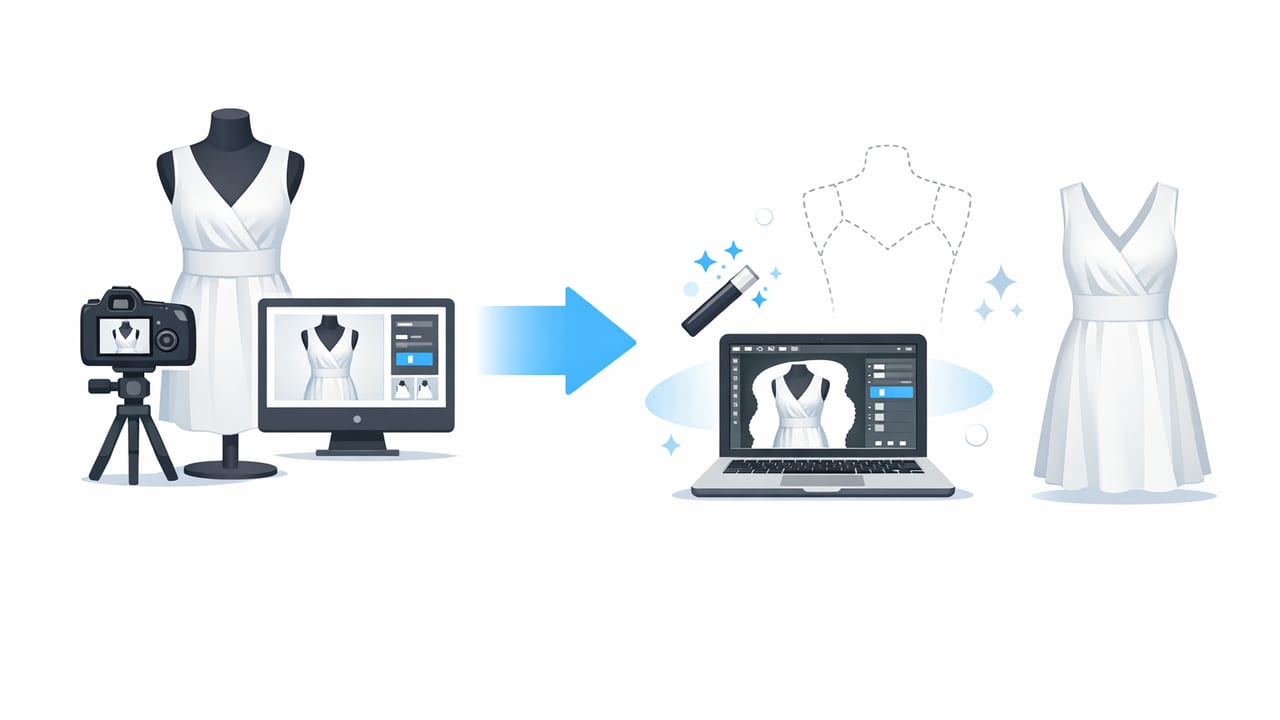
Ghost mannequin photos are a staple of modern apparel listings because they show shape and fit without distractions. If you sell on marketplaces or run an online shop, learning how to create ghost mannequin images from photos can make your listings look more consistent, more premium, and easier for shoppers to evaluate quickly.
This guide breaks the process into two parts—how to capture the right photos and how to combine them into a clean “floating” garment image. You don’t need a full studio or advanced skills; the biggest wins come from repeatable steps and a simple quality checklist.
What a ghost mannequin image is (and why it works)
A ghost mannequin image is a product photo where the clothing appears worn and three-dimensional, but the mannequin (or model) is removed. The key visual is the interior details—like the neckline, collar, hood, or inner tag area—visible as if the garment is “hollow.”
- Better shape than flat lays: Sleeves, torso, and drape look more realistic.
- More neutral than model shots: Keeps focus on the garment and reduces styling bias.
- More consistent than on-hanger: Reduces hanger bumps and uneven shoulders.
- Great for catalogs: Fast to scan, easy to standardize across many items.
What you need for a clean ghost mannequin workflow
You can do this with minimal gear. The goal is to capture two or more photos that can be layered cleanly.
Basic setup checklist
- Phone camera (or any camera) with a stable shooting position
- Mannequin (full body, torso, or dress form). If you don’t have one, a sturdy hanger can work for some tops, but the effect is harder to perfect.
- Even lighting (window light + reflector, or two soft lights)
- Simple background (white wall, seamless paper, or a clean backdrop)
- Clips/pins to tuck excess fabric behind the mannequin
Rule of thumb: The cleaner your original photos are, the less time you’ll spend fixing edges, color, and alignment later.
How to shoot the photos (the part most people skip)
Most ghost mannequin “fails” aren’t editing problems—they start at capture. Follow these steps to make the editing stage fast and predictable.
1) Prep the garment for symmetry
- Steam or smooth wrinkles (even small creases can look like damage online).
- Lint roll dark fabrics and remove stray threads.
- Button, zip, and align seams so both sides match.
- Tuck sleeves and hems evenly; use clips behind the mannequin if needed.
2) Set your camera angle once—and don’t move it
Use a tripod or a stable surface. Keep the camera centered and level with the chest area (for tops) or the hip area (for bottoms). If you change angle between shots, you’ll spend extra time lining things up.
3) Use soft, even light
Harsh shadows make background removal and edge blending harder. Aim for bright, diffused light:
- Place the item facing a window with sheer curtains, or
- Use two lights at 45° angles to reduce shadows.
The essential shots to capture (front + “inside” piece)
To create the hollow-neck look, you typically combine:
- Main shot: The garment on a mannequin (front view).
- Inner detail shot: The neckline/collar area photographed separately so the inside can be composited in.
For tops (t-shirts, blouses, jackets, hoodies)
- Main front: On mannequin, centered.
- Back shot (optional): Useful for full listings and consistency.
- Inner neckline/collar: Remove the garment from the mannequin, then flip it inside-out or re-position it so the inside of the collar is visible and matches the angle of the main front shot.
For dresses
- Capture the main front as usual.
- Take an additional “inner” shot for any deep V-neck, collar, or structured neckline.
- If the dress has sleeves, keep shoulder seams aligned to avoid uneven drape.
For bottoms (pants, skirts)
Ghost mannequin is most common for tops, but you can apply a similar idea to waistbands:
- Photograph the front on a lower mannequin form or clip to create shape.
- Shoot a second image highlighting the inside waistband/label area if needed.
How to create ghost mannequin images from photos: editing workflow
You can do this in many editors (including AI-powered apps). Regardless of tool, the workflow is essentially the same: remove the mannequin, layer in the “inner” piece, and refine edges.
Step 1: Remove the background and mannequin from the main image
Start with the main front photo. Remove the background so the garment is isolated. Then remove any remaining mannequin parts around the neckline, armholes, or sides.
- Tip: Zoom in on edges around collars and straps—these areas reveal cutout mistakes quickly.
- Goal: A clean silhouette with natural edges (no jagged cut lines).
Step 2: Place the “inner neckline” photo behind the main garment
Open your inner detail shot and remove its background as well. Then place it as a layer behind the main garment layer. Adjust size and position until the inner collar aligns with the outer neckline.
Step 3: Mask and blend for a natural hollow effect
This is where the ghost mannequin look is “made.” Use masking (or an erase/restore brush) so only the inner collar/inside area shows through the neckline opening.
- Keep edges soft but not blurry—fabric should still look crisp.
- Match the inner piece to the outer garment’s shape (especially on curved collars).
- Don’t reveal too much interior. The best ghost mannequin images look realistic, not cut-out.
Step 4: Match color and brightness between layers
Even with consistent lighting, your two photos may differ slightly. Adjust exposure/white balance so the inner neckline doesn’t look like it came from a different item.
Step 5: Final cleanup and crop consistency
Finish with small but important polish steps:
- Remove dust specks and small distractions.
- Straighten the garment so it’s perfectly upright.
- Crop to a consistent aspect ratio for your store grid.
Common mistakes (and easy fixes)
| Mistake | How it shows up | Fix |
|---|---|---|
| Camera moved between shots | Inner collar won’t align naturally | Use a tripod and mark your floor position; re-shoot if needed |
| Harsh shadows | Uneven edges and “halo” cutouts | Use softer light; move lights farther away; diffuse window light |
| Over-erasing fabric edges | Collar looks thin or jagged | Undo and mask carefully; zoom in; keep natural seam thickness |
| Inner piece too bright/dark | Looks pasted-on | Match exposure and white balance; reduce contrast slightly |
| Unnatural “deep hole” effect | Neckline looks like a cutout | Reveal less interior; align inner collar closer to neckline edge |
When to use ghost mannequin vs. other presentation styles
Not every item needs the ghost effect. Use the format that best communicates fit and fabric.
- Ghost mannequin: Structured tops, jackets, hoodies, dresses—anything where shape sells.
- Flat lay: Delicate fabrics, small items, or when you want styling context (shoes, accessories).
- On-hanger: Fast intake for basics, but watch for shoulder bumps and tilt.
- Model shots: Great for lifestyle and movement; less consistent for catalogs unless you have a set process.
A simple quality checklist before you publish
Use this quick checklist to keep every listing photo consistent:
- Is the garment centered and straight?
- Are the edges clean (no halos, jagged lines, missing fabric)?
- Does the inner collar look realistic and aligned?
- Are colors accurate (especially whites and blacks)?
- Is the background clean and consistent across your store?
- Does the crop match your other listings?
File naming and export settings (quick, practical)
Keeping files organized helps when you’re listing at scale. Here’s a simple naming pattern you can copy:
brand_itemtype_color_size_view.jpg
example: nike_hoodie_black_m_front.jpg
Export a high-quality JPG for most marketplaces, and keep a larger original if you plan to reuse images later.
FAQ
Do I need a professional mannequin?
No. A basic torso form works for many tops. The biggest factor is consistent alignment and even lighting, not the price of the mannequin.
Can I make ghost mannequin images from on-hanger photos?
Sometimes. You can remove the hanger and background, but creating a believable hollow neckline is harder because the garment often collapses and loses shape. If you can, use a torso mannequin for cleaner results.
How many photos do I need per item?
For the ghost effect itself: usually two (main + inner collar). For a strong listing: add back view, close-ups (fabric/defects/label), and a detail shot of any standout feature.
Putting it all together
To create ghost mannequin images that look professional, focus on repeatability: lock your camera position, use soft light, capture the main shot plus a matching inner-collar shot, then combine them with clean cutouts and subtle blending. Once you’ve done it a few times, you’ll build a workflow that scales—whether you’re processing a few items a week or a full inventory drop.
If you prefer using an iOS app that streamlines steps like background removal, edge cleanup, and mannequin-style compositing, an AI photo editor such as Clothing Studio can help simplify the process while keeping results consistent.
