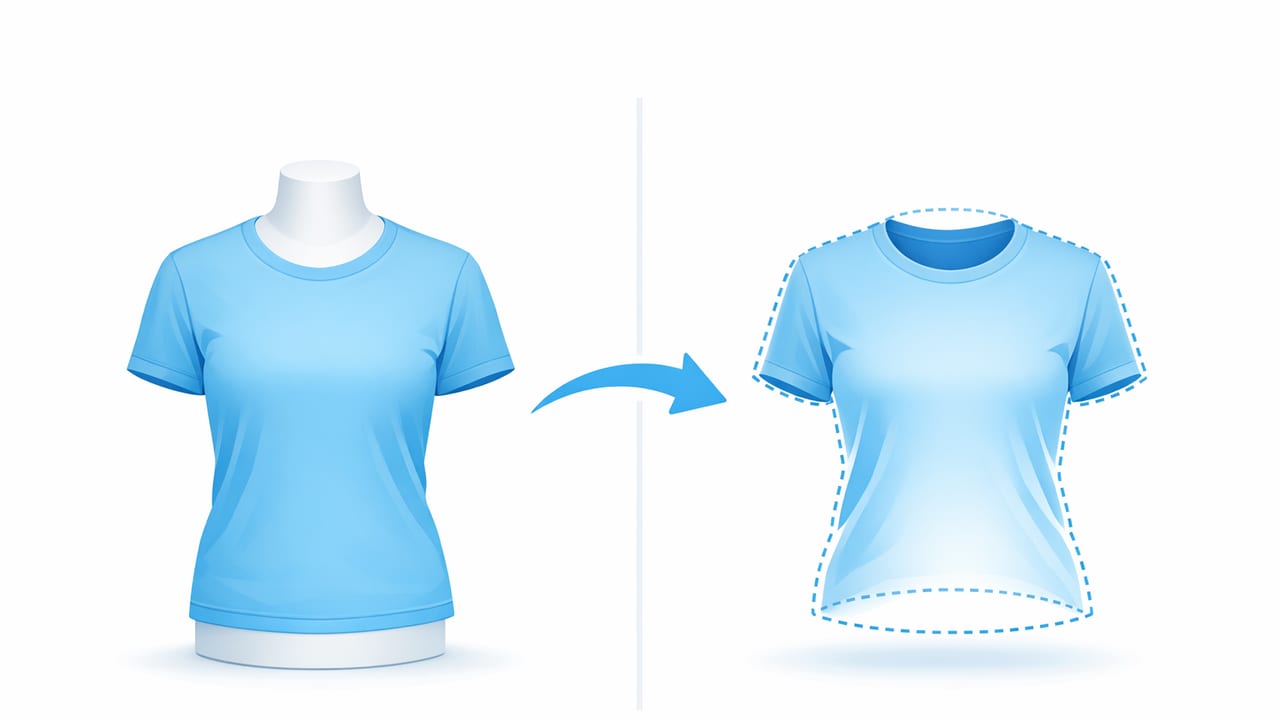
If you sell shirts online, you’ve probably noticed that the cleanest listings share one thing: the product looks structured, wearable, and “alive”—without a visible mannequin or model. That’s the magic of the ghost mannequin look. In this guide, you’ll learn how to create ghost mannequin effect for shirts using an easy, repeatable workflow that works whether you shoot at home or in a small studio.
The goal is simple: show the shirt’s shape, drape, collar, and inner neckline in a way that feels premium and consistent across your store.
What is the ghost mannequin effect (and why it works for shirts)?
The ghost mannequin effect is a product-photo style where the shirt appears to be worn, but the mannequin (or person) is removed in editing. The result is a floating, 3D-like garment that shows:
- True silhouette (shoulders, chest, sleeve angle)
- Neck/collar depth (the “inside” of the neckline)
- Professional consistency across sizes and styles
For marketplaces and e-commerce platforms, that clarity reduces buyer uncertainty—especially for fit-sensitive items like button-downs, polos, and tees.
Ghost mannequin vs. flat lay vs. on-hanger: quick comparison
| Style | Best for | Main drawback |
|---|---|---|
| Ghost mannequin | Premium listings, fit + structure, brand consistency | Takes a little setup (or smart editing) |
| Flat lay | Casual tees, quick content, social posts | Less shape; collars can look flat |
| On-hanger | Fast resale workflow, closets/marketplaces | Hanger bumps and sloped shoulders |
What you need (simple setup)
You can create great ghost mannequin images with minimal gear. Here’s a practical checklist.
Recommended items
- Mannequin or dress form (full torso is ideal; even a budget one works)
- Clips or pins to shape the back and remove slack
- Lint roller (especially for dark shirts)
- Steamer or quick de-wrinkle method
- Two lights or a bright window + reflector (white foam board works)
- Clean background (white wall or paper roll helps)
Nice-to-have
- A tripod (for consistent framing)
- Removable mannequin neck pieces (makes the “inner neck” shot easier)
Step 1: Prep the shirt for a clean, realistic shape
Before you shoot, spend two minutes on prep. It saves you ten minutes of editing later.
- De-wrinkle: steam or smooth obvious creases (focus on placket, collar, sleeve hems).
- Shape the shoulders: pull seams into a natural shoulder line (avoid “drooping” fabric).
- Align the collar: make both collar points symmetrical.
- Check the front: placket straight, buttons aligned, pockets flattened.
- Clip excess fabric at the back (subtle shaping looks more “worn”).
A ghost mannequin image looks believable when the shirt’s structure is consistent: collar height, shoulder width, and sleeve angles should match across your catalog.
Step 2: Shoot the two key photos (front + inner-neck/back)
Traditional ghost mannequin images are usually made from two photos. This is the most reliable way to show the inside of the neckline.
Photo A: The main front shot
- Place the mannequin facing forward.
- Center the shirt and keep the camera level with the chest (avoid shooting too high or too low).
- Leave space around the shirt edges for easy cropping and background removal.
- Take the photo with even lighting; avoid harsh shadows under sleeves.
Photo B: The “inner neck” (back/inside) shot
This shot provides the missing inside-collar area that makes the ghost mannequin look 3D.
- Remove the mannequin (or turn the shirt partially inside out at the neck).
- Photograph the inside of the collar/neckline area clearly.
- Keep the camera angle similar to the front shot to make compositing easy.
Tip: For tees, you may only need a small insert image of the collar interior. For button-downs, capturing the yoke/inner collar area can look more premium.
Step 3: Editing workflow to create the ghost mannequin effect for shirts
There are many tools that can do this, but the workflow stays mostly the same. You’ll combine Photo A (front) with Photo B (inner neck), then clean edges and color.
1) Remove the background (start clean)
Begin by isolating the shirt. Clean edges matter most around:
- Collar points
- Sleeve hems
- Side seams (where fabric curves inward)
If your tool supports it, use a high-quality background removal mode to avoid jagged edges or “halo” outlines.
2) Create the hollow neck opening
From the front shot, remove the mannequin/neck area so the collar opening becomes transparent (a cutout). The opening should follow the real collar line—not a perfect circle.
3) Insert the inner-neck image (Photo B)
Place the inner-neck piece behind the front layer so it looks like you can see inside the shirt. Align the inner collar seam with the outer collar. This is where realism comes from.
4) Match lighting and color between the two shots
Even with the same setup, Photo B may be darker. Make small adjustments:
- Increase brightness slightly on the inner-neck layer
- Reduce contrast if the inner area looks too harsh
- Match white balance so the fabric looks like one piece
5) Clean up edges and fix small distractions
- Remove lint specks and dust
- Smooth minor wrinkles (don’t over-blur texture)
- Check symmetry: collar points, placket straightness, sleeve angles
6) Export for consistent listings
Export settings depend on your platform, but as a general rule: use a sharp, high-resolution JPG or PNG with consistent sizing across your catalog.
A fast “at-home” method if you don’t have a mannequin
No mannequin? You can still get close to the ghost mannequin look with a simple support and smart framing:
- Stuff the shirt lightly with tissue paper to give it shape (avoid bulges).
- Use clips behind the shirt to shape the waist and remove slack.
- Shoot straight-on with even window light.
- For the inner-neck piece, flip only the collar/neck area inward and capture a tight shot.
This won’t perfectly mimic a dress form, but it’s often “good enough” for resale listings—especially for tees and casual shirts.
Common mistakes (and quick fixes)
1) The neckline looks fake or “pasted on”
Fix: Resize and reposition the inner-neck layer so seams line up. Add a subtle shadow under the collar edge (light, not dramatic) to create depth.
2) Collar points don’t match left vs. right
Fix: Adjust during styling before the shoot. Editing symmetry is possible, but it’s slower and can look unnatural.
3) Edges have white halos after background removal
Fix: Use a tool that supports refined edge cleanup, or slightly contract the selection/edge by a tiny amount. Avoid aggressive feathering that blurs fabric texture.
4) Fabric texture looks “plastic”
Fix: When smoothing wrinkles, keep texture intact. Buyers want to see cotton grain, knit details, or stitching.
Quality checklist for shirt ghost mannequin images
- Neck opening looks natural and follows the real collar shape
- Inner neck is visible but not overly bright or distracting
- Shoulders are even; no droop or raised bump
- Placket is straight; buttons aligned
- Color matches reality (especially whites, blacks, and blues)
- Edges are clean with no jagged cutouts
- Background is consistent across your store
Workflow tip: keep your files organized (saves time)
When you’re processing many shirts, clear naming prevents mixing up inner-neck images between sizes/styles. Here’s a simple pattern you can copy:
brand_style_color_size_view.jpg

Example:
acme_oxford_blue_m_front.jpg
acme_oxford_blue_m_innerneck.jpg
This tiny habit makes batch editing faster and reduces errors when you upload to marketplaces.
When ghost mannequin is worth it (and when it isn’t)
Use the ghost mannequin look when:
- You want a consistent “catalog” feel across many SKUs
- The shirt’s structure matters (collars, button plackets, tailored fits)
- You’re building a recognizable brand storefront
Skip it (or simplify) when:
- You’re listing one-off thrift finds quickly and speed matters most
- The shirt is ultra-casual and flat lay already shows all details
- You don’t need the inner-neck depth (some tees look fine without it)
Final thoughts: a repeatable, clean result
To create ghost mannequin effect for shirts reliably, focus on the fundamentals: good prep, two consistent shots, clean background removal, and careful inner-neck alignment. Once you’ve done it a few times, it becomes a fast, repeatable process—and your listings start to look like a cohesive collection instead of a mix of random photos.
If you prefer doing this on an iPhone with AI-assisted editing (including background removal and ghost mannequin-style results) rather than complex desktop steps, an app like Clothing Studio can help streamline the workflow.
