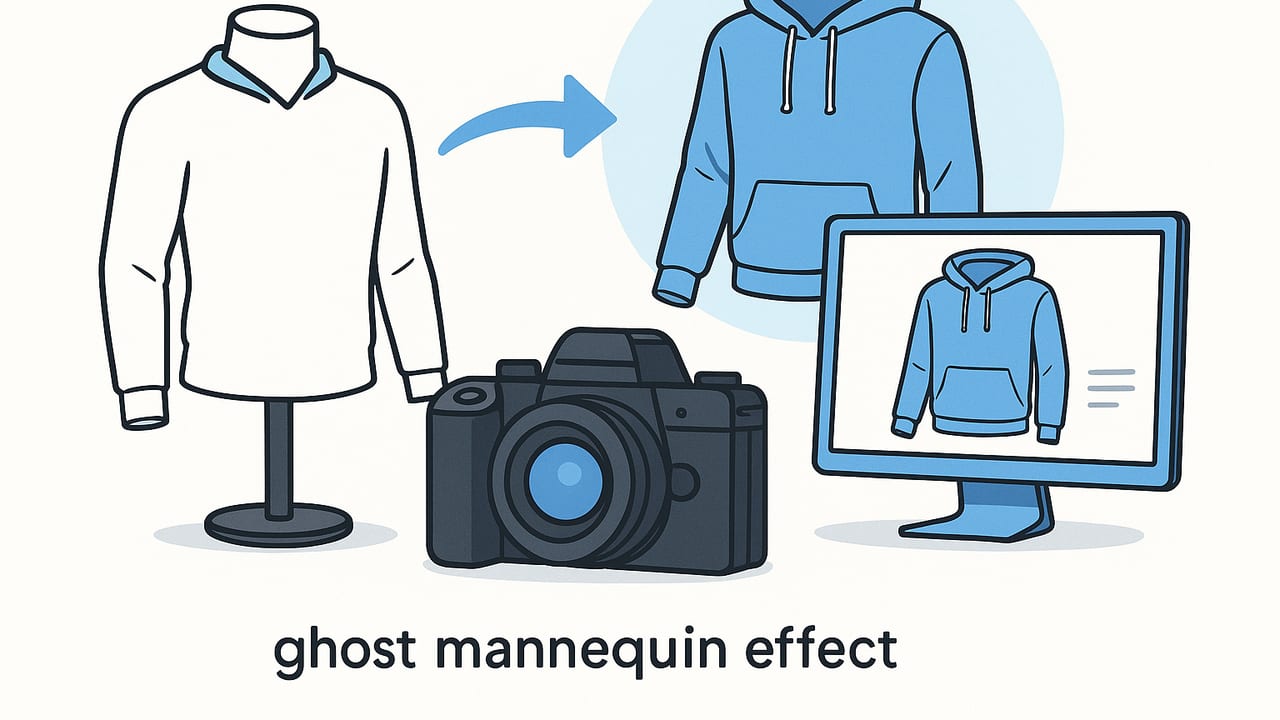
The ghost mannequin effect for clothing resellers is one of the fastest ways to elevate apparel listings from casual snapshots to professional, store-ready images. Also known as the invisible mannequin or hollow man effect, this technique makes garments look naturally filled and 3D—without showing a body, hanger, or dummy. The result: cleaner pages, clearer fit perception, and a strong boost in shopper confidence.
Whether you’re photographing thrift flips, boutique stock, or brand samples, this guide walks you through practical methods, step-by-step capture tips, and editing workflows (including AI options) to help you produce consistent, conversion-focused images.
What Is the Ghost Mannequin Effect?
It’s a post-production look where the mannequin or model is removed while the garment appears worn. For tops and dresses, you still see the collar, inner neck, sleeve shape, and body drape; for bottoms, you preserve waistline and leg contour—so shoppers instantly understand fit and structure without visual distractions.
Why It Matters for Clothing Resellers
- Clearer fit cues: Shoppers can visualize shape, length, and structure better than with flat lays or hanger shots.
- Consistent brand feel: Uniform, distraction-free images make your shop look cohesive and trustworthy.
- Higher perceived value: Professional presentation can justify your pricing and improve conversion.
- Platform-friendly: Most marketplaces (like eBay and Poshmark) favor uncluttered photos on light backgrounds.
Quick stat mindset: Even simple improvements—clean lighting, straight hems, and a white background—can noticeably boost click-through and time-on-listing.
Four Ways to Create the Look
There’s no single “right” workflow. Choose based on your budget, volume, and skill level.
| Method | What You Need | Time per Item | Skill Level | Cost per Image |
|---|---|---|---|---|
| Traditional mannequin + editing | Dress form, camera/phone, lights, basic editor | 8–20 minutes | Intermediate | Low after setup |
| Flat lay + editing | Table, foam board, lights, basic editor | 8–15 minutes | Beginner–Intermediate | Low |
| AI-assisted capture | Phone, AI photo app, good source photos | 2–6 minutes | Beginner | Low–Medium |
| Outsource retouching | Good captures, outsource vendor | 2–5 minutes (your time) | Beginner | Medium |
Capture Setup: Simple, Repeatable, and Affordable
The ghost mannequin effect starts with clean captures. Good setup reduces editing effort dramatically.
Lighting
- Use soft, even light: Two softboxes at 45° angles, or a large window with thin curtains. Avoid harsh shadows.
- Consistent background: White or very light gray. Foam boards or a paper sweep work well.
- Control reflections: Matte surfaces reduce glare on silky fabrics.
Camera or Phone Settings
- Resolution: Max resolution available. On phones, shoot in the highest quality setting.
- Focal length: Avoid wide-angle distortion. Step back and zoom to 2x on phones (or use ~50mm equivalent).
- Exposure: Slightly underexpose rather than blow highlights. Turn off HDR if it causes halos around edges.
- White balance: Set to “Daylight” or use a simple gray card to keep colors true.
- Stability: Use a tripod or clamp for perfectly aligned front and back shots.
Garment Prep
- Steam or smooth wrinkles: Creases create messy shadows. Quick smoothing saves editing time.
- Fill and shape: For mannequins, pin from the back for a tailored silhouette.
- Hide distractions: Tuck tags, tie cords, and stray threads.
Angles and Coverage
- Front and back: Always capture both. The back shot (or inside of neck) is crucial for the “neck joint” area.
- Inside details: Shoot the inside of collars, hoods, or sleeve cuffs to reconstruct the inner fabric later.
- Close-ups: Capture fabric texture, buttons, and labels for additional listing photos.
Step-by-Step: Traditional Ghost Mannequin Workflow
- Mount on a mannequin: Dress the piece, pin the back for shape, straighten hems and seam lines.
- Shoot front view: Centered, eye-level, square to the garment. Keep edges within frame.
- Shoot back view: This provides inner collar/back-of-neck fabric for the hollow effect.
- Capture inside areas: If needed, photograph the inside collar or hood separately.
- Remove background: In your editor, cut out the garment cleanly. Keep natural edges—avoid over-smoothing.
- Neck joint: Place the inner-collar/back fabric behind the front layer to create the “hollow” illusion. Align seams.
- Add natural shadows: A soft drop shadow or inner shadow under collars and hems keeps it realistic.
- Color and cleanup: Correct white balance, remove lint, fix minor wrinkles, and ensure blacks and whites aren’t clipped.
- Export for marketplaces: Use JPEG for listings (sRGB). Keep PNGs for transparent backgrounds if needed.
Flat Lay Adaptation (No Mannequin)
If you don’t own a mannequin, shoot garments flat and mimic depth:
- Arrange fabric to hint at curves (slight lifts with foam under shoulders).
- Photograph the inside neck separately and composite behind the front layer.
- Use subtle shading under collars and hems to avoid a “paper cutout” look.
AI-Assisted Ghost Mannequin: Faster Turnaround
AI tools can automate background removal, wrinkle cleanup, and even generate the ghost mannequin effect from on-hanger or flat-lay shots. To get the best results:
- Feed clean inputs: Even lighting, squared angles, and wrinkle control make AI output better.
- Keep natural proportions: Avoid warping; check sleeve lengths and waist symmetry.
- Consistency: Use presets so all images share background tone, crop, and shadow style.
When you need to list fast—like bulk drops or liquidation lots—AI-assisted editing helps you stay consistent without deep retouching skills.
Editing Essentials Without Getting Too Technical
- Masking: Zoom in around collars, buttons, and lace. Use a soft edge for fabric, a harder edge for seams.
- Neck joint alignment: Match grain direction and seam placement to avoid a “floating” inner collar.
- Shadow realism: Direction should match your capture lighting. Keep shadows soft and subtle.
- Color accuracy: Compare to the physical item under neutral light. Minor saturation tweaks go a long way.
- Retain texture: Avoid over-smoothing; shoppers want to see knit, weave, and sheen.
Marketplace Specs and Best Practices
Each platform has preferred image guidelines. Here’s a practical baseline that works widely:
- Aspect ratio: Square (1:1) or slightly vertical (4:5) crops work well in feeds.
- Dimensions: Aim for 1600–3000 px on the longest side to preserve detail and allow zoom.
- Background: White or light gray; avoid patterns, gradients, and heavy drop shadows.
- No overlays: Skip borders, watermarks, or stickers—many platforms discourage them.
- File type: JPEG in sRGB color space. Use PNG only if you truly need transparency.
- Alt text: Add descriptive alt text where supported: “Women’s navy wrap dress, ghost mannequin, inner collar visible, size M.”
Category-Specific Tips
Dresses and Tops
- Show neckline depth with a proper inner-collar composite.
- For wrap or tie styles, secure overlaps with discreet pins for crisp lines.
Denim and Pants
- Keep waist straight and symmetrical; slight 3D shaping at hip improves realism.
- Retain seam contrast so stitching details pop without oversharpening.
Knitwear and Sweaters
- Minimize stretching; support shoulders so the knit doesn’t droop.
- Preserve knit texture by reducing noise reduction during editing.
Outerwear
- Open the jacket slightly to reveal lining; create subtle inner shadows for depth.
- Highlight hardware (zippers, snaps) with a gentle clarity boost.
Common Mistakes and Quick Fixes
- Over-whitened background: If edges look haloed, reduce background brightening or refine the mask edge.
- Flat, lifeless look: Reintroduce soft shadows under collars/waist to restore dimension.
- Crooked hems or buttons: Use transform tools to straighten; a level horizon reads as premium quality.
- Color mismatch: If the item looks off, use a neutral gray reference shot to correct white balance.
- Inconsistent crops: Create a template with fixed margins so all listings align.
Workflow for Speed: From Rack to Listing
- Pre-sort: Group by category and color to keep lighting and camera settings consistent.
- Batch steam: Smooth everything before shooting to avoid stop-and-go edits.
- Shoot in sequences: Front, back, detail, then next item—no task switching.
- Template edits: Apply the same crop, exposure, and shadow settings to all similar items.
- Quality check: Zoom to 100% on one image per batch to catch lint, misalignment, or color issues.
- Export presets: One preset for square marketplace images and another for your website catalog.
SEO Tips for Your Listing Photos
- Descriptive filenames: “mens-oxford-shirt-blue-ghost-mannequin.jpg” beats “IMG_1234.jpg.”
- Alt text that helps: Mention color, category, fit, and detail: “Men’s slim-fit blue oxford shirt with invisible mannequin effect.”
- Consistency signals: Uniform styling and backgrounds help shoppers recognize your brand in search results.
FAQs for Clothing Resellers
Do I need a mannequin? No, but it helps. Flat-lay or hanger shots can work with careful shaping and AI/compositing.
How long should I spend per item? Aim for 5–10 minutes once your workflow is dialed in. Batching is the real time-saver.
What if my item is sheer? Use a neutral backing during capture to avoid color cast, then rebuild the inner areas cleanly in editing.
Can I do this with a phone? Absolutely. Good light and stable framing matter more than pro camera gear for this effect.
A Simple Checklist You Can Reuse
- Steamed and lint-rolled
- Straight seams and hems
- Front, back, and inner-collar shots captured
- Even lighting, no harsh shadows
- Background removed, clean mask edges
- Neck joint aligned, subtle shadow added
- Color corrected, textures preserved
- Square crop, platform-safe margins
- Descriptive filename and alt text
The ghost mannequin effect for clothing resellers isn’t about flashy tricks—it’s about clarity, consistency, and trust. With a tidy workflow and a few smart shortcuts, your images will look polished, platform-ready, and primed to convert.
If you prefer an all-in-one mobile approach, an AI-powered app like Clothing Studio can automate background removal, wrinkle cleanup, and ghost mannequin-style outputs from on-hanger or folded shots—handy when you want fast, professional results without deep retouching.
