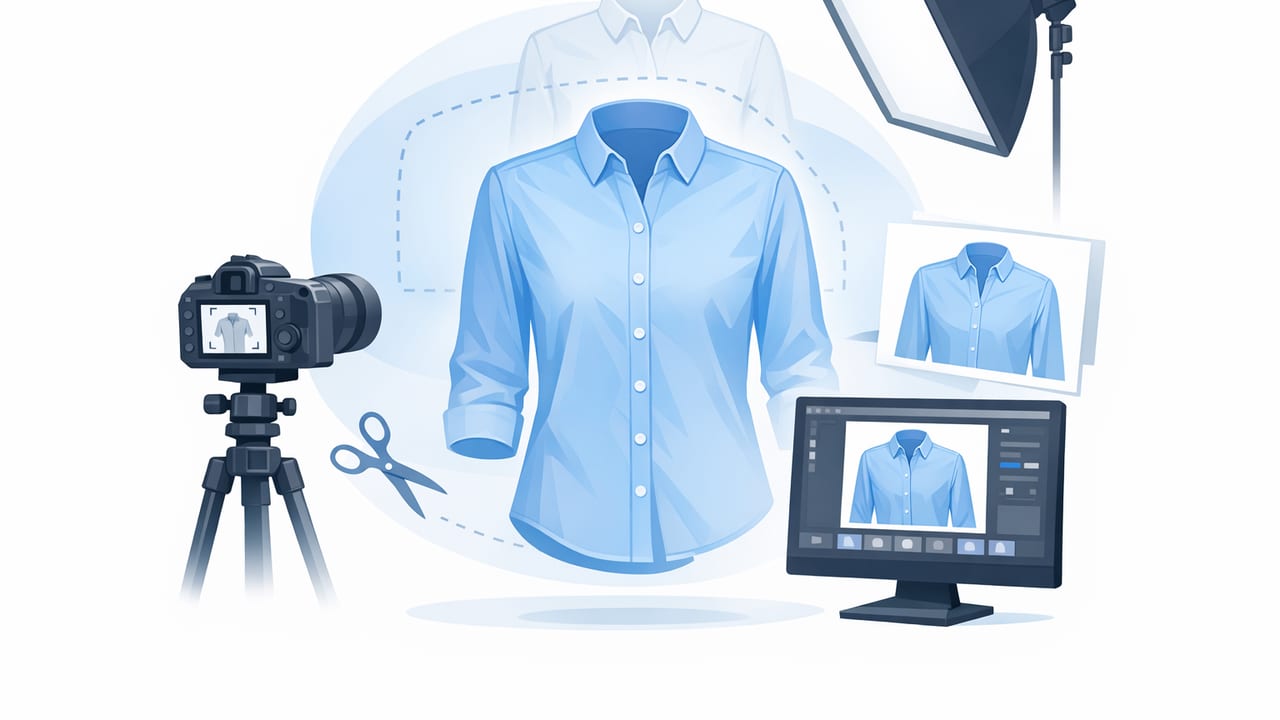
The ghost mannequin effect is one of the fastest ways to make apparel look “filled out” and premium—without hiring models or building a studio. If you sell on marketplaces or run an online store, it helps shoppers see shape, fit, and structure (especially collars, shoulders, and sleeves) while keeping the focus on the garment.
Below is a practical, repeatable workflow you can use with a basic setup and simple editing tools. You’ll learn what to shoot, how to style garments so they look natural, and how to edit for consistent, professional listings.
What the ghost mannequin effect is (and why it works)
A ghost mannequin image is a composite clothing photo that looks like the garment is worn by an invisible form. It typically shows:
- Clean outer shape (as if on a mannequin or model)
- A realistic inner neck/collar area (often created from a second “inside” shot)
- A distraction-free background for e-commerce
Why it works for buyers: it improves clarity around silhouette, drape, and construction details. Why it works for sellers: it can be done quickly, scales across inventory, and creates a consistent catalog look.
Rule of thumb: If the garment’s structure matters (blazers, dresses, collared shirts, outerwear), ghost mannequin tends to outperform flat lays for “fit understanding.”
When to use ghost mannequin vs other styles
Ghost mannequin isn’t the only option, but it’s a strong default for many apparel categories. Use it when you want a “worn” look without a face, pose, or lifestyle context.
| Presentation style | Best for | Trade-offs |
|---|---|---|
| Ghost mannequin | Structured tops, jackets, dresses, uniforms, vintage pieces with details | Needs 2+ shots and basic compositing |
| Flat lay | T-shirts, knitwear, casual items, bundles | Fit and shape can look “flat” unless styled carefully |
| On-hanger | Fast listing volume, lightweight tops | Shoulders may droop; shape can look less premium |
| Model/lifestyle | Brand storytelling, fit emphasis, styling ideas | Higher cost/time; consistency is harder |
The shot list: what to photograph for a clean ghost mannequin
You’ll get the best results when you capture a consistent set of images for every garment. Here’s a simple, high-ROI shot list.
Required shots (minimum)
- Main front shot on mannequin or form (or carefully pinned on a dress form).
- Inner neck/collar shot (the “inset”) showing the inside label/collar area, shot straight-on.
Recommended extras (for better listings)
- Back shot (helps buyers confirm cut and seams)
- Close-ups (fabric texture, logo, tags, flaws, special details)
- Care/content label (especially for premium brands)
Tip: For zip hoodies, blazers, and coats, take the inner neck shot even if you don’t think you need it—structured collars are where the ghost mannequin effect looks most “real.”
Setup on a budget: lighting, background, and positioning
You don’t need a full studio. You do need consistent light and a stable camera angle.
Lighting
- Best simple option: stand near a large window with indirect light; avoid harsh sun patches.
- Best repeatable option: two soft lights (or two softboxes) placed left/right at 45°.
- Avoid: overhead yellow bulbs and mixed lighting (it causes color shifts that are hard to correct).
Background
- Use a plain wall or a seamless paper/backdrop.
- Keep the garment at least 2–4 feet from the background to reduce shadows.
Camera angle and consistency
- Mount your phone on a tripod and keep height consistent (mid-torso height works well).
- Center the garment and keep vertical lines straight to avoid “leaning” products.
- Use the same zoom level each session to reduce perspective changes.
Styling tips that make ghost mannequin images look premium
The editing is easier when the garment is styled cleanly in-camera. These small styling habits make a big difference:
- Smooth first, then pin: remove lint, straighten seams, and close buttons/zippers before you start shaping.
- Keep symmetry: match collar points, align plackets, and ensure sleeves sit at equal angles.
- Use hidden pins/clips: pinch excess fabric at the back or inside seams so the silhouette looks tailored without showing hardware.
- Stuff lightly (only if needed): tissue paper inside sleeves can prevent collapse, especially for knitwear.
- Mind the hem: a twisted hemline reads as “worn/used” even when the item is in great condition.
Common problems (and quick fixes)
- Droopy shoulders: add shoulder inserts or adjust mannequin size; avoid thin wire hangers if shooting on-hanger.
- Wavy collar: lightly steam, then lay the collar flat for 2 minutes before shooting.
- Uneven lighting: rotate the mannequin instead of moving lights; keep light positions fixed.
Editing workflow: from raw photos to ghost mannequin
You can create the ghost mannequin effect with many editors; the steps are usually the same. The goal is to combine the outer garment shot with the inner neck shot so the inside looks realistic.
Step-by-step editing process
- Pick the strongest main image: sharp, centered, minimal wrinkles, correct color.
- Remove or clean the background: aim for white or a consistent neutral tone depending on your store style guide.
- Correct basic tone and color: adjust exposure, whites, and contrast so details show without blowing out highlights.
- Create the “inner neck” inset:
- Open the inner neck/collar photo.
- Remove its background.
- Resize and align it into the neckline area of the main photo.
- Blend edges: soften transitions so the inset doesn’t look pasted. If your tool has feathering/edge smoothing, use it lightly.
- Refine garment edges: check sleeves, lace, fringe, or fuzzy knits; fix jagged cutouts.
- Reduce wrinkles (natural look): keep fabric texture; avoid making it look “plastic.”
- Export consistently: same dimensions, background color, and margins across your catalog.
Practical standard: If you zoom in and the edges shimmer, look crunchy, or show haloing, scale back smoothing and re-check the cutout.
A simple file-naming system (helps you move faster)
When you’re shooting multiple items, a naming convention prevents mix-ups (especially with inner neck shots).
SKU123_front.jpg
SKU123_innerneck.jpg
SKU123_back.jpg
SKU123_detail1.jpg
SKU123_detail2.jpg
Ghost mannequin quality checklist (before you post)
- Shape: shoulders even, sleeves balanced, no odd bumps from clips/pins
- Neckline: inset aligned; inner collar looks centered and proportional
- Edges: no halos; fine details preserved (lace, fur, fringe)
- Color: matches real life; whites aren’t yellow/blue
- Background: consistent across listings; shadows are minimal and intentional
- Crop: same framing across your store (adds “brand polish” instantly)
FAQ: ghost mannequin images for e-commerce
Do I need a real mannequin to create a ghost mannequin effect?
A mannequin or dress form helps, but it’s not mandatory. Many sellers use a form plus pins/clips to shape the garment. The key is a stable silhouette and a separate inner neck/collar shot to build the “invisible body” look.
How many photos does a ghost mannequin composite require?
Usually two: a main outer shot and an inner neck/collar shot. Some complex items (hoodies, coats with tall collars) may benefit from a third image for cleaner interior structure.
What background is best for ghost mannequin clothing photos?
For marketplaces, a clean white or light neutral background is common because it looks consistent in grids and improves visual clarity. For branded stores, a subtle off-white can feel softer while still looking professional.
What’s the biggest mistake beginners make?
Trying to “fix everything in editing.” If the garment is twisted, poorly lit, or sagging on the form, the final composite will still look off. A few extra seconds styling and aligning in-camera saves minutes later.
Putting it all together: a repeatable workflow you can scale
If you want your listings to look cohesive, treat ghost mannequin as a system: consistent setup, consistent shot list, consistent edits, consistent export settings. Once you have that rhythm, you can move from “one-off editing” to a production line that still looks high-end.
And if you prefer editing on iPhone with AI-assisted tools (background removal, wrinkle reduction, and fast compositing), an app like Clothing Studio can help streamline parts of the workflow—while you keep control over the final look and consistency.
