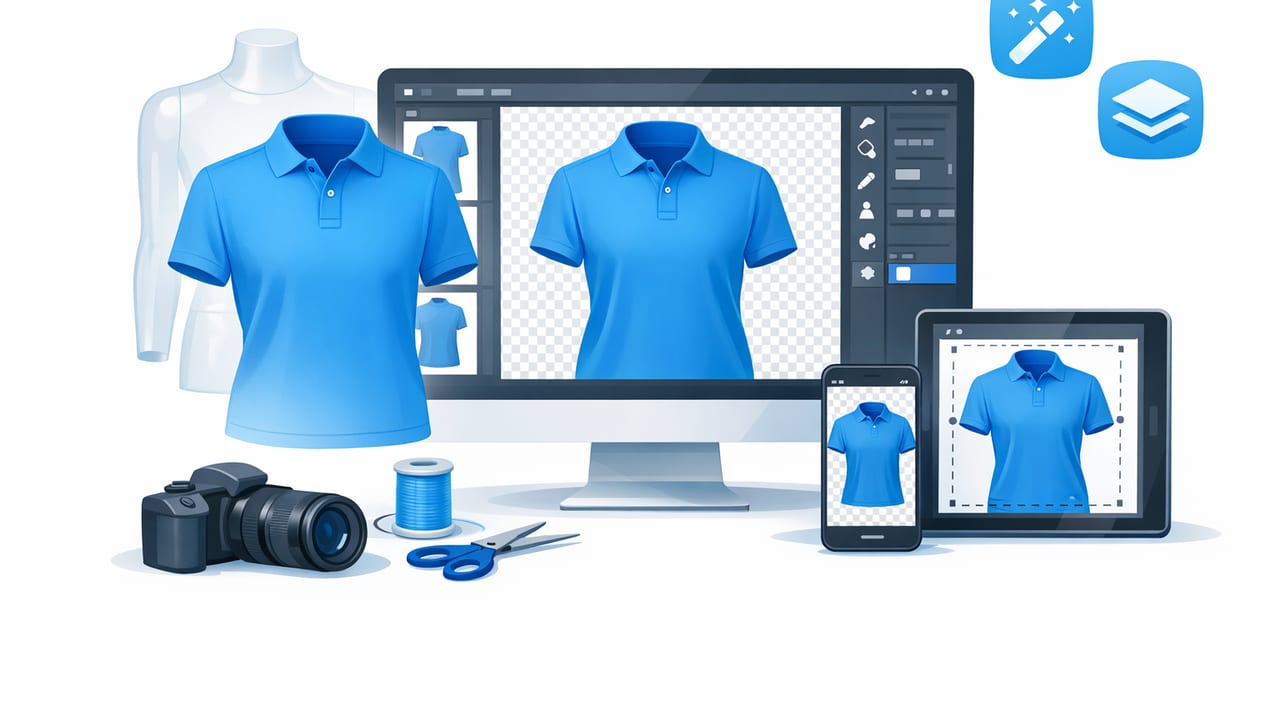
When shoppers can’t touch the fabric, your photos do the selling. The ghost mannequin look is one of the fastest ways to make clothing appear structured, premium, and “ready to wear” without hiring models or building a full studio setup. And with today’s editing tools, a ghost mannequin app can help you create that polished, floating-garment effect right from your phone.
This guide breaks down a practical, repeatable workflow for resellers and small brands—how to shoot for the effect, how the “neckline insert” works, what to edit first, and how to keep results consistent across an entire closet or catalog.
Goal: Make the garment look naturally 3D, clean at the neckline, and consistent across listings—without distracting props or messy backgrounds.
What the Ghost Mannequin Effect Is (and Why It Converts)
A ghost mannequin image makes a piece of clothing look like it’s being worn—shoulders filled, torso shaped, sleeves aligned—while the mannequin (or person) is removed. The result is a clean product image with realistic structure and a professional “brand” feel.
Why shoppers like it:
- Fit is easier to imagine than with flat lays (which can hide shape).
- Details read clearly at the collar, placket, and shoulders.
- Looks consistent across multiple items, which builds trust.
What You Need: Simple Setup, Big Difference
You don’t need a studio—just a clean workflow. Here’s a minimal kit that works for most closets and product rooms:
- Mannequin or dress form (full torso is ideal, but a hanger can work for some pieces)
- Clips (binder clips or styling clamps to shape the waist/back)
- Bright, even light (window light + reflector, or a basic softbox)
- Neutral background (plain wall, seamless paper, or a consistent backdrop)
- Phone tripod (stability makes editing easier and faster)
Best lighting rule (easy to remember)
Use one direction of soft light and keep it consistent. If shadows jump around between listings, your store grid can look messy even if each photo is “good.”
The 2-Photo Method: How Ghost Mannequin Images Are Built
Most ghost mannequin results come from combining two images:
- Main photo: the garment on a mannequin (front view)
- Insert photo: the inside label/neckline area (or back-of-neck) captured separately
The “insert” is what creates that clean, believable interior at the collar—so it doesn’t look like a hollow cut-out.
Step-by-step shooting checklist
- Steam or smooth first (wrinkles are harder to fix later, even with editing).
- Style on the form: align shoulders, straighten seams, clip the back if needed.
- Shoot straight-on at chest height. Keep the lens centered to avoid distortion.
- Take the main shot (front). For many items, also grab a back view.
- Take the insert shot: remove the mannequin (or pull the garment slightly) and photograph the inside neckline area so the collar shape is visible.
Pro tip: Don’t change your camera position between the main shot and the insert shot. Keeping the same distance and angle makes the neckline insert align naturally.
Editing Workflow in a Ghost Mannequin App (Fast and Clean)
Different apps vary, but the most reliable ghost mannequin workflow follows the same order. The key is to handle shape and cleanup before final color/brightness tweaks.
1) Start with background removal
Remove the background first so you can clearly see edges (especially sleeves and hems). A clean cutout also makes it easier to spot uneven clipping or fabric bumps.
2) Create the neckline “inside” using your insert photo
Use your insert photo to fill the empty collar area so the garment looks worn, not hollow. This is the signature of a good ghost mannequin image.
3) Smooth wrinkles and fix distractions
Wrinkles, lint, and minor bumps steal attention from the garment’s silhouette. Use gentle smoothing and cleanup tools so the fabric still looks real (over-smoothing can make cotton or linen look plastic).
4) Final tune: exposure, whites, and consistency
Match brightness and white balance across your product set. Consistency matters more than “perfect” editing on one hero photo.
Ghost Mannequin vs. Flat Lay vs. On-Hanger: When to Use Each
Not every item needs the same presentation. Here’s a quick comparison to help you pick the right approach per category.
| Style | Best for | Pros | Watch-outs |
|---|---|---|---|
| Ghost mannequin | Tops, dresses, outerwear, structured items | Premium look, strong shape, clean neckline | Needs insert shot + careful alignment |
| Flat lay | Casual knits, tees, accessories, quick volume | Fast, minimal tools | Can look “flat,” sizing/shape less clear |
| On-hanger | Lightweight items, basics, quick listings | Simple setup, easy to repeat | Hanger bumps, drooping shoulders, wrinkles |
Common Ghost Mannequin Mistakes (and Easy Fixes)
Most issues aren’t “bad editing”—they start during shooting. Fix these and your app results improve immediately.
Mistake #1: The collar looks unnatural or “cut out”
- Cause: No insert shot, or insert shot angle doesn’t match the main.
- Fix: Re-shoot the insert at the same distance and height as your main photo. Keep lighting consistent.
Mistake #2: The garment edge looks jagged
- Cause: Busy background, low contrast, motion blur.
- Fix: Use a simpler backdrop and stabilize your phone with a tripod. Add more light so the camera uses a faster shutter speed.
Mistake #3: The item looks “wonky” (one shoulder higher)
- Cause: Mannequin isn’t level, garment not centered, or camera tilted.
- Fix: Turn on your phone’s grid lines. Center seams and align shoulders before shooting.
Mistake #4: Whites look gray and blacks look washed out
- Cause: Mixed lighting (window + warm bulb) or inconsistent editing presets.
- Fix: Use one light source type. Then apply the same exposure/white balance approach across all items.
A Simple Consistency System for Resellers and Small Brands
Consistency is what makes your store feel professional. Try this lightweight system:
Create 3 “standards” and follow them
- Standard angle: straight-on front at chest height
- Standard crop: same top/bottom spacing across items
- Standard background: pure white or the same neutral tone every time
Use a repeatable photo set per item
For most clothing categories, this set works well:
- Front (ghost mannequin)
- Back
- Close-up: fabric texture
- Close-up: tag/size/material
- Close-up: flaws (if any)
Listing-Ready Output: File and Framing Tips
Each marketplace has its own quirks, but these guidelines keep you safe across most platforms:
- Square-friendly framing: leave a bit of space around the garment so it crops cleanly to 1:1.
- High resolution: export the highest quality available to preserve fabric detail.
- Clean edges: check hems, straps, lace, and fringe at full zoom.
- Color honesty: avoid heavy filters; keep colors close to real-life to reduce returns.
Optional: simple file naming to stay organized
If you shoot in batches, a consistent naming pattern saves time when cross-posting.
brand_category_color_size_sku_view.jpg
Example:
madewell_denim_black_28_10492_front.jpg
madewell_denim_black_28_10492_back.jpg
madewell_denim_black_28_10492_tag.jpg
Quick Mini-Workflow: From Rack to Listing in 10–15 Minutes
- Prep (2–3 min): lint roll + quick steam + clip on mannequin
- Shoot (3–5 min): front, back, insert, and two detail shots
- Edit (5–7 min): background removal → ghost neckline insert → wrinkle cleanup → consistent brightness
- Export + upload (1–2 min): keep your cropping and cover image consistent
Choosing the Right Ghost Mannequin App: What to Look For
When you’re comparing tools, prioritize features that reduce retakes and keep results consistent across many items.
- Easy neckline/inside insert workflow (the core of ghost mannequin)
- Strong background removal for tricky edges like lace, mesh, and straps
- Wrinkle smoothing and cleanup that still keeps fabric texture
- Batch-friendly speed so you can process multiple listings quickly
- Natural results (avoid tools that over-sharpen or over-smooth)
Final Takeaway
A ghost mannequin look isn’t just an “edit”—it’s a workflow. If you shoot the main and insert photos with consistent angles and lighting, a ghost mannequin app can help you create clean, structured product images that look trustworthy and premium. The payoff is a store that feels cohesive, items that are easier to evaluate, and photos that compete with bigger sellers.
If you’re testing tools to streamline this process on iPhone, Clothing Studio is one option designed around fast apparel edits like ghost mannequin results, background removal, and quick cleanup—useful when you’re listing in volume.
