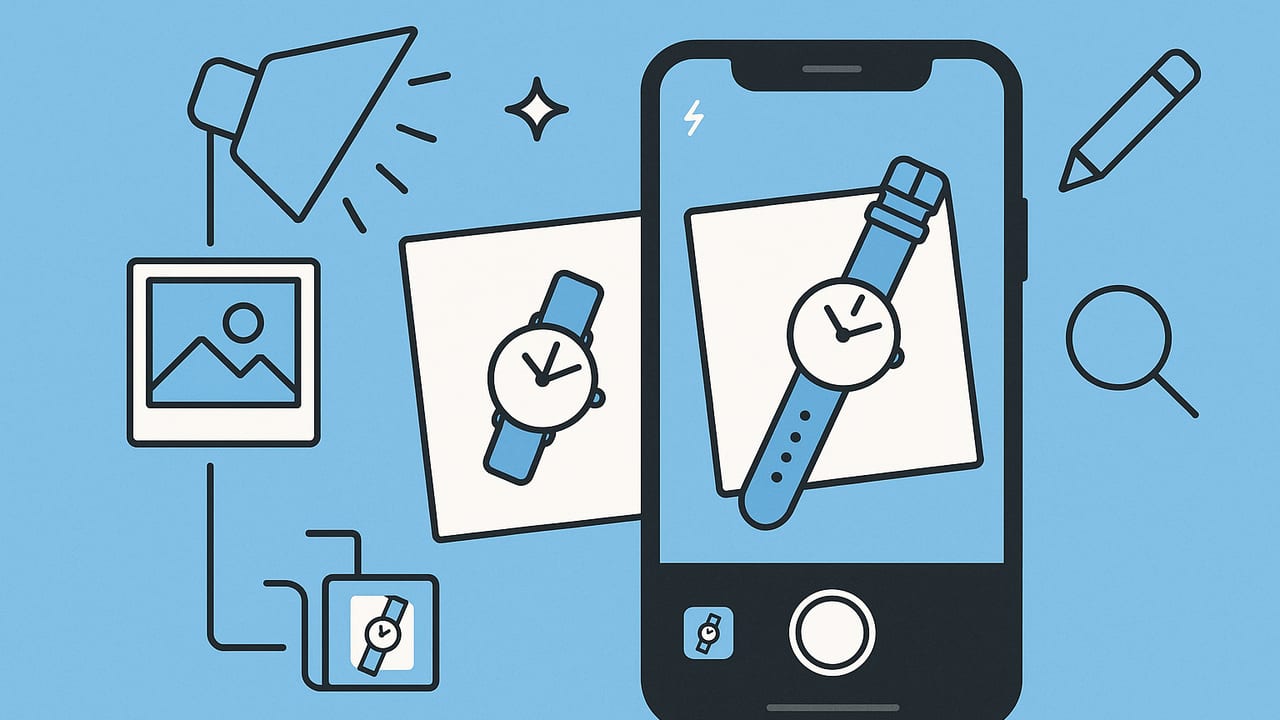
Flat lay photography is one of the fastest, most consistent ways to showcase apparel and accessories for e-commerce. With the iPhone in your pocket, you can produce clean, scroll-stopping images without a studio. This guide shows you how to create flat lay product photos on iPhone—from planning and lighting to styling, shooting, and editing—so your listings look professional and sell faster.
Flat lays work because they’re clear, consistent, and relatable. They let buyers scan details quickly and imagine how pieces fit into their wardrobe.
Plan the look before you shoot
Great flat lays start with intention. Define the visual style you want to repeat across your shop so every image feels like part of a set.
- Choose a backdrop: White paper, seamless roll, cotton sheet, wood, concrete tile, or a neutral mat. Prioritize matte surfaces to avoid reflections.
- Set a color story: Limit props and palette. Let the garment lead; use complementary or analogous colors for harmony.
- Decide the crop: Marketplaces favor square (1:1) or 4:5 vertical crops. Plan negative space for titles or extra images.
- Clarify the story: Single-item clarity vs. outfit inspiration. Accessories should support the hero, not compete.
Essential gear (affordable and compact)
- iPhone: Any recent model works. The main 1× wide lens offers the cleanest, most natural look.
- Tripod with overhead arm (or a boom clamp): Keeps the phone parallel to the surface and your framing consistent.
- Backdrop: 24–53 inch seamless paper, foam board, or a large poster board for portability.
- Diffuser: Sheer curtain or a 5-in-1 reflector with diffusion layer to soften harsh window light.
- Bounce cards: White foam boards to fill shadows; black cards to add shape and reduce glare.
- Clamps & tape: Painter’s tape or museum putty to keep hems, collars, and tags in place.
- Lint roller, steamer, microfiber cloth: Remove lint, dust, and creases before you press the shutter.
- Styling aids: Tissue paper or thin foam to give garments dimension; invisible fishing line for props if needed.
Light it right with simple setups
Light is your quality lever. You want soft, even illumination with gentle shadows that define shape without creating distractions.
- Window light: Place your backdrop on the floor near a bright window. Shoot during bright overcast or use a sheer curtain to diffuse direct sun.
- Angle: Let light come from one side (90°) for dimensionality. Use a white bounce card opposite the window to soften shadows.
- Avoid mixed light: Turn off warm ceiling lights if using daylight, or use matched daylight bulbs (5000–5600K) if shooting after dark.
- Control shine: For glossy items (patent leather, plastic packaging), position the diffusion between window and product, and use black cards to add controlled contrast.
Camera setup: keep it flat, sharp, and consistent
Your biggest technical job is ensuring the iPhone is perfectly parallel to the flat lay. Small angles create skewed lines and warping.
- Mount the iPhone overhead: Use a tripod with a horizontal arm. If handholding, stand directly over the product, center your body, and keep elbows close.
- Use the grid and level: In Settings → Camera, enable Grid and Level. The on-screen level helps you keep the phone parallel.
- Lens choice: Use the main 1× lens for flat lays. Avoid ultra-wide (0.5×) to prevent edge distortion. Use 2× only if your phone has optical 2× and you need a tighter frame.
- Aspect ratio: Set to 4:3 for maximum capture; crop to 1:1 or 4:5 later for marketplaces.
- Focus and exposure: Tap to focus on the garment’s texture, hold to lock AE/AF, then slide up/down to fine-tune exposure until whites look clean but not blown out.
- Stability: Use a 3–10 second timer to avoid shake, or pair a Bluetooth remote.
- ProRAW (optional): If available, shoot ProRAW for more editing latitude with white balance and highlight recovery.
Styling techniques that sell
Flat lays should be neat, dimensional, and true to color. Your goal is to show fit and fabric quality without a model.
- De-wrinkle first: Steam lightly. Smooth with hands. Shape collars, cuffs, and hems. A lint roller saves retouching time.
- Add dimension: Slide thin tissue inside sleeves and waistbands to avoid the “pancake” look.
- Natural folds: Create gentle S-curves in sleeves or pant legs for life-like flow. Avoid tight, unnatural creases.
- Show key details: Align zippers, buttons, and pocket flaps. Pop collars or roll cuffs if it suits the style.
- Smart props: Use 1–3 props max (watch, sunglasses, magazine edge) for lifestyle context. Keep them outside the main garment silhouette.
- Negative space: Leave breathing room around the product; this helps with cropping for different platforms.
How to create flat lay product photos on iPhone: step-by-step
- Prep the surface: Clean the backdrop. Place the top edge parallel to a wall so lines are easy to square.
- Position lighting: Window on the left or right, diffuser in place. Put a white bounce card on the opposite side.
- Style the garment: Steam, lint roll, lay it flat, then add tissue for shape. Tape down stubborn hems.
- Frame overhead: Mount the iPhone parallel and center the piece. Use the grid to align vertical seams with grid lines.
- Focus/expose: Tap and hold to lock focus. Adjust exposure until whites are bright and details aren’t clipped.
- Shoot a bracket: Take 3–5 shots at slightly different exposures. Tiny tweaks help in editing.
- Detail shots: Capture tags, textures, stitching, and closures (2× optical if available).
- Style variations: Add/removes props, fold sleeves differently, or try a lay-down outfit look for an alternate listing image.
Editing on iPhone: clean, color-true results
Your goal in editing is consistency: straight edges, accurate color, even light, and a distraction-free background.
- Straighten and crop: Use the Photos app to level the image and crop to square or 4:5. Align seams and edges with the frame.
- White balance: If the image is too warm/cool, use Warmth/Tint sliders (Photos) or a WB tool in your editor of choice.
- Exposure and contrast: Raise exposure slightly, add a touch of contrast, and adjust Highlights/Shadows to preserve detail.
- Clarity and sharpness: Apply lightly to maintain fabric texture without adding noise or haloing.
- Clean the background: Use a background removal tool or a selective brush to tidy dust and lint. Aim for a consistent white or neutral tone.
- Batch consistency: Save edits as a preset/look and apply to the rest of your set for cohesion.
Recommended specs for popular marketplaces
Always confirm platform requirements; these guidelines work well for most apparel listings.
| Platform | Aspect Ratio | Recommended Size (px) | Notes |
|---|---|---|---|
| Poshmark | 1:1 (Square) | 2048 × 2048 | Bright, clean backgrounds perform best |
| eBay | 1:1 or 4:3 | 1600+ longest side | Primary image on white or light neutral |
| Etsy | 5:4 or 4:3 | 2000+ longest side | Use vertical crops for apparel detail |
| Shopify | 1:1 (Square) | 2048 × 2048 | Consistent aspect helps collection grids |
Note: Specifications evolve; check each platform’s latest guidance.
Troubleshooting common flat lay issues
- Problem: Uneven light or harsh shadow
Fix: Move closer to the window for more intensity, add a second bounce card, or increase diffusion (layer another sheer). - Problem: Color cast (too warm/cool)
Fix: Kill overhead lights to avoid mixed color temperatures. Correct white balance in editing and use a neutral gray card during setup for reference if possible. - Problem: Distortion at edges
Fix: Avoid the ultra‑wide lens. Keep the phone perfectly parallel; step back and crop instead of leaning in. - Problem: Wrinkles and fabric “pancake” look
Fix: Steam more thoroughly. Add tissue under collars and seams. Create gentle folds to add shape. - Problem: Dust, lint, stray threads
Fix: Lint roll before shooting. Keep a blower or soft brush handy. Use spot healing only for tiny remnants. - Problem: Dull textures
Fix: Add side light for subtle shadow detail, then use a small amount of clarity/structure in editing.
Composition ideas for different product types
- T-shirts and tops: Tuck sleeves slightly inward; create a soft S-curve in each sleeve. Add a small prop like sunnies, placed outside the garment outline.
- Denim: Fold one leg under to create a dynamic angle; show the back pocket stitching in a detail shot.
- Dresses: Use tissue to shape the waist and hem. Fan the skirt slightly to show drape.
- Sneakers: One overhead pair, then a second shot with toes pointing in slightly. Avoid top glare with extra diffusion.
- Accessories: Keep shadows soft and highlight textures (leather grain, knit patterns). Use a black card edge to add gentle contrast.
Consistency tips that boost conversion
- Template your layout: Save one image as a reference for framing and spacing; match it for every product.
- Limit prop variety: A few recurring props build brand recognition and reduce styling time.
- Stick to one light direction: Shadows should fall the same way across your catalog.
- File hygiene: Keep a simple naming system (e.g., SKU_01.jpg, SKU_02.jpg) and a notes doc for measurements and flaws.
Quick workflow checklist
- Steam and lint-roll garment
- Set backdrop, diffuser, and bounce
- Position iPhone parallel; enable grid/level
- Style with tissue and tape
- Lock focus; set exposure
- Shoot main, details, and variations
- Edit: straighten, crop, WB, exposure, cleanup
- Export in platform-ready sizes
Optional shot list template
SKU / Item: ______________________
Size / Color: _____________________
Shots:
1) Main flat lay (square)
2) Detail - fabric texture
3) Detail - closures/stitching
4) Back view (if relevant)
5) Lifestyle variation (props)
Notes:____________________________
Defects disclosed:_________________
FAQ: Fast answers to common questions
What background color works best?
White is the safest for marketplaces and accurate color. Light gray or beige can soften contrast for dark garments. Avoid busy patterns that compete with the product.
Should I use HDR?
HDR can help balance highlights and shadows, but if it changes color/contrast unpredictably, turn it off and balance exposure manually.
How many images per listing?
At least 5: main flat lay, back view, two details, and one styled/lifestyle variation. More is better if each adds new information.
Do I need RAW?
Not required. ProRAW helps with tough lighting, but standard HEIC/JPEG works if you expose well and keep lighting consistent.
Putting it all together
When you create flat lay product photos on iPhone, think systems: a repeatable setup, a styling routine, and a consistent edit. Light from the side, keep the phone perfectly parallel, shape garments for dimension, and clean backgrounds during edit. With a simple tripod, a bright window, and a practiced checklist, your photos will look polished and professional.
For faster finishing touches like background cleanup, unwrinkling, or turning garments into on-model images, an AI-powered iOS editor such as Clothing Studio can help streamline your mobile workflow—handy when you’re processing large batches for marketplaces.
