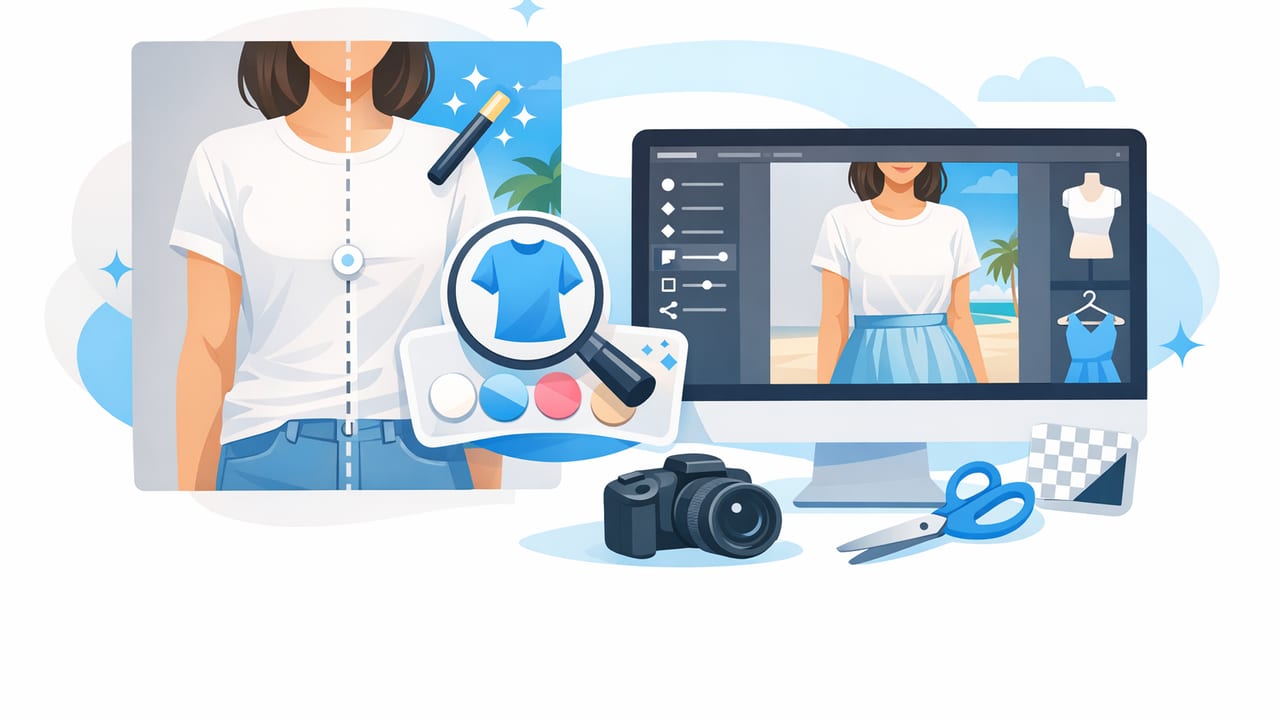
If you sell apparel online, your photos do more than “look nice”—they answer buyer questions fast: fit, fabric, condition, color, and professionalism. A good clothing photo editor helps you deliver that clarity consistently, even if you’re shooting on a phone in a small space. The goal isn’t to over-edit. It’s to create clean, believable images that reduce uncertainty and help shoppers click “Buy.”
This guide breaks down what matters most in editing clothing photos for resale and brand listings, including background removal, ghost mannequin, wrinkle fixes, and simple export habits that keep every listing cohesive.
What buyers notice first (and what your photos should communicate)
Shoppers scroll quickly. In the first second, they usually judge three things:
- Clean edges and background: Is the item clearly separated from distractions?
- True-looking color: Does the photo feel accurate and trustworthy?
- Shape and structure: Can they imagine how it fits and drapes?
Editing is where you standardize these signals across your store—so your listings look reliable and your brand feels intentional.
Consistency sells. A “perfect” photo once is nice; a consistent set of photos across every listing builds trust and keeps buyers browsing.
What a clothing photo editor should handle (must-have capabilities)
Not every editor is built for apparel. When choosing (or evaluating) a clothing photo editor, prioritize features that solve clothing-specific problems:
1) Background removal that keeps clean edges
Clothing has tricky outlines: straps, lace, fringes, fuzzy knits, and semi-sheer fabrics. You want background removal that preserves details without leaving halos, jagged edges, or missing cutouts.
- Best use cases: white/neutral backgrounds for marketplaces, clean “catalog” look, consistent storefront aesthetic.
- Common mistake: over-smoothing edges so garments look cut out or fake.
2) Wrinkle and fold reduction (without plastic-looking fabric)
Wrinkles can make items appear lower quality—even when they’re not. Editing should reduce distracting creases while keeping fabric texture believable (linen should still look like linen).
- Tip: remove the biggest distractions first (deep fold lines, harsh shadows), then stop.
- Avoid: flattening all texture; it can trigger “over-edited” vibes.
3) Ghost mannequin effect for structure
The ghost mannequin look shows shape, neckline, and inner label area without a visible body or mannequin. It’s especially helpful for jackets, dresses, collared shirts, and anything where structure matters.
Even if you don’t do full ghost mannequin on every item, having the option can upgrade premium pieces or higher-priced listings.
4) Light correction for accurate color
Clothing color is a top cause of returns. Editing should help correct:
- Warm indoor lighting (yellow cast)
- Cool window light (blue cast)
- Mixed lighting (hardest—avoid if possible)
5) Fast, repeatable workflow (batch-friendly)
Resellers and small brands win on speed and consistency. Look for tools and habits that let you apply similar adjustments across multiple photos—without spending 20 minutes on a single image.
Shoot with editing in mind (small changes that save time)
A clothing photo editor can’t fix everything efficiently. A few setup choices make editing easier and results cleaner:
- Use one light style per batch: stick to window light or a basic soft light—don’t mix.
- Leave space around the garment: background removal works better when edges are clear.
- Keep angles consistent: straight-on for front/back; 45-degree for detail shots if needed.
- Smooth fabric quickly: a quick steam or hand-smoothing reduces heavy edits later.
- Capture details: tags, flaws, fabric texture, hems, and closures (zippers/buttons).
A practical editing workflow for store-ready clothing photos
Here’s a simple sequence you can repeat for nearly any listing. The order matters because each step affects the next.
Step 1: Crop and straighten for a consistent layout
Start by straightening (so hangers and hems aren’t tilted), then crop to a consistent framing. Consistent cropping makes your shop grid look professional.
- Rule of thumb: keep similar headroom/spacing around each item.
- For sets: crop tops and bottoms similarly so they “match” in the feed.
Step 2: Fix exposure and white balance (make color believable)
Adjust brightness so the garment is clear, then correct color cast. If your whites look yellow, buyers will assume the item is older or stained—even if it isn’t.
- Exposure: lift shadows slightly so texture shows.
- White balance: aim for neutrals (white/gray) to look truly neutral.
- Contrast: add gently—too much makes blacks crush and colors pop unrealistically.
Step 3: Background removal or cleanup
Decide whether you want a pure background removal (transparent/white) or a cleaned natural background. For marketplaces, a clean, distraction-free background typically performs well.
- Check edges: zoom in on straps, lace, and collars.
- Keep shadows realistic: a faint, natural shadow can help the item look grounded.
Step 4: Reduce wrinkles and harsh fold lines
Focus on the most distracting areas: torso folds, sleeve creases, and strong hanger dents. The best edits look like a quick steam—not like the fabric was melted smooth.
Step 5: Optional upgrades (use strategically)
- Ghost mannequin for structured pieces (blazers, button-downs, dresses).
- AI model imagery for hero images when you want a styled look without a full shoot.
- Spot cleanup for lint, dust, or tiny background distractions.
When to use ghost mannequin vs. flat lay vs. on-hanger
Different presentations answer different buyer questions. Use the format that best matches the item type and your time budget.
| Presentation | Best for | What it communicates | Editing focus |
|---|---|---|---|
| On-hanger | Most tops, casual items, quick listings | Shape + simplicity | Background removal, straighten, wrinkle reduction |
| Flat lay | Knits, tees, denim, sets | Fabric + details | Even lighting, color accuracy, tidy folds |
| Ghost mannequin | Structured garments, premium listings | Fit structure + neckline depth | Neck/inside area clean-up, realistic edges |
| Model-style image | Hero image, brand feel, styling | Lifestyle + how it wears | Natural look, avoid over-smoothing, keep color true |
Export settings that keep your listings crisp (without huge files)
Even strong edits can look blurry if exported poorly. Keep it simple:
- Use JPEG for most marketplace photos; PNG only if you truly need transparency.
- Export high quality (avoid aggressive compression).
- Keep a consistent aspect ratio so your shop grid looks uniform.
Here’s a practical starting point many sellers use (always follow each platform’s latest guidance if it changes):
| Platform use case | Suggested aspect ratio | Suggested long edge | Notes |
|---|---|---|---|
| Marketplace listing photos | 1:1 (square) | 2000–3000 px | Consistent grid, easy cropping |
| Website product photos | 4:5 or 3:4 | 2500–3500 px | More vertical detail, modern storefront feel |
| Detail/close-up photos | Match your main ratio | Same as main | Consistency matters more than “maximum zoom” |
A simple file-naming system that saves time (especially in bulk)
File chaos slows down listing. Use a naming pattern you can repeat. Here’s a non-technical template you can adapt:
brand_item_color_size_view_sequence.jpg

Examples:
madewell_denim_jacket_blue_M_front_01.jpg
madewell_denim_jacket_blue_M_back_02.jpg
madewell_denim_jacket_blue_M_tag_03.jpg
This makes it easier to upload in order, find images later, and stay consistent across platforms.
Quality checklist: the “zoom test” before you post
Before publishing, zoom in and do a quick scan. This takes 20 seconds and prevents avoidable returns and complaints.
- Edges: no missing straps, no jagged cutouts, no halos around sleeves.
- Color: does it match real life under neutral light?
- Texture: does fabric still look like fabric (not waxy)?
- Wrinkles: reduced but not “airbrushed” into flatness.
- Background: clean, consistent, no clutter peeking in.
- Details: include at least one close-up of tag/label and any flaws.
Common editing mistakes that hurt trust (and how to avoid them)
Over-whitening backgrounds until the garment looks cut out
If the background is pure white but the edges look crunchy, buyers sense heavy editing. Keep edges clean and allow subtle, natural shading.
Pushing saturation to “make it pop”
It may get clicks, but it can increase returns. Instead, aim for accurate color with good lighting and neutral white balance.
Removing all wrinkles and texture
Some wrinkles are normal in fabric. Remove the distracting ones, keep the rest natural.
Inconsistent crops and angles across listings
This makes your store look scattered. Consistency is one of the easiest “premium signals” you can create.
FAQ: clothing photo editor questions sellers ask
Do I need AI tools, or can I edit manually?
You can do either. Manual editing works, but AI tools can speed up repetitive tasks like background removal, wrinkle reduction, and creating consistent presentation styles—especially when listing volume is high.
What’s the fastest way to make my photos look more professional?
Pick one consistent setup (light + angle), then standardize three edits: straighten/crop, color correction, and background cleanup. That combination delivers the biggest visual upgrade quickly.
Should I use model-style images for everything?
Not always. Model-style images can help convey fit and style, but clean product photos (front/back/details) are still essential. Many sellers use one “hero” image plus a consistent set of product angles.
Putting it all together
A strong clothing photo editor workflow is less about perfection and more about repeatable clarity: accurate color, clean backgrounds, believable fabric texture, and consistent framing. If you build a simple shoot-to-edit routine and stick to it, your listings will look more trustworthy, your shop will feel more cohesive, and your editing time will drop.
If you’re editing on iPhone and want an apparel-focused option that covers background removal, wrinkle reduction, and ghost mannequin-style presentation, you can explore an app like Clothing Studio as part of your toolkit.
