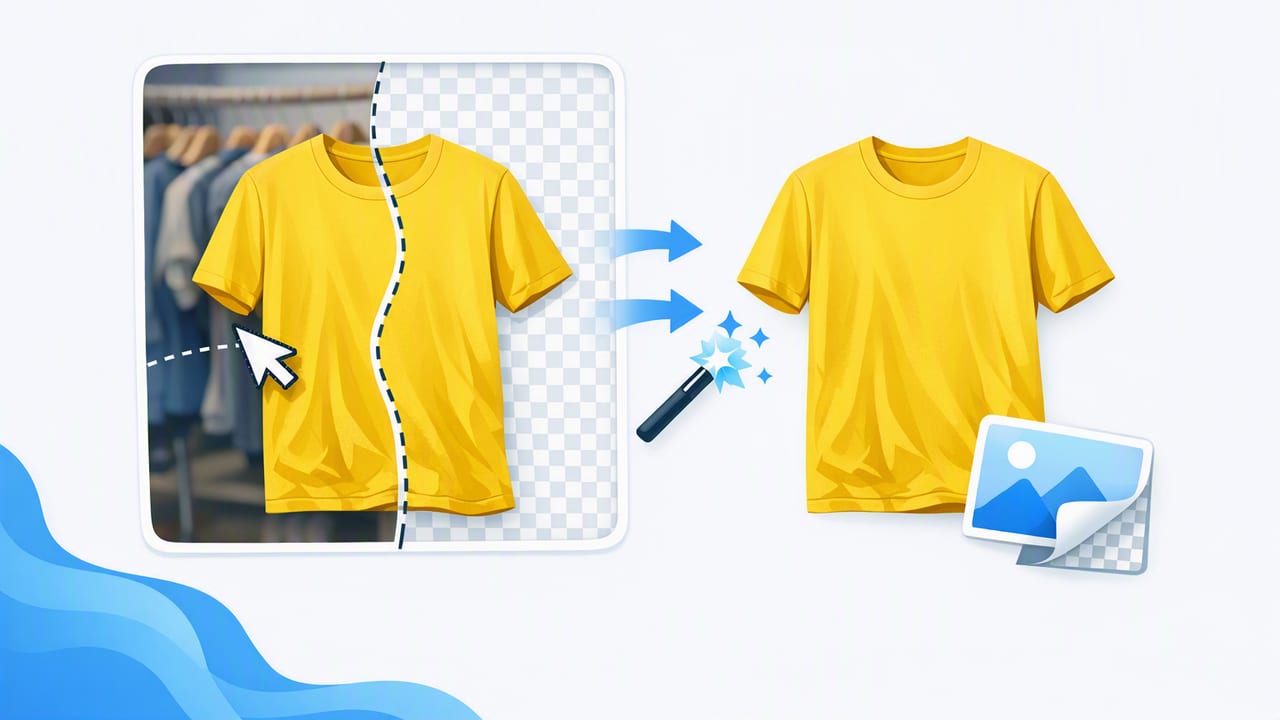
A great product photo doesn’t need fancy studio gear—but it does need clarity. For fashion resellers and small brands, a clothing background remover is one of the fastest ways to turn everyday snapshots into clean, catalog-ready images that shoppers trust. When the background is consistent, buyers focus on what matters: color, texture, fit, and condition.
This guide walks you through a simple, repeatable workflow—from capturing better starting photos to removing backgrounds cleanly (especially around tricky edges like lace, straps, and sweaters). The goal: photos that look professional, upload quickly, and stay consistent across every listing.
Why a clean background sells clothing better
Shoppers make fast decisions. If your background is busy (laundry pile, patterned bedding, messy room, harsh shadows), it creates friction and uncertainty. A clean background signals that the item is well-presented, well-cared for, and accurately represented.
Simple visual rule: the fewer distractions in the frame, the easier it is for buyers to evaluate the garment—and the more confident they feel clicking “Buy.”
A clothing background remover helps you:
- Standardize your shop so your grid looks cohesive.
- Highlight details like fabric texture, seams, embellishments, and logos.
- Reduce returns by making color and shape easier to judge.
- Save time versus manual cutouts, especially for batch listing days.
What “good” background removal looks like (and what it doesn’t)
Background removal isn’t just about deleting the wall behind a shirt. The best results keep the garment looking natural, with clean edges and realistic shape.
Signs of high-quality background removal
- Crisp edges around collars, sleeves, and hems (no jagged pixels).
- No missing fabric (like chopped-off straps or frayed-looking lace).
- No halos (a faint outline of the old background around the garment).
- Consistent shadows (either none, or a subtle shadow that looks intentional).
Common “bad cutout” giveaways
- Fuzzy outlines that make the item look low-quality.
- Over-smoothed edges that remove texture (especially knits and faux fur).
- Uneven white backgrounds (patchy grays) that look accidental.
Step 1: Start with a better original photo (it makes removal easier)
Even the best clothing background remover performs better when the starting photo is clean. Here are quick, non-technical improvements that make a big difference:
Lighting: aim for bright and even
- Use window light or a bright lamp from in front of the item.
- Avoid overhead lighting that creates harsh shadows under sleeves and hems.
- If possible, shoot at the same time of day for consistent color.
Background: choose contrast (not chaos)
Ironically, the best “before” background isn’t always pure white. The easiest background to remove is one that contrasts with the garment:
- Dark clothing → shoot against a lighter wall/backdrop.
- Light clothing → shoot against a darker, plain backdrop.
Framing: leave breathing room
Don’t crop too tightly in-camera. Leave a small margin around the garment so the app can detect the outline accurately—especially around sleeves, straps, and collars.
Step 2: Pick the right presentation (flat lay, hanger, or mannequin)
Your presentation style affects how clean the final image looks after background removal.
- Flat lay: Great for tees, denim, and casual items. Easier edges, fewer “holes” in the shape.
- On-hanger: Fast for volume listing. Watch for hanger showing through thin fabrics.
- Mannequin / ghost mannequin: Best for structured pieces (blazers, dresses) when you want a “worn” shape without a model.
If your goal is a premium, brand-like look, ghost mannequin style can elevate listings—especially for jackets, collared shirts, and dresses—because the garment holds a realistic form.
Step 3: Use a clothing background remover in a repeatable editing sequence
To keep results consistent, follow the same order every time. This prevents the “one listing looks different than the next” problem.
- Basic cleanup first: straighten, crop, and adjust brightness so the garment is clear.
- Remove the background: apply the cutout and check edges.
- Choose a final background: white, light gray, or a subtle brand color.
- Refine edges: fix straps, lace, and any missing corners.
- Export consistently: same aspect ratio and similar margins each time.
This order matters because changing brightness and contrast after removing the background can sometimes create halos or make edges look harsh.
Step 4: Choose the best background color for your selling platform
Most marketplaces reward clarity. A neutral background also helps your thumbnails stand out in search results.
| Background choice | Best for | Watch out for |
|---|---|---|
| Pure white | Clean, catalog look; consistent shop grid | White garments can blend in—add a subtle shadow |
| Light gray | Soft contrast for white/cream items | Can look dull if lighting is too flat |
| Off-white / warm neutral | Vintage, cozy, lifestyle feel while staying clean | Must be consistent—mixed neutrals look messy |
| Transparent (PNG) | Brand websites, creative layouts, lookbooks | Some marketplaces prefer a solid background |
If you’re unsure, default to white or light gray for maximum versatility.
Step 5: Fix the “hard parts” (lace, knits, straps, and shiny fabrics)
These items are where many background removers struggle. Use these practical checks to avoid obvious cutout errors:
Lace and crochet
- Expect tiny holes and open patterns to confuse edge detection.
- If your tool offers it, use a light “refine” brush around lace borders.
- Consider a light gray background instead of pure white to keep detail visible.
Thin straps and spaghetti straps
- Shoot with extra contrast behind the straps (avoid similar colors).
- Zoom in after removal—straps are often the first thing to get clipped.
Fuzzy sweaters, faux fur, fringes
- Avoid backlighting; it creates a glowing outline that turns into halos.
- Accept a slightly softer edge—over-sharpening can look unnatural.
Shiny satin, sequins, leather
- Reduce glare in the original photo by moving the light source to the side.
- After background removal, ensure highlights don’t look “cut off” at the edges.
Step 6: Keep your shop consistent with a simple checklist
Consistency is an SEO and conversion advantage inside marketplaces: shoppers recognize your listings, trust your presentation, and browse more.
- Same crop ratio for all cover photos (e.g., square or 4:5).
- Same background (white or light gray) across your top listings.
- Similar scale: tops, bottoms, and dresses should appear roughly the same size in frame.
- Repeatable naming so you can find and relist quickly.
If you batch-list, a naming template helps you stay organized:
brand_itemtype_color_size_condition_front.jpg
brand_itemtype_color_size_condition_back.jpg
brand_itemtype_color_size_condition_tag.jpg
Common mistakes to avoid when using a clothing background remover
1) Removing shadows that help the garment look real
Completely floating clothing can look odd. If your tool allows it, keep a subtle shadow to anchor the item—especially for shoes, bags, and structured jackets.
2) Editing the cover photo differently than the rest
Your first image sets expectations. If the cover is bright white but the rest are darker, buyers may feel the listing is inconsistent. Apply the same edits across the set.
3) Over-smoothing wrinkles and texture
Buyers want honesty. Light wrinkle reduction is fine, but keep natural texture (linen, ribbed knits, denim grain) so the material reads accurately.
4) Forgetting to check edges before exporting
Always do a quick zoom-in pass around:
- neckline and shoulders
- underarm curves
- sleeve ends
- hemline
- straps, lace borders, and belt loops
Mini FAQ: background removal for clothing listings
Should I use pure white for every item?
White is a safe default, but light gray can make white or cream garments easier to see. The bigger priority is consistency across your shop.
Is it better to remove the background or use a physical backdrop?
A physical backdrop gives very natural edges and shadows, but it takes space and setup time. A clothing background remover is faster and more flexible—especially for high-volume listing.
Can background removal help my listings rank better?
Indirectly, yes. Cleaner photos tend to improve click-through and conversions, which many platforms reward. You’re also more likely to build a recognizable storefront aesthetic.
Putting it all together: a fast, repeatable workflow
Here’s a simple routine you can reuse for every listing day:
- Photograph in bright, even light with a plain, contrasting background.
- Choose a consistent presentation style (flat lay, hanger, mannequin).
- Crop/straighten first, then run the clothing background remover.
- Refine edges on tricky areas (lace, straps, fuzzy knits).
- Export with the same background and framing for a cohesive shop grid.
If you want an all-in-one iOS workflow that includes background removal plus clothing-specific tools like unwrinkling and ghost mannequin-style outputs, an app such as Clothing Studio can be a convenient option to explore at the end of your editing process.
