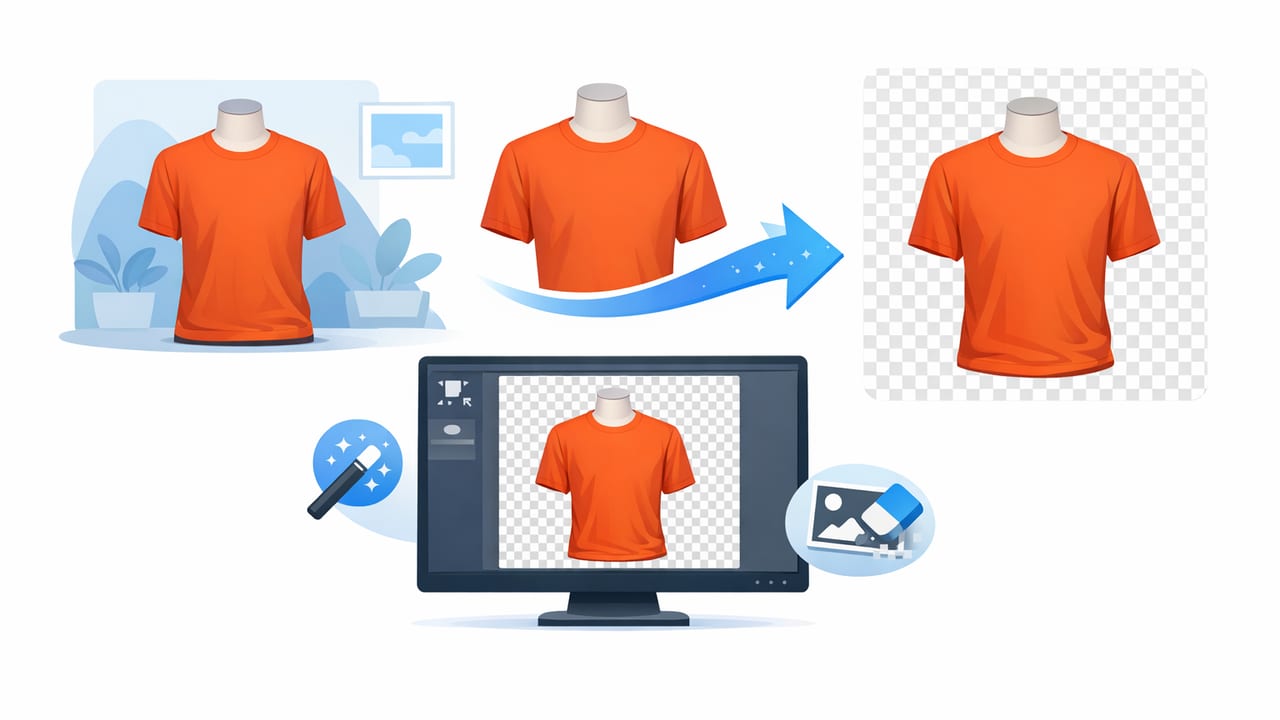
Great clothing photos don’t need a full studio—they need clarity. When a buyer scrolls quickly, the easiest listings to trust are the ones with a clean background, accurate color, and consistent framing. That’s why a clothing background remover has become one of the most useful tools in fashion reselling and e-commerce photography: it helps your item stand out without distractions.
This guide walks you through a practical, repeatable system for background removal that works for on-hanger, flat lay, and folded clothing. You’ll also learn how to avoid the “cut-out” look, keep colors realistic, and create a consistent storefront—even if you shoot on your phone.
Why background matters (and why shoppers notice)
Background is more than aesthetics; it’s communication. A messy room, busy carpet, or mixed lighting can make a perfectly good garment feel lower quality. Clean backgrounds help buyers focus on what they’re actually buying: fabric texture, shape, condition, and details.
- Higher perceived quality: Clean images feel more “store-ready.”
- Better scanability: A consistent background makes your grid look organized.
- Fewer questions: Clear edges and true color reduce “Is this navy or black?” messages.
- Cross-platform friendly: Many marketplaces prefer simple, distraction-free photos.
When the background is quiet, the product gets loud.
Start with a good base photo (background removal works best this way)
A clothing background remover can do a lot, but it can’t fix everything. Clean cutouts depend on clean inputs—especially around tricky edges like lace, fringe, sheer fabric, or fuzzy knits.
Quick shoot setup that improves cutouts instantly
- Use even light: Face a bright window or use two lamps on both sides to reduce harsh shadows.
- Pick a simple backdrop: A plain wall, white sheet, or foam board helps edges separate clearly.
- Stabilize your phone: Rest it on a stack of books or use a small tripod for consistent framing.
- Leave breathing room: Don’t crop too tight in-camera; give the remover space around sleeves and hems.
Tip: If you shoot on a patterned surface (like a rug), background removal may still work—but you’ll often see jagged edges or missing fabric along the outline.
Three common background options (and when to use each)
| Option | Best for | Pros | Watch-outs |
|---|---|---|---|
| Plain wall / sheet | Everyday reselling | Cheap, fast, consistent | Wrinkles and shadows can distract |
| Paper sweep / backdrop board | High-volume listings | Clean, bright, more “studio” look | Needs space; can scuff and crease |
| AI clothing background remover | Mixed environments, quick upgrades | Removes clutter, standardizes your shop | May need edge cleanup on lace/fur |
A simple clothing background remover workflow (step-by-step)
Consistency beats perfection. The goal isn’t to spend 20 minutes per photo; it’s to create a repeatable workflow that makes your listings look like they belong together.
Step 1: Choose your final background style
Before you edit, decide what “finished” looks like:
- Pure white (#FFFFFF): Classic catalog look; safe across marketplaces.
- Light gray: Reduces harsh contrast on white garments; still clean.
- Soft shadow on white: More natural depth (as long as it’s subtle and consistent).
Pick one and stick to it for your store whenever possible.
Step 2: Remove the background (then zoom in)
After you run background removal, don’t just glance—inspect. Zoom in on sleeves, collars, straps, hems, and any open spaces (like between a strap and the body of a dress). This is where most “AI cutout” artifacts show up.
Step 3: Correct the edges (the difference-maker)
If your tool offers edge refinement, use it lightly:
- Feathering: A tiny amount can remove the “sticker” look.
- De-fringing: Helps remove leftover background color halo (common with dark items on light walls).
- Restore detail: Useful for lace, crochet, tulle, and fuzzy knits.
Rule of thumb: If edges look unnaturally sharp, they’ll look edited. If edges look too soft, the garment can look blurry. Aim for a clean, natural outline.
Step 4: Align and size for a consistent “catalog” feel
Once the background is clean, standardize your framing:
- Center the garment
- Keep similar zoom levels (tops vs. tops, dresses vs. dresses)
- Leave similar margins around the item
This is a simple way to make your shop feel premium without changing your inventory.
Step 5: Export settings that won’t hurt your listing
Most platforms compress images, so export as high quality (without going overboard). If your editor offers choices, aim for:
- JPEG for standard photos (smaller file size, widely supported)
- PNG if you need transparency (less common for marketplace listings)
- Square or platform-friendly aspect ratios for consistent grids
How to avoid the most common “background removed” mistakes
1) The floating shirt problem
When there’s no grounding (no shadow, no natural drape), clothing can look like it’s hovering. A very subtle shadow can add depth—just keep it consistent.
2) Color shift after editing
Background removal sometimes changes how your eyes perceive color. After removal, double-check:
- Whites aren’t tinted yellow or blue
- Blacks aren’t washed out
- Bright colors (red, cobalt, neon) still look true-to-life
When in doubt, adjust exposure slightly rather than cranking saturation.
3) Missing garment parts (straps, tassels, fringe)
Thin details are the hardest. If you sell items with delicate edges often, shoot them on a background that contrasts clearly. For example, a white lace top is easier to cut out against a darker, plain backdrop (then removed) than against a white wall.
Background removal for different clothing presentations
On-hanger photos
On-hanger is fast and familiar for shoppers. For cleaner results:
- Use a hanger that matches your shop style (simple, not distracting)
- Avoid shiny hangers that reflect window shapes
- Keep the hanger centered and level
After using a clothing background remover, decide whether to keep the hanger visible. Many sellers keep it for realism; others remove it for a cleaner “catalog” effect.
Flat lay (laid out on a surface)
Flat lays show shape and details well, but wrinkles and uneven lighting can create messy edges. Smooth the garment first and shoot from directly above if possible. Background removal works best when the surface is plain and the garment edges are clearly separated.
Folded items
Folded photos are great for bulky sweaters, denim stacks, or accessories sold in bundles. The key is consistency: same fold style, same angle, same margin. Background removal helps unify mixed batches shot on different days.
Where ghost mannequin fits in (and why it looks premium)
Ghost mannequin is a presentation style where the garment looks worn—showing shape and structure—without a visible model or mannequin. It’s popular for tops, dresses, jackets, and anything where fit matters.
Background removal is often step one. Then the focus becomes:
- Clean necklines and armholes
- Realistic inner tags/labels (when relevant)
- Natural-looking structure (not overly “puffed”)
If you’re a reseller, you don’t need to do this for every item. But for higher-value pieces or brand-forward inventory, ghost mannequin styling can increase perceived professionalism.
A repeatable file and listing system (so you don’t lose time later)
Background removal is fastest when you’re organized. Use a simple naming convention so you can find images quickly, especially across platforms.
brand_itemtype_color_size_platform_01.jpg
example: madewell_jeans_black_27_poshmark_01.jpg
This helps when you relist, cross-post, or update older listings with cleaner photos.
Quick checklist: your “store-ready” clothing photo standard
- Lighting: Even, minimal harsh shadows
- Background: Removed or clean and consistent
- Edges: No halos, no jagged sleeves, no missing straps
- Color: Looks like the item in real life
- Framing: Similar margin and scale across listings
- Detail shots: Tags, fabric texture, flaws, unique features
FAQ: clothing background remover basics
Should I always use a pure white background?
Not always. White is a safe default, but light gray can look more natural for white garments, and subtle shadows can help depth. What matters most is consistency and clear visibility.
Do I need a studio to get clean results?
No. A phone, window light, and a simple backdrop can be enough. A clothing background remover can standardize your final look even if your shooting location changes.
Why do my cutouts look “crispy” or fake?
Usually it’s over-sharpening, harsh edge contrast, or missing soft shadow. Try reducing sharpening and adding a very subtle shadow (if your editor supports it), plus small edge refinement.
Putting it all together
A strong clothing background remover workflow is less about perfection and more about repeatable quality. If you can shoot with even light, remove distractions, refine edges, and keep your framing consistent, your listings will look cleaner, more trustworthy, and easier to browse—especially for buyers comparing similar items across multiple sellers.
If you’re looking for an iOS option that combines background removal with other clothing-specific edits (like unwrinkling, ghost mannequin, and quick presentation styles), Clothing Studio is one tool some resellers use to streamline their photo routine.
