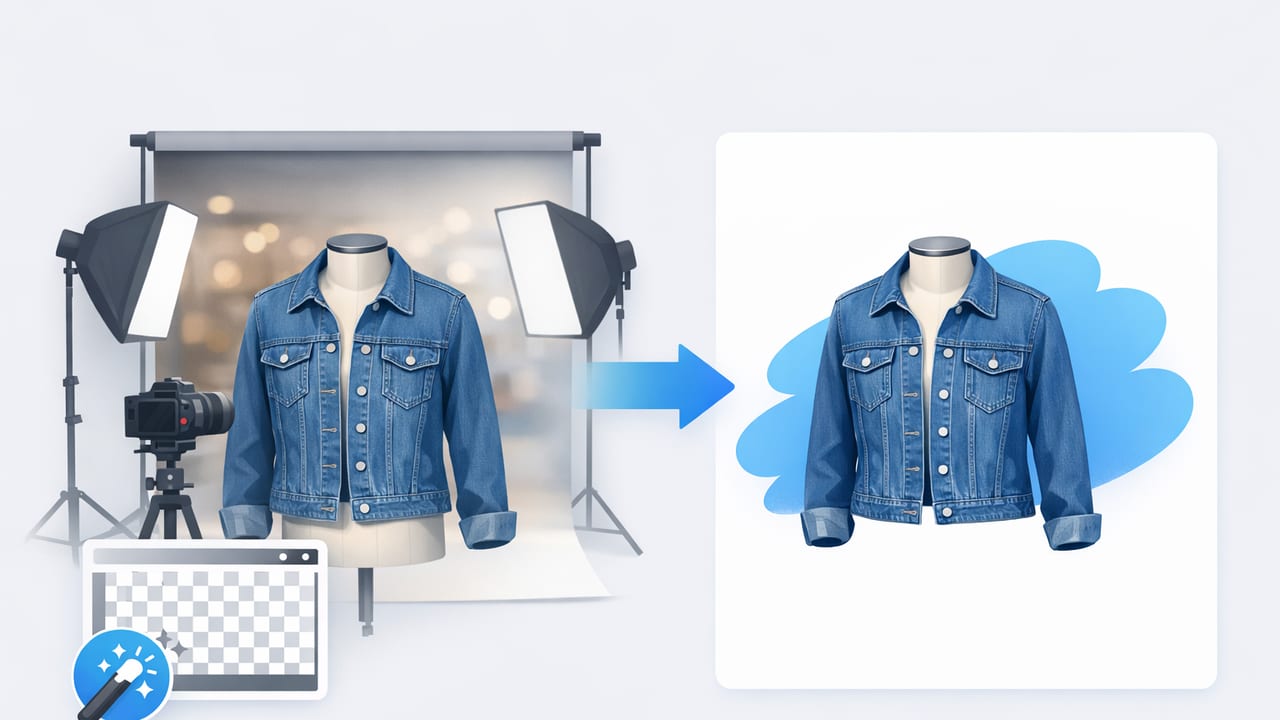
A background remover for clothing photos can be the difference between a listing that looks “casual” and one that looks store-ready. Whether you sell on Poshmark, eBay, Depop, Etsy, or your own shop, buyers decide quickly: they scan the main image, judge fit and condition, and move on. A clean background helps your item stand out, reduces visual clutter, and makes your shop feel consistent.
This guide breaks down what matters most for clothing background removal (without getting overly technical): when to remove backgrounds, how to avoid common cutout mistakes, and a simple workflow you can repeat across tops, dresses, outerwear, shoes, and accessories.
Why background removal matters for clothing listings
Clothing is hard to photograph because it’s soft, wrinkly, and full of edges—collars, straps, hems, lace, fringe, and sleeves. A busy background competes with those details. Background removal helps in three key ways:
- Clarity: Buyers can instantly see silhouette, color, and condition.
- Consistency: Your closet/storefront looks cohesive, even if you shoot at different times.
- Trust: Clean images feel more professional, which can reduce hesitation and returns.
It’s not about making the photo look “fake.” It’s about removing distractions while keeping the item looking natural and accurate.
When you should (and shouldn’t) remove the background
Using a background remover for clothing photos is ideal when:
- You shoot in a small space (bedroom, office, garage) and the background is inconsistent.
- You photograph in batches and want every listing to match.
- You sell across multiple platforms that prefer clean, centered cover images.
- You want to reuse images for promos, bundles, or social posts.
You might skip background removal when:
- Your “brand look” intentionally uses lifestyle scenes (e.g., styled flat lays on wood or linen).
- The platform favors contextual photos (some handmade/vintage categories do well with environment).
- The item is extremely sheer or reflective and you don’t have time to refine edges.
Rule of thumb: If the background pulls attention away from the neckline, sleeves, print, or condition notes, remove it.
What to look for in a background remover for clothing photos
Not all background removal is equal—clothing has tricky edges. Here’s what matters most when choosing a tool or app:
1) Edge handling for fabric details
Look for clean cutouts around:
- Lace, crochet, mesh, and eyelets
- Fringe, faux fur, feathers
- Thin straps and spaghetti straps
- Holes (open-knit sweaters) and cutouts
2) Natural shadows (or believable replacement)
Floating clothing can look odd. The best results either keep a subtle original shadow or add a soft shadow that matches the direction of light.
3) Batch-friendly workflow
If you list often, speed matters. A good background remover should let you repeat settings so every cover image looks consistent.
4) Output quality
Check that exports look sharp after uploading. Fine textures (denim grain, rib knit, embroidery) should stay crisp.
A simple workflow: shoot once, edit fast, stay consistent
Great background removal starts before you edit. You’ll get cleaner edges and fewer “halo” problems if the original photo is strong.
Step 1: Set up a clean capture (2 minutes)
- Light: Stand near a window or use a basic lamp setup. Soft, even light is easier to cut out than harsh shadows.
- Background: Use a plain wall, sheet, or foam board when possible. Even if you plan to remove it, simpler backgrounds reduce mistakes.
- Distance: Step back slightly and zoom in a bit. This reduces distortion (especially for shoes and handbags).
Step 2: Style the item for clean edges
Wrinkles and messy edges complicate background removal. Before you shoot:
- Smooth hems and sleeves so the outline is clear.
- Tuck in hang tags or stray threads (or note them clearly if they’re flaws).
- Use clips for a straighter drape on-hanger.
- For flat lays, align shoulders and side seams.
Step 3: Remove the background (then fix the “usual suspects”)
After running background removal, zoom in and check these areas:
- Neckline and straps: Look for jagged edges or missing pixels.
- Underarms and side seams: These often get “bitten” by automatic cutouts.
- Open knits: Make sure holes aren’t accidentally filled in.
- Dark items: Watch for a gray halo around black fabric.
- White items: Watch for edges that blend into a white background and disappear.
Step 4: Choose the right background color
For most marketplaces, a clean white or light neutral background works well. If your item is white or very pale, consider a very light gray so the edges don’t vanish. The goal is separation, not drama.
Step 5: Export with consistency in mind
Keep your cover images uniform:
- Center the item
- Use similar framing across categories (tops, pants, dresses)
- Keep scale consistent so one listing doesn’t look “tiny” next to the next
Common background removal problems (and how to fix them)
Even with a great background remover for clothing photos, a few issues show up often. Here are quick fixes you can apply without spending forever editing.
Problem: The item looks like it’s “floating”
Fix: Add a subtle shadow (soft, low opacity) or keep a faint original shadow if your tool allows it. A tiny grounding shadow can make the image feel more real.
Problem: A halo around dark clothing
Fix: Try a slightly darker background (very light gray instead of pure white). Also check if there’s an “edge refine” or “decontaminate edges” option.
Problem: Sheer fabric looks weird
Fix: For mesh and chiffon, aim for a natural look rather than perfect cutout precision. Sometimes a neutral background (instead of pure white) keeps the transparency believable.
Problem: Missing parts (straps, fringe, fur)
Fix: Use a brush/restore tool if available. If not, retake the photo against a simpler background with more contrast between the item and the wall/sheet.
Comparing options: DIY backdrop vs. background removal
Many sellers combine both: shoot on a simple surface, then remove the background only when needed. Here’s a practical comparison.
| Method | Pros | Cons | Best for |
|---|---|---|---|
| Plain wall / sheet backdrop | Fast, natural shadows, minimal editing | Hard to keep perfectly consistent; wrinkles/texture can show | High-volume resellers with stable lighting |
| Lightbox / dedicated photo corner | Very consistent look; fewer retakes | Space/setup required; not great for long dresses/coats | Small items, accessories, shoes |
| Background remover for clothing photos | Clean, consistent covers; works in small spaces; easy to standardize | Tricky edges can need touch-ups; can look flat without a shadow | Mixed inventory, multi-platform listings |
A repeatable “cover photo recipe” for marketplaces
If you want your shop to look instantly organized, use a simple template for your first image:
- One item per frame (no props for the cover image).
- Background removed to clean white or light neutral.
- Item centered with consistent margins.
- True color (avoid heavy filters; buyers care about accuracy).
- Sharp texture (zoom in to confirm fabric details are crisp).
Then use your secondary photos for close-ups, tags, fabric content, measurements, and flaws.
Practical example: naming and alt-text habits that save time
This isn’t required, but it can help you stay organized—especially when you cross-list and repost. Here’s a simple convention you can copy.
File name:
brand-itemtype-color-size-keydetail.jpg

Example:
uniqlo-cardigan-black-m-ribknit.jpg

Alt text idea:
"Black rib-knit cardigan, size M, front view on clean background"
Clear filenames and alt text can help you find images later and keep your listings consistent across platforms.
FAQ: background removal for clothing photos
Is a white background always best?
Often, yes—especially for cover photos—because it feels clean and makes browsing easier. But for white or cream garments, a very light gray background can improve edge visibility.
Do background removers work for patterned or busy prints?
Usually. The tricky part is the outline (ruffles, tassels, uneven hems), not the print itself. Good lighting and a high-contrast original photo help a lot.
How do I avoid the “cutout” look?
Keep the item’s natural texture, avoid over-sharpening, and add a subtle shadow. The goal is clean, not artificial.
What’s the fastest way to improve results without buying equipment?
Stand near soft daylight, use a plain wall/sheet, and smooth the garment edges before shooting. Better input photos produce better background removal.
Final checklist before you post
- Edges look clean around straps, collars, and hems
- No missing fabric (especially on fringe, lace, fur)
- Background is uniform (no patches or leftover artifacts)
- Color looks accurate compared to the real item
- Cover image is centered and consistent with your other listings
If you’re editing on iPhone and want an all-in-one workflow that includes background removal alongside clothing-specific touch-ups (like smoothing wrinkles or creating a ghost mannequin look), you can explore apps such as Clothing Studio as one option.
