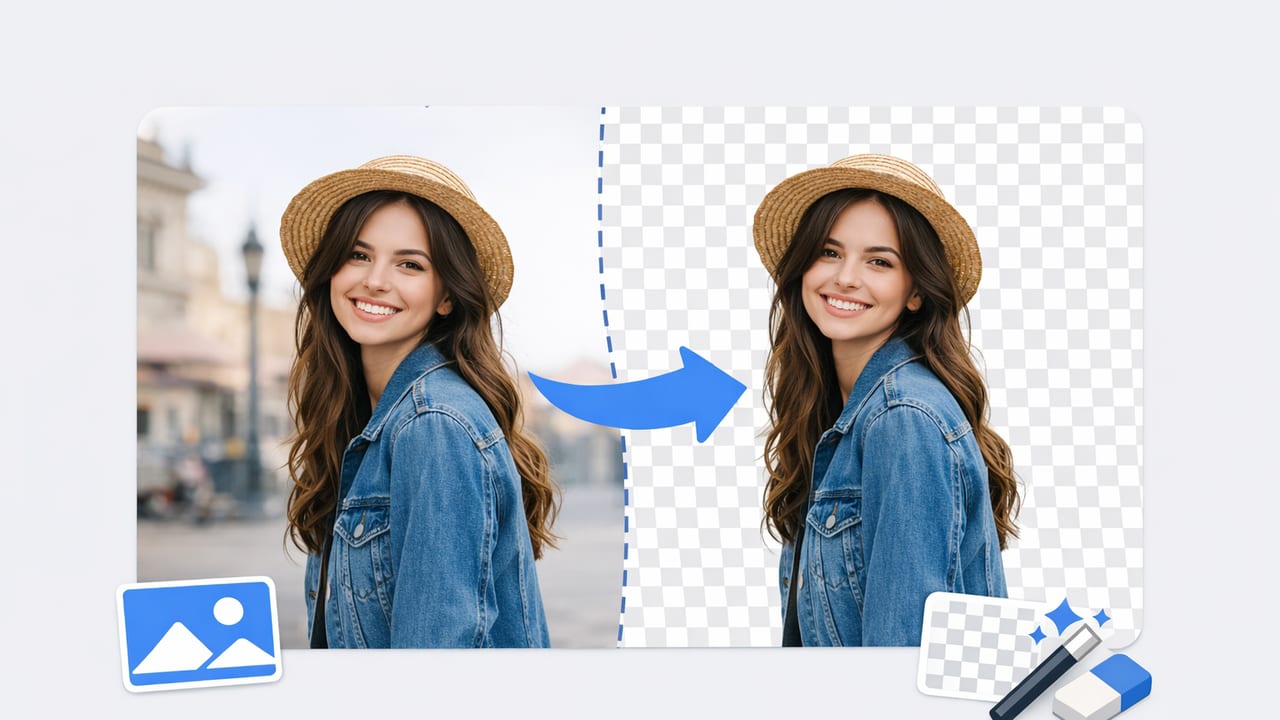
A great listing photo does two things at once: it shows the garment clearly and it removes distractions. That’s why a reliable background remover has become one of the most important tools for fashion resellers and small brands. Whether you shoot on a cluttered bedroom floor, a crowded stockroom table, or a simple wall, background removal helps you turn “real life” photos into consistent, marketplace-ready product images.
This guide breaks down how to get cleaner cutouts (without weird halos), when to use pure white vs lifestyle backgrounds, and how to build a repeatable workflow for tees, dresses, outerwear, and accessories.
Rule of thumb: the better your original photo, the easier it is for any background remover to produce a natural-looking edge.
Why background removal matters for fashion listings
Background removal isn’t just an aesthetic choice—it supports the buyer’s decision-making. Clean cutouts help shoppers focus on fabric, silhouette, and details like stitching, logos, and texture.
- Consistency: a uniform look builds trust across your closet or catalog.
- Clarity: fewer distractions means key details stand out.
- Speed: templates + batch editing reduce time per listing.
- Cross-platform flexibility: one cutout can be reused for multiple marketplaces.
- Brand perception: even casual resellers look more “store-like” with clean images.
What makes clothing background removal tricky
Compared to hard objects, garments have soft edges, thin straps, and textures that can confuse automatic tools. Knowing what causes problems helps you avoid them before you even start editing.
Common edge issues (and what causes them)
- Halos: a faint outline around the garment, often caused by low contrast or heavy shadows.
- Jagged edges: noisy photos (high ISO), poor lighting, or motion blur.
- Missing parts: thin straps, fringe, lace, mesh, and semi-transparent fabrics.
- Color spill: a colored wall or blanket reflecting onto white or light garments.
Set up your photo so the background remover works better
You don’t need an expensive studio—just a consistent setup. The goal is to create clear separation between garment and background.
Lighting: aim for bright, even, and shadow-light
- Use indirect natural light (near a window, not direct sun) or a simple ring light.
- Avoid harsh overhead lighting that creates heavy shadows under sleeves and hems.
- Use the same lighting position each session for consistent results.
Background: choose contrast, not “pretty”
A background remover performs best when the backdrop contrasts with the garment.
- For dark clothing, use a light background (white, light gray).
- For light clothing, use a medium-gray background if possible (white-on-white is harder).
- Avoid busy patterns, rugs, and wrinkled sheets—textures create messy edges.
Camera tips that reduce cleanup time
- Tap to focus on the garment (not the wall behind it).
- Keep the phone steady; use a small tripod if you have one.
- Frame with extra space around the item so edges aren’t cropped.
- Wipe your lens—softness can look like “fuzzy edges” after cutout.
Which background style should you use?
Background removal lets you place your garment on different backdrops depending on the selling channel and the vibe you want. Here’s a quick comparison.
| Background style | Best for | Pros | Watch-outs |
|---|---|---|---|
| Pure white | Catalog look, multi-platform reuse | Clean, consistent, highlights color | Shadows/halos show easily if edges are messy |
| Light gray | Light garments (white, cream, pastel) | Easier edges than white-on-white | May look less “marketplace standard” on some platforms |
| Soft lifestyle (subtle room/gradient) | Brand storytelling, boutique vibe | Feels warm, can increase perceived value | Can distract if too strong; keep it minimal |
| Transparent PNG cutout | Design flexibility, collages, ads | Reusable anywhere | Larger files; some marketplaces prefer JPG |
A practical workflow: from raw photo to clean listing
Most sellers get the best results by following the same order each time. Here’s a simple, repeatable workflow you can use for tees, jeans, dresses, and outerwear.
- Pick the sharpest image (zoom in and check edges and texture).
- Crop and straighten first (less background = easier removal).
- Run the background remover and preview edges at 100% zoom.
- Refine the edge if your tool allows (especially straps, lace, collars).
- Correct brightness/color so the garment matches real life.
- Export in the right format for your platform (usually JPG, sometimes PNG).
Edge check: a 20-second quality test
Before you upload, scan these areas first:
- Neckline and shoulders
- Sleeve openings
- Hemline and side seams
- Thin straps, belt loops, drawstrings
- Fur, fringe, lace, and mesh panels
How to avoid the most common “cutout looks fake” problem
The #1 reason a removed background looks unnatural is that the garment becomes a “sticker” floating on a blank page. You can fix that without making the edit obvious.
Add a soft, realistic shadow (light touch)
If your editing tool supports it, a subtle shadow makes the item feel grounded. Keep it faint and consistent across listings.
- Use a soft blur, not a sharp shadow.
- Match shadow direction to your lighting setup.
- For flat lays, shadows should be minimal; for on-hanger shots, a little more is natural.
Don’t over-smooth edges
Over-smoothing can erase texture—especially on knits, tweed, and fuzzy fabrics. A good cutout keeps a tiny amount of natural edge detail.
Special cases: tricky garments and accessories
Some items almost always need extra attention. Here’s how to handle them.
White clothes on a white wall
- Move to a light gray or medium neutral background for the original photo.
- Increase separation by adding a little distance between garment and wall.
- Use side lighting to create gentle edge definition (not harsh shadows).
Sheer fabrics, lace, and mesh
- Expect partial transparency to be challenging; choose a plain background with consistent tone.
- Photograph with strong focus and good light so the pattern is crisp.
- If the tool offers a refine/brush option, use it around lace borders and cutouts.
Fuzzy knits, faux fur, fringe
- Use brighter light so fibers don’t blend into the background.
- Avoid low-resolution images—fuzz turns into jagged pixels quickly.
- Check edges on both light and dark preview backgrounds to spot missing fibers.
Shoes and bags
- Clean cutouts require clear boundaries; wipe dust and lint first.
- Watch for holes (handles, straps). Make sure the remover keeps the open spaces.
Export settings: what to save and why
File settings affect both quality and upload success. When in doubt, keep it simple and platform-friendly.
- JPG: best for marketplaces, smaller file sizes, fast uploads.
- PNG: best if you need transparency (for collages, ads, or reusing cutouts on different backgrounds).
- Resolution: export at the highest resolution your workflow allows without making uploads slow.
Optional: a simple naming system for faster listing
If you manage lots of inventory, a consistent filename helps you find images quickly.
brand_itemtype_color_size_condition_01.jpg
brand_itemtype_color_size_condition_02.jpg
Example: nike_hoodie_black_m_guc_01.jpg
A quick checklist before you publish
- Background is clean and consistent across your listing photos
- Edges look natural (no obvious halos)
- Color looks accurate (especially blacks, whites, and reds)
- Details are visible (logos, fabric texture, flaws disclosed)
- Image is straight and centered
FAQ: background remover questions from fashion sellers
Is a background remover allowed on resale marketplaces?
In most cases, yes—especially when it improves clarity and doesn’t misrepresent the item. The safest approach is to ensure the garment’s color, shape, and condition are accurate, and include at least one close-up of any flaws.
Should I remove backgrounds on every photo or just the cover image?
Many sellers use a clean, removed background for the first image (thumbnail) and keep additional angles more “natural.” Consistency matters most on the lead image.
Why do my edges look pixelated after upload?
Usually it’s compression. Export at a higher resolution, avoid excessive sharpening, and try JPG quality settings that preserve detail. Also ensure the original photo is sharp—editing can’t fully fix blur.
Wrapping up: consistent photos beat perfect photos
You don’t need a studio to create professional-looking clothing listings. A solid background remover workflow—paired with decent light and a consistent setup—can dramatically improve how your items look across Poshmark, eBay, and other platforms. Focus on clean edges, accurate color, and repeatable steps, and your listings will feel more trustworthy and easier to browse.
If you’re looking for an iOS workflow that combines background removal with other common listing fixes (like unwrinkling and clean presentation styles), an app such as Clothing Studio can help streamline the process without turning it into a complicated editing project.
