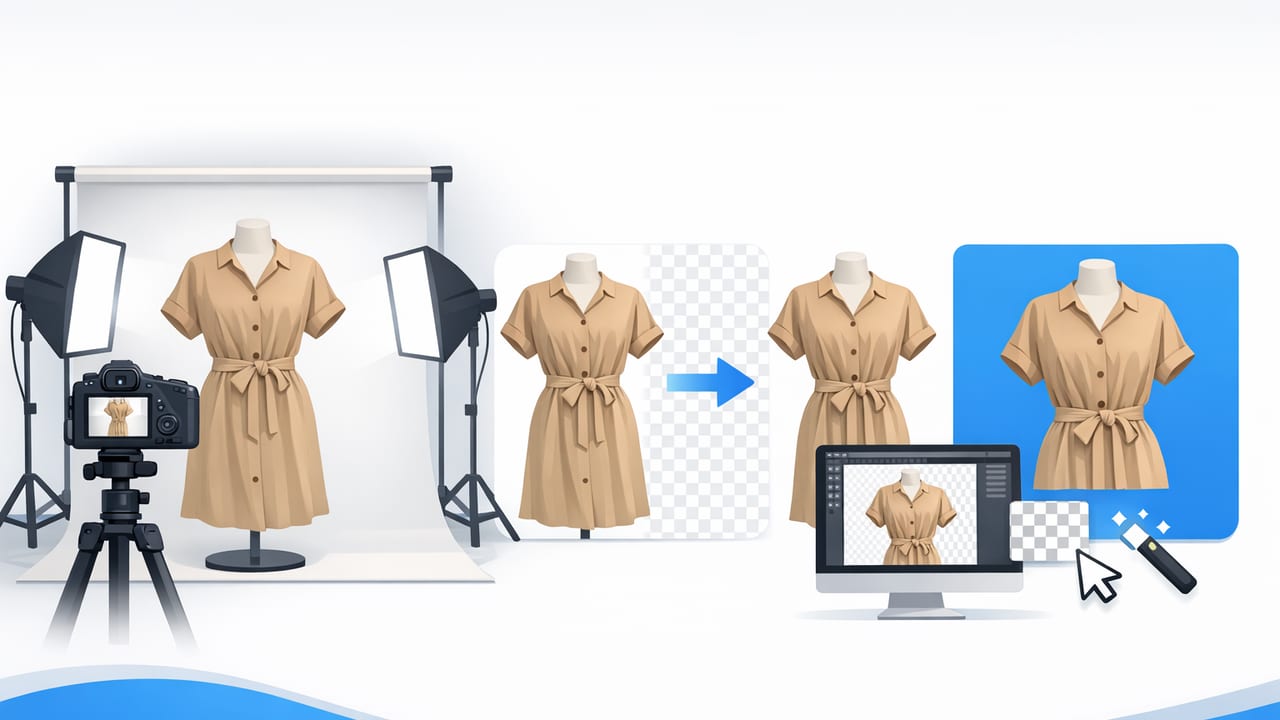
Clean, consistent product photos are one of the fastest ways to make a clothing listing look more trustworthy—especially when shoppers are scrolling quickly on marketplaces. While lighting and styling matter, background removal for clothing product images is often the step that turns “good enough” into “shop-ready.” It reduces distractions, makes your brand look consistent, and helps the garment’s shape and details stand out.
This guide breaks down a practical, repeatable workflow you can use whether you’re a solo fashion reseller photographing on your phone or a small brand building a mini catalog from home. The focus is on results: clean edges, realistic fabric texture, and exports that look great across platforms.
Why background removal matters for apparel (more than most categories)
Clothing is visually complex. Unlike a hard-edged object (like a mug), garments have:
- Soft edges (sheer hems, frayed denim, lace, knits)
- Negative space (between sleeves, straps, and collars)
- Texture that can “blend” into busy or wrinkled backdrops
- Shape cues that buyers rely on (drape, fit, structure)
Removing or simplifying the background helps shoppers read the garment faster: silhouette, neckline, sleeve shape, and length. It also makes a set of listings feel cohesive—even if you photographed items on different days.
Choose the right output: white, light neutral, or transparent
“Background removal” doesn’t always mean the final image must be pure white. The best output depends on where you’re selling and how you want the listing to feel.
| Output style | Best for | Watch-outs |
|---|---|---|
| White background | Clean catalog look, consistent storefronts, many marketplaces | Over-bright whites can wash out light fabrics; keep texture visible |
| Light neutral (off-white / soft gray) | Knits, white shirts, pale pastels (adds separation) | Must stay consistent across listings to avoid a “patchy” grid |
| Transparent background | Brand websites, composites, lookbooks, graphic layouts | Edges must be perfect; export settings matter (PNG vs JPG) |
If you’re unsure, start with white or light neutral for consistency, then reuse the same approach across your whole closet/catalog.
A repeatable workflow for clean clothing cutouts
The biggest mistake sellers make is treating background removal as a single “tap and done” action. The best results come from a small workflow: capture well → remove background → refine edges → color-check → export consistently.
Step 1: Capture with separation in mind
Background removal is easiest when the garment is clearly separated from the backdrop. Before you edit, aim for:
- Even lighting (near a window with indirect light is ideal)
- Simple backdrop (plain wall, clean sheet, foam board)
- Contrast (avoid a white shirt on a white wall; use light gray or beige instead)
- Stable framing (keep the whole garment in-frame with a bit of margin)
Pro tip: If a sleeve blends into the background, the editor will “guess” the edge. Give it contrast and you’ll get cleaner cutouts with less touch-up.
Step 2: Prep the garment so the silhouette is readable
Background removal can’t fix unclear presentation. Quick prep makes a big difference:
- Smooth major wrinkles (steam if possible, or lightly tug fabric flat on a hanger)
- Shape the shoulders (use a structured hanger for tops and dresses)
- Clip the back (optional) for a tailored look on mannequins or flat lays
- Check symmetry (align the hem and make sure straps aren’t twisted)
Step 3: Remove the background—then refine the edges
After you remove the background, spend a minute on edge quality. Clothing edges are where listings look “pro” or “cut-out.” Focus on these areas:
- Necklines and straps: keep curves smooth; avoid jagged stair-steps
- Underarm gaps: preserve natural negative space between torso and sleeve
- Lace, fringe, and knits: don’t over-erase; keep the texture realistic
- Hemlines: maintain the garment’s true shape (don’t accidentally “straighten” it)
If your tool offers it, a light edge feather (very subtle) can prevent the “sticker” look. Just don’t blur the garment—shoppers want to see fabric detail.
Step 4: Fix color and exposure after background removal
Once the background is clean, small color issues become more obvious. Do a quick check:
- White balance: does the fabric look too warm (yellow) or too cool (blue)?
- Exposure: can you still see texture in dark denim or black knits?
- Highlights: avoid blowing out whites (especially cotton tees and wedding pieces)
Keep edits realistic. Over-brightening can make garments look thin or misrepresented, which increases returns and messages.
Step 5: Export consistently (size, format, and margins)
Consistency is what makes your shop grid look intentional. Set simple standards:
- Format: JPG for most listings; PNG if you need transparency
- Margins: similar spacing around each garment so thumbnails line up
- Resolution: high enough to zoom without looking crunchy (avoid heavy compression)
If you process many items per week, a consistent naming convention helps you stay organized across drafts, platforms, and cross-posting.
Example filename pattern:
brand_itemtype_color_size_condition_SKU.jpg
Zara_blazer_black_M_NWT_10482.jpg
Common background removal mistakes (and how to fix them)
- Halo edges: A light outline around the garment usually means the cutout kept some of the old background. Fix by refining edges or slightly increasing contrast between garment and new background.
- Chopped details: Straps, belt loops, and lace get cut off when the tool is too aggressive. Zoom in and restore small parts manually.
- Warped silhouette: Over-smoothing can change the true shape (especially along hips, hems, or sleeves). Prioritize accuracy over “perfectly straight.”
- Floating look: A garment on pure white with no depth can look pasted. Consider a very soft shadow or subtle neutral background to add separation.
Background removal for different clothing presentations
How you shoot impacts how you should edit. Here’s how to think about common setups.
On-hanger photos
On-hanger is fast and consistent, but the hanger can distract. If you remove the background, decide whether to keep the hanger visible:
- Keep it when it helps show structure (coats, blazers)
- Remove or minimize it for a cleaner catalog look (tops, dresses)
Flat lay photos
Flat lays show details well, but wrinkles and uneven lighting are more noticeable. Background removal helps, but also make sure:
- Arms and legs are arranged symmetrically
- Fabric is smoothed so the outline is clean
- Edges aren’t lost against similar-colored backdrops
Ghost mannequin style
Ghost mannequin images rely on a clean cutout and believable shape. If you aim for that look, pay extra attention to:
- Neck and collar area (this is where “fake” edits show fastest)
- Inner label/size tag visibility (remove distractions, not authenticity)
- Natural drape (avoid over-straightening the torso)
Quick quality checklist before you post
Use this checklist to spot issues in under a minute:
- Zoom to 200%: check straps, lace, and hems for jagged cuts
- Scan the outline: look for missing fabric corners or chopped sleeve tips
- Confirm color: compare to the real item in daylight if possible
- Check thumbnail view: does it read clearly when small?
- Keep consistency: similar crop, background tone, and spacing across listings
FAQ: background removal for clothing product images
Should I always use a pure white background?
Not always. White is clean and popular, but light neutrals can show white and pastel garments better. The key is consistency across your shop or product set.
Is automatic background removal “good enough” for resale listings?
Often yes—if the original photo has good lighting and separation. The difference between average and excellent usually comes from edge refinement on tricky fabrics like lace, knits, and fringe.
What’s the best way to keep texture in black clothing?
Avoid overexposure and heavy smoothing. Slightly lift shadows (instead of brightening everything) and keep contrast gentle so the weave and seams remain visible.
How do I avoid the cutout looking fake?
Use realistic color, preserve the true silhouette, and consider a subtle shadow or off-white background. Most “fake” edits come from jagged edges, halos, or overly perfect shapes.
Conclusion: clean backgrounds, faster trust
When you build a simple, repeatable process, background removal for clothing product images becomes less of a chore and more of a competitive advantage. You’ll spend less time fighting messy backdrops, and more time creating listings that look consistent, readable, and confident—exactly what shoppers want when they can’t touch the fabric.
If you prefer editing on iPhone, there are apps designed specifically for apparel workflows (background removal, ghost mannequin-style presentation, and quick cleanup). For example, Clothing Studio is one option that combines these steps into a fashion-focused editing flow.
