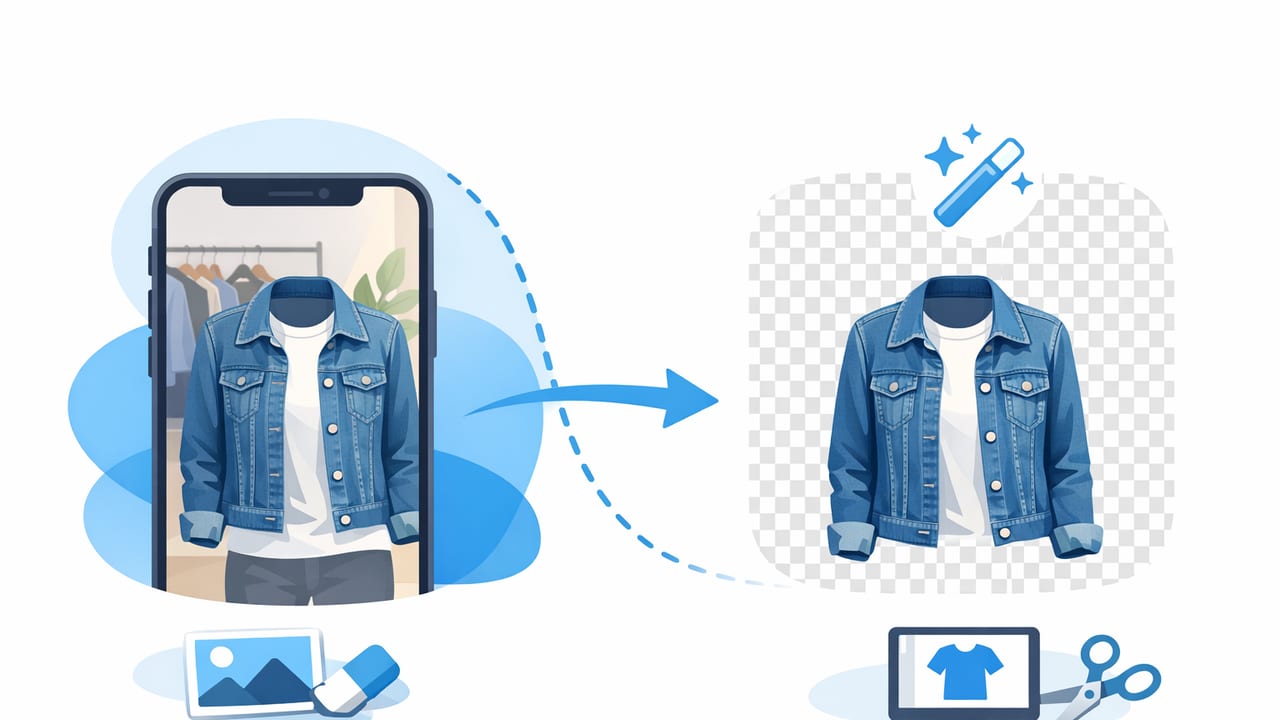
Clean product photos help shoppers focus on what matters: fit, fabric, color, and condition. For fashion resellers and small brands, background removal for clothing photos is one of the fastest ways to make listings look consistent across platforms—without building a studio or learning complicated editing.
This guide breaks down when to remove the background, how to get a natural cutout (especially around tricky edges like straps and lace), and how to build a repeatable workflow for on-hanger, flat lay, and ghost mannequin-style presentations.
Why background removal matters in clothing listings
Clothing photography has two common problems: inconsistent surroundings and distracting clutter. Even if the garment is great, a busy background can make it look less premium—or harder to evaluate. Background removal solves this by putting the item in a clean, predictable context.
- Consistency: A uniform look across your closet or catalog builds trust and can make your store feel “curated.”
- Clarity: Shoppers can see hems, sleeve shape, and silhouette without visual noise.
- Speed: Once you have a workflow, you can batch-edit multiple items quickly.
- Flexibility: You can place items on white, light gray, or a branded color background depending on platform rules and your aesthetic.
Rule of thumb: If your background adds information (like a size reference), keep it. If it adds distraction, remove it.
When you should (and shouldn’t) remove the background
Background removal is powerful, but it’s not always the best choice for every image in a listing. Use it strategically.
Good times to remove the background
- Cover images: A clean “hero” photo stops the scroll and looks professional.
- Catalog-style shops: If you want a consistent storefront, background removal is a foundation.
- Items with bold colors or prints: Cleaner surroundings prevent color casts and reduce visual competition.
- On-hanger and flat lay photos: These often benefit most because the surroundings are usually the messiest part.
Times to keep the original background
- Proof-of-condition photos: Stains, pulls, or texture details are sometimes clearer in a real environment.
- Fit context images: If you include a mirror shot or lifestyle photo, the background can help communicate scale and styling.
- Platform constraints: Some marketplaces have rules or buyer expectations for “realistic” presentation—use removed backgrounds mainly for the primary image and keep supporting photos natural.
The three most common clothing photo backgrounds (and what they communicate)
Background choice isn’t just aesthetic—it sets expectations. Here’s a quick comparison to help you choose what to use after removing the original background.
| Background | Best for | What it signals | Watch out for |
|---|---|---|---|
| Pure white | Catalog look, most marketplaces | Clean, standardized, “store-like” | Over-brightening can wash out light colors |
| Light gray | Light garments, delicate edges | Premium, soft, realistic contrast | Too dark can feel gloomy or inconsistent |
| Brand color / subtle gradient | Brands, social cross-posts | Distinctive, recognizable style | May reduce “neutral” marketplace appeal |
How to get clean cutouts: the basics that make AI work better
Many sellers jump straight to editing. But the fastest way to improve background removal results is to capture a better starting photo. AI tools can do a lot, but good input makes the edge detection smoother and more natural.
Photo capture checklist (quick wins)
- Use even lighting: Stand near a window with indirect light, or use two lamps placed symmetrically.
- Avoid harsh shadows: Strong shadows create “false edges” that can confuse removal.
- Increase separation: Make sure the garment contrasts with the background (dark item on light wall, light item on darker wall).
- Keep edges clear: Smooth straps, align collars, and lay sleeves flat to avoid tangles that look like background noise.
- Capture full shape: Leave a small margin around the garment so tools don’t crop it too tight.
Step-by-step: background removal for clothing photos (a practical workflow)
This workflow works whether you’re editing on a phone or desktop. The idea is to keep decisions simple and repeatable.
1) Choose your “hero” photo style first
Pick one primary style for your shop (for example: flat lay on white, on-hanger on light gray, or ghost mannequin look). Consistency matters more than perfection.
2) Remove the background (then inspect edges)
After you remove the background, zoom in and check the most common problem areas:
- Necklines and straps: Spaghetti straps often need a cleaner edge.
- Lace, fringe, and knits: Fine texture can look jagged if over-smoothed.
- Hems and cuffs: Watch for “bite marks” where fabric gets cut away.
- Holes and cutouts: Make sure negative spaces are preserved (e.g., open-back tops).
3) Add a background that matches your store
Pick a consistent background for most listings. If you sell a mix of colors, light gray often helps edges look natural without washing out whites.
4) Normalize brightness and color (light touch)
Background removal can make garments look slightly different from your original scene. Use small adjustments:
- Exposure: Increase only until details are visible—avoid blowing out highlights.
- White balance: Fix yellow/blue casts so color is accurate.
- Contrast: Add a little for depth, especially on black garments.
5) Export in the right shape for your platform
Most marketplaces prefer a square or near-square crop for grid consistency. Keep enough space around the garment so it doesn’t feel cramped.
Common mistakes that make removed backgrounds look “fake”
The goal is not to make the item look pasted-on. These issues are what usually give it away.
- Halo edges: A light outline around the garment from the original wall or backdrop.
- Over-smoothed texture: Knitwear and lace can look melted if the tool removes too much detail.
- Floating shadows: A shadow remains, but the background is gone—so the garment looks like it’s hovering.
- Incorrect cut-through: The editor removes parts of the garment (especially near waist ties or thin straps).
Fix tip: If your tool allows it, add a subtle, soft shadow after background removal. A gentle shadow anchored under the garment can restore realism—keep it faint and consistent.
Background removal for different clothing presentations
Different setups create different edge challenges. Here’s what to expect and how to make the results look natural.
Flat lay
- Best for: Tees, sweaters, jeans, simple dresses, kidswear
- Challenge: Wrinkles and uneven folds can create messy silhouettes
- Pro move: Smooth the garment before shooting and keep sleeves symmetrical
On-hanger
- Best for: Dresses, blouses, outerwear
- Challenge: The hanger hook and shoulder angles can look awkward after removal
- Pro move: Center the hanger and ensure the neckline is properly aligned
Ghost mannequin look
- Best for: Brands or higher-priced items where structure matters (jackets, collared shirts)
- Challenge: Neck and inner label area can look dark or uneven
- Pro move: Use consistent lighting and make sure inner edges (like collar interiors) are visible
A simple naming + batching system to save time
Background removal speeds up editing, but your real time savings come from batching. Here’s a lightweight system that keeps you organized without feeling “technical.”
- Batch by type: Do all tops, then all pants, then all dresses.
- Batch by background: Shoot a full session in one spot so lighting stays consistent.
- Rename photos consistently: Use a pattern like brand_item_color_size_1, _2, _tag, _flaw.
Example filename pattern:
madewell_denim_jacket_blue_M_hero.jpg
madewell_denim_jacket_blue_M_tag.jpg
madewell_denim_jacket_blue_M_flaw1.jpg
This makes cross-posting easier and reduces the chance you upload the wrong detail photo.
FAQ: background removal for clothing photos
Will background removal change the color of my item?
It can, especially if your original background cast a tint (yellow indoor light is common). After removal, do a small white balance correction and compare to a true-to-life reference (like the care tag photo or a daylight shot).
What’s better: white or gray background?
White is the standard “catalog” look, but light gray can make edges look cleaner—especially for white clothing, sheer fabric, or fuzzy textures. Choose one and stick with it for most items.
How do I handle fuzzy sweaters, lace, or fringe?
Use softer lighting and avoid ultra-high contrast backgrounds when shooting. In editing, aim for a natural edge rather than a perfectly sharp outline—slight softness often looks more realistic.
Can I remove the background and still look honest?
Yes. Background removal is about presentation, not hiding flaws. Keep clear detail photos for wear, pilling, stains, or repairs. A clean hero image plus transparent condition shots is a strong combination.
Putting it all together: a repeatable listing photo set
If you want a simple blueprint, here’s a proven photo set that works well for many sellers:
- Hero image: Background removed + consistent clean background
- Back view: Same style as hero
- Close-up fabric/texture: Keep natural lighting for accuracy
- Brand/size tag: Sharp and readable
- Flaws (if any): Clear, close, well-lit
This set keeps your shop polished while giving buyers the confidence to purchase.
Final thoughts
When done well, background removal for clothing photos makes your listings cleaner, more consistent, and easier to browse. Start with good light, choose one background style, and use a repeatable process—your future self will thank you when you’re batch-editing a new haul.
If you’re looking for an iPhone-friendly way to streamline background removal alongside tools like unwrinkling and ghost mannequin-style presentation, an app like Clothing Studio can fit neatly into that workflow.
